Introduction
The Site View, available as the last tab on the Stocks module, gives users a detailed chronological breakdown of all Stock transactions on a site level. Multiple types of transactions are visible here, including: Inloads/Outloads, Stock Updates, Title Transfers, Regrades/Reseasons, Stock Swaps and more. This means the Site View is the perfect location to see all the loads created on a site or to reconcile stock with your own inventory records.
How to Navigate Site View in Stock Module
- Click "Stocks" Module in left taskbar, and select "Site View" tab.
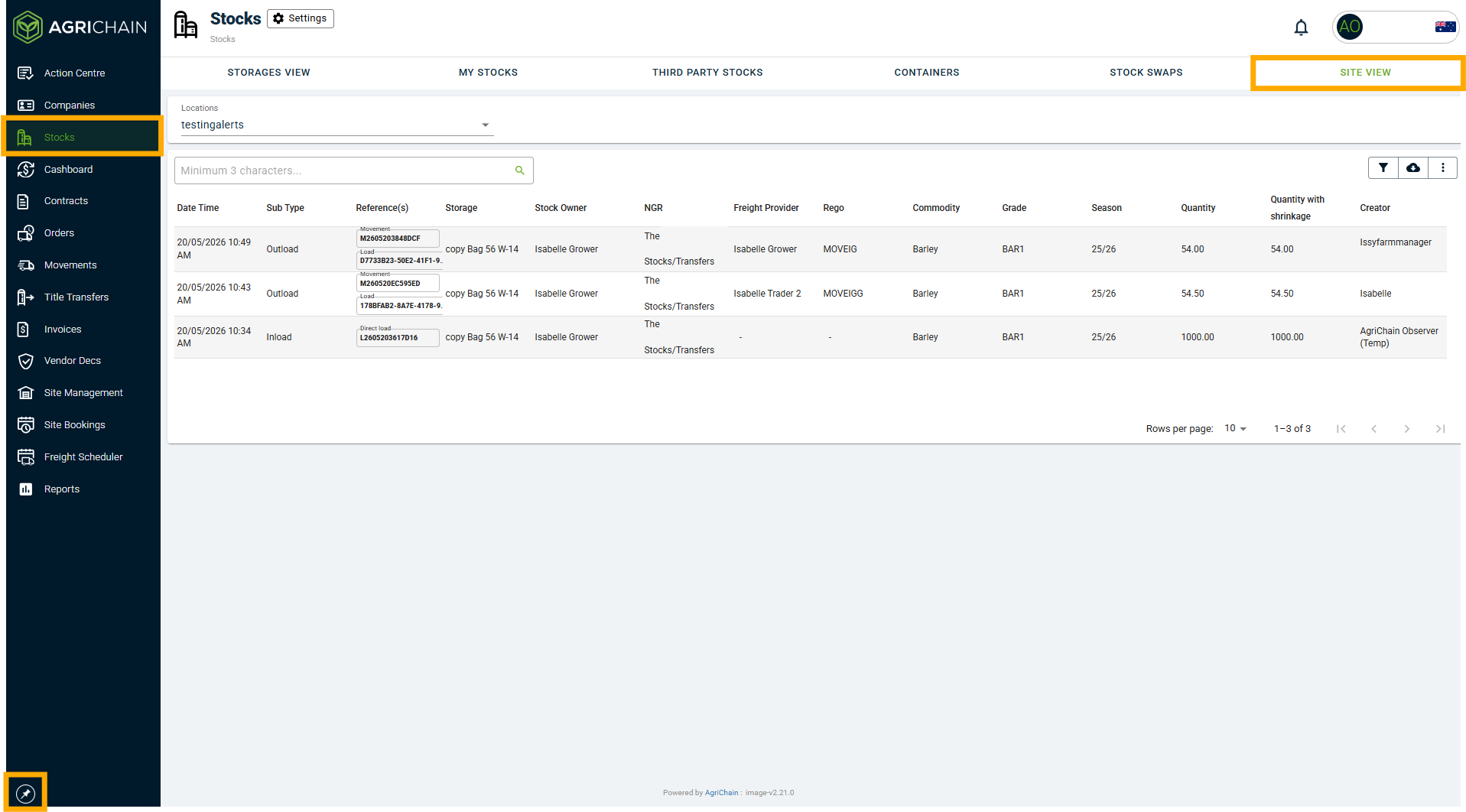
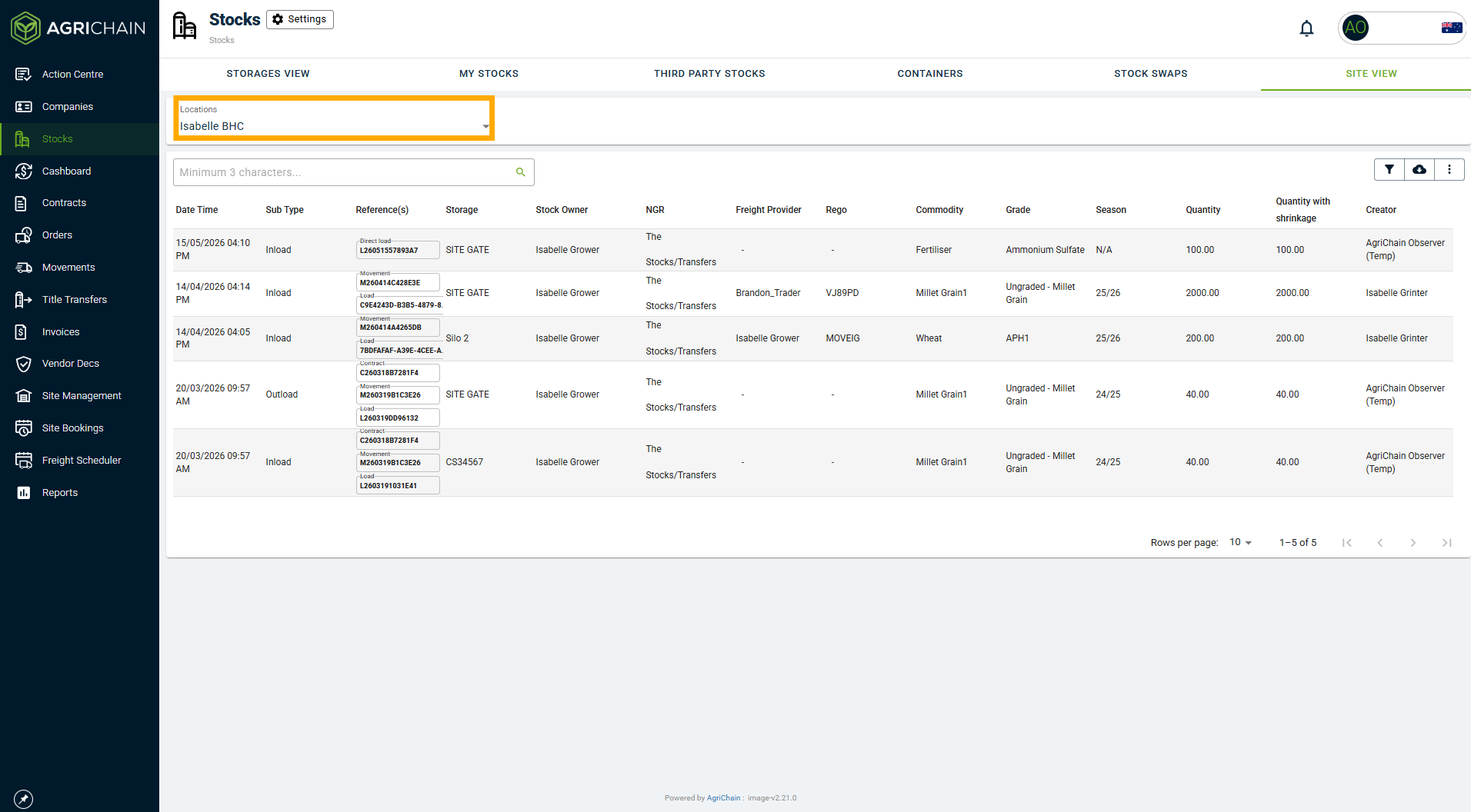
- Select a Site location to filter results. The available sites will include your Sites and include 3rd party Sites you have stock sitting at. It'll list Storage, NGR and other columns.
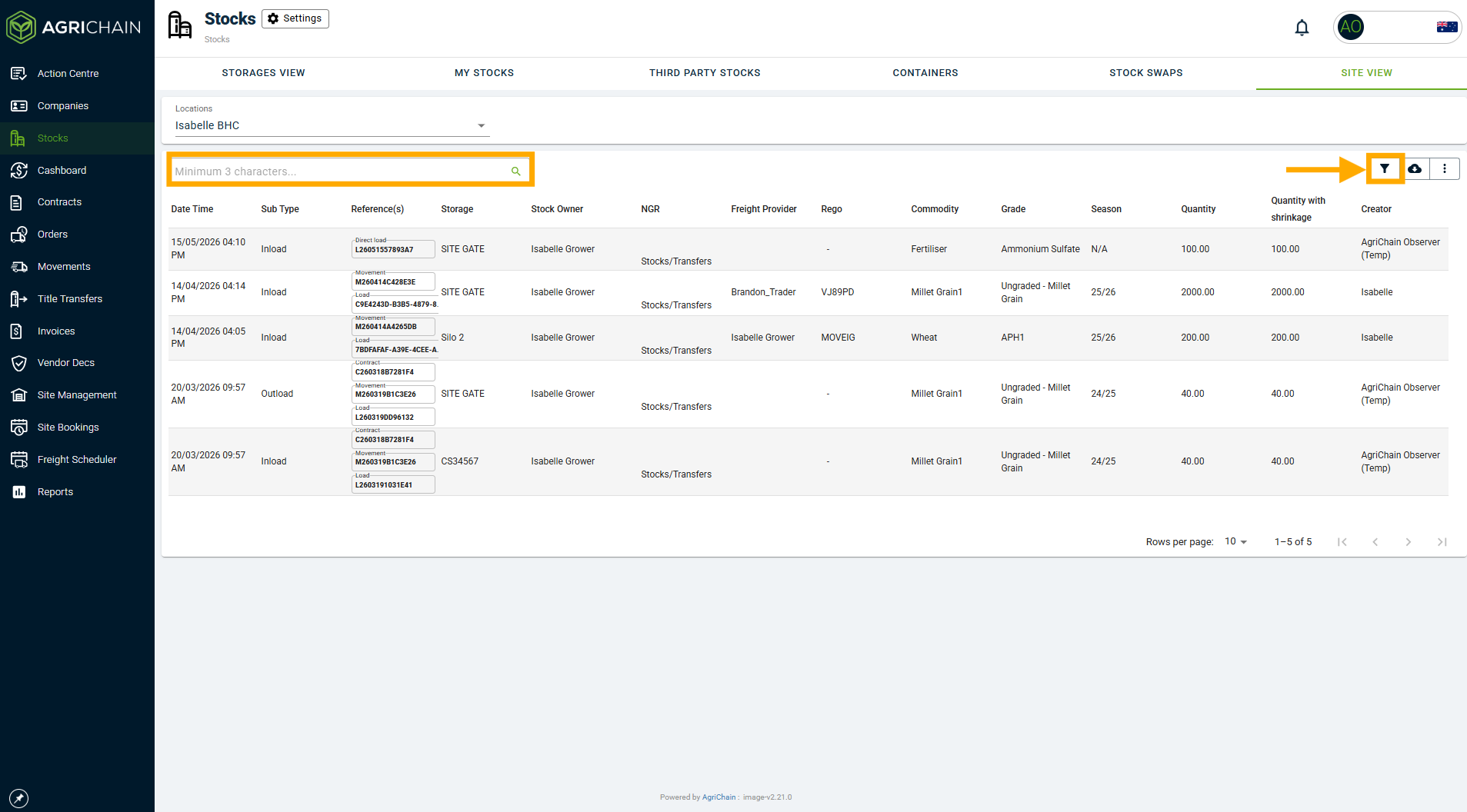
- Apply filters as desired by clicking the filter icon, a right hand side bar will appear, fill it out and click "Apply" to filter page. Alternatively, search for load/movement lines using the search bar. To select a load, just click on the relevant load line and it will take you to that Movement.
How to Download a Site View Report
- If you want a specific set of data, before downloading you can set Site Report parameters. Select the Site and apply filters as desired by clicking the filter icon (as in above image). A right hand side bar will appear, fill it out and click "Apply" to filter page.
- Now click the Download icon. If you have applied filters, it'll bring up a drop down menu with "Complete list" or "Filtered list" options - select accordingly. If you have not applied filters, it will automatically start downloading the CSV.
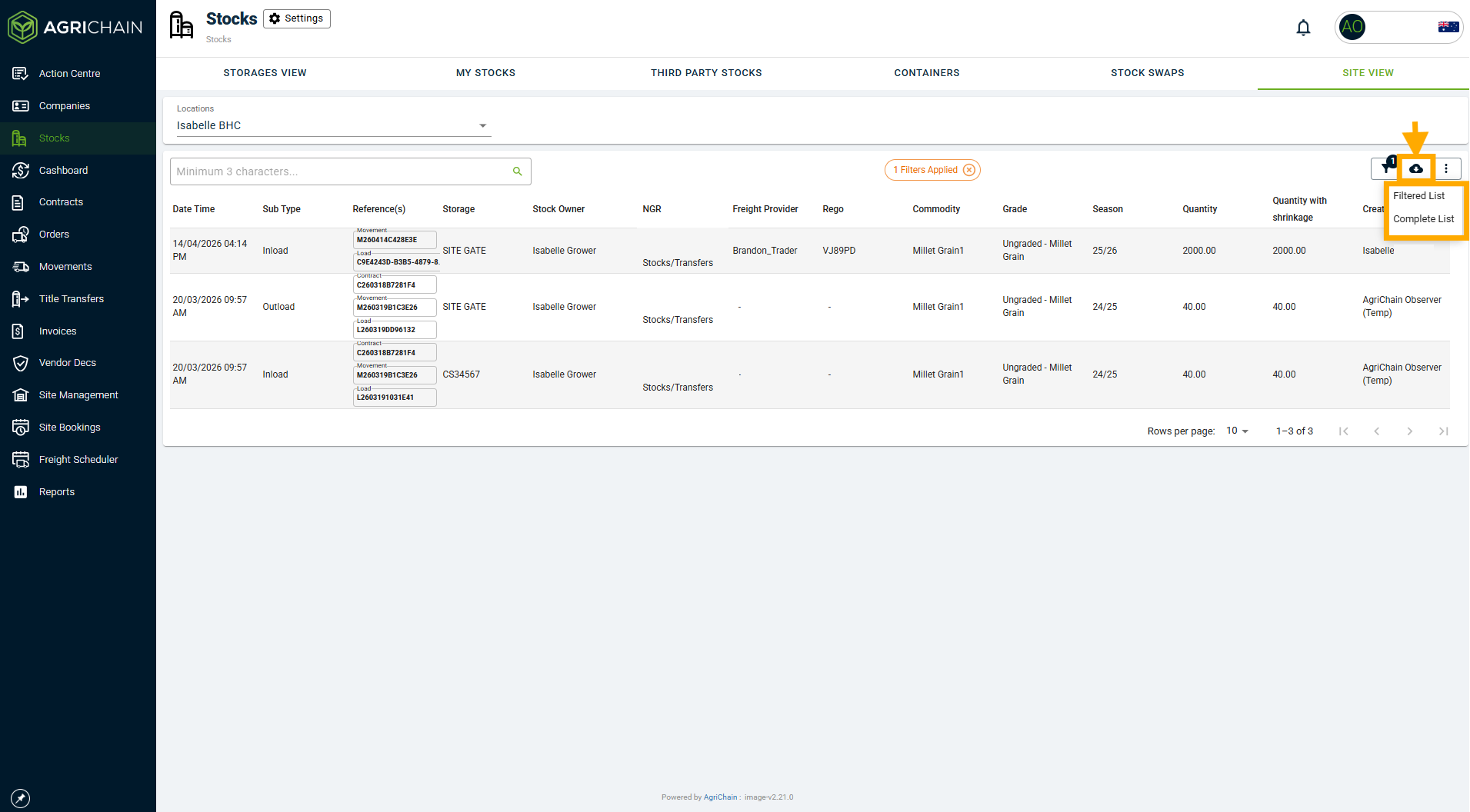
Note: If you apply filters on this page, those filters will save on that page permanently unless you click the X icon next to "Filters Applied" in orange at the top of the page. Keep this in mind if loads are missing - you may need to remove filters.
Was this article helpful?
That’s Great!
Thank you for your feedback
Sorry! We couldn't be helpful
Thank you for your feedback
Feedback sent
We appreciate your effort and will try to fix the article