Introduction
The Container view in stocks allows users to view a container wise summary of stocks on your sites. Users can add containers on AgriChain by creating a Pack Order followed by uploading the containers through Container CSV upload. This will create a Pack Movement for each container uploaded. Outload (unload from storage) and inload (pack into container) can be added from Container view.
How to Navigate Containers in Stock Module
1. Click "Stocks" Module in left taskbar, and select "Containers" tab.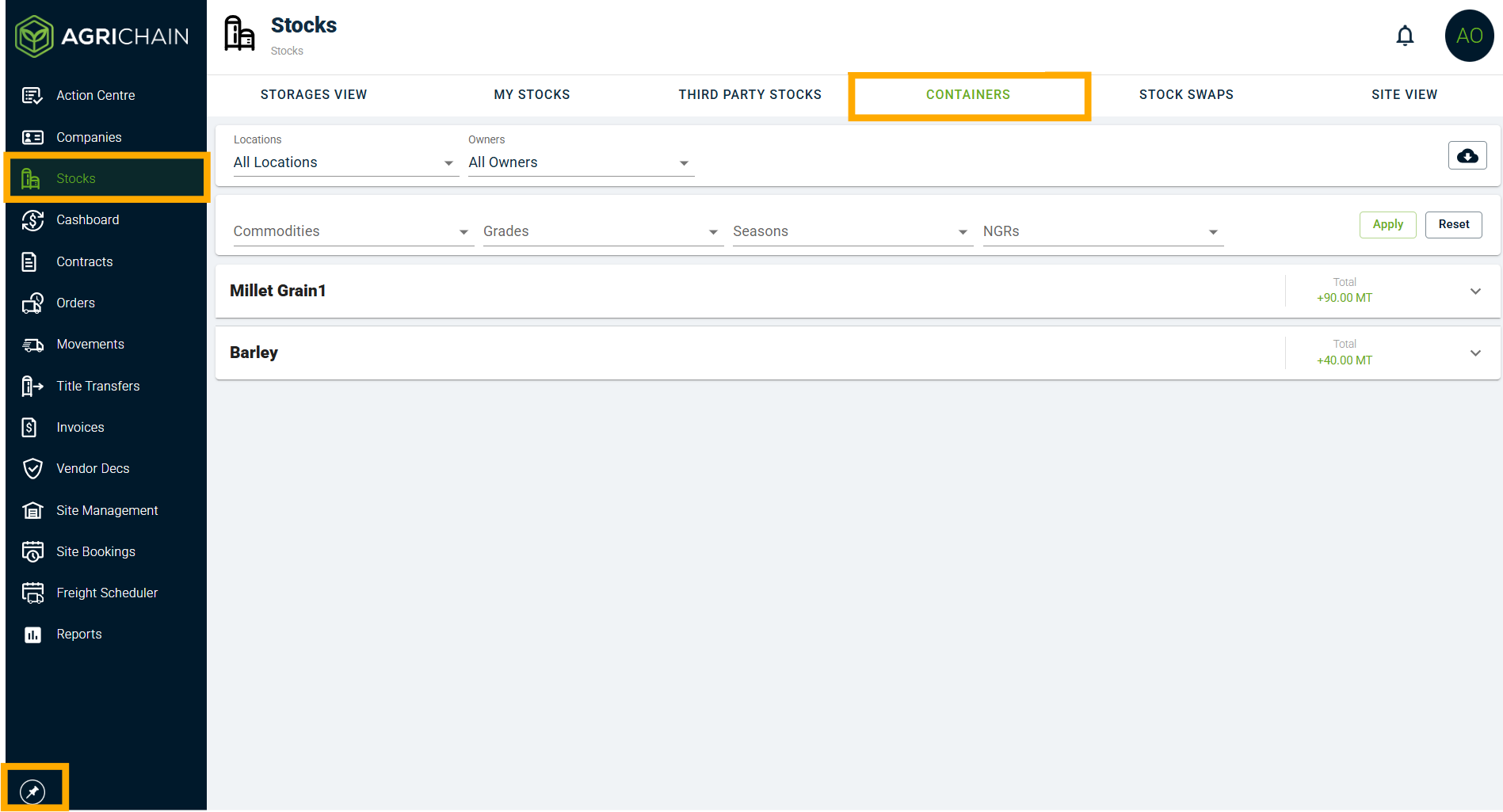
2. Apply filters as desired, ensure to click "Apply" to filter your page accordingly.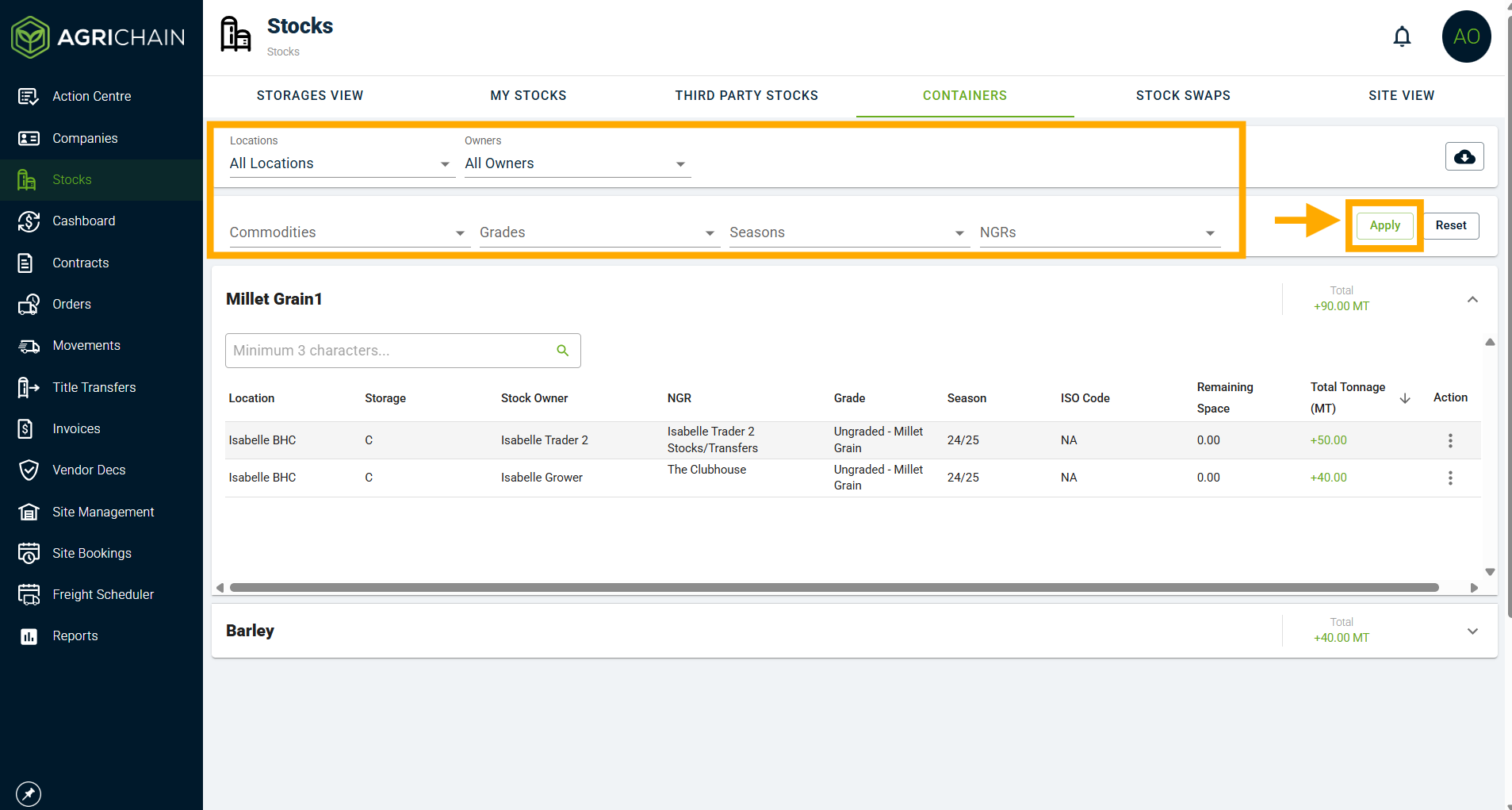
How to Download Containers Report
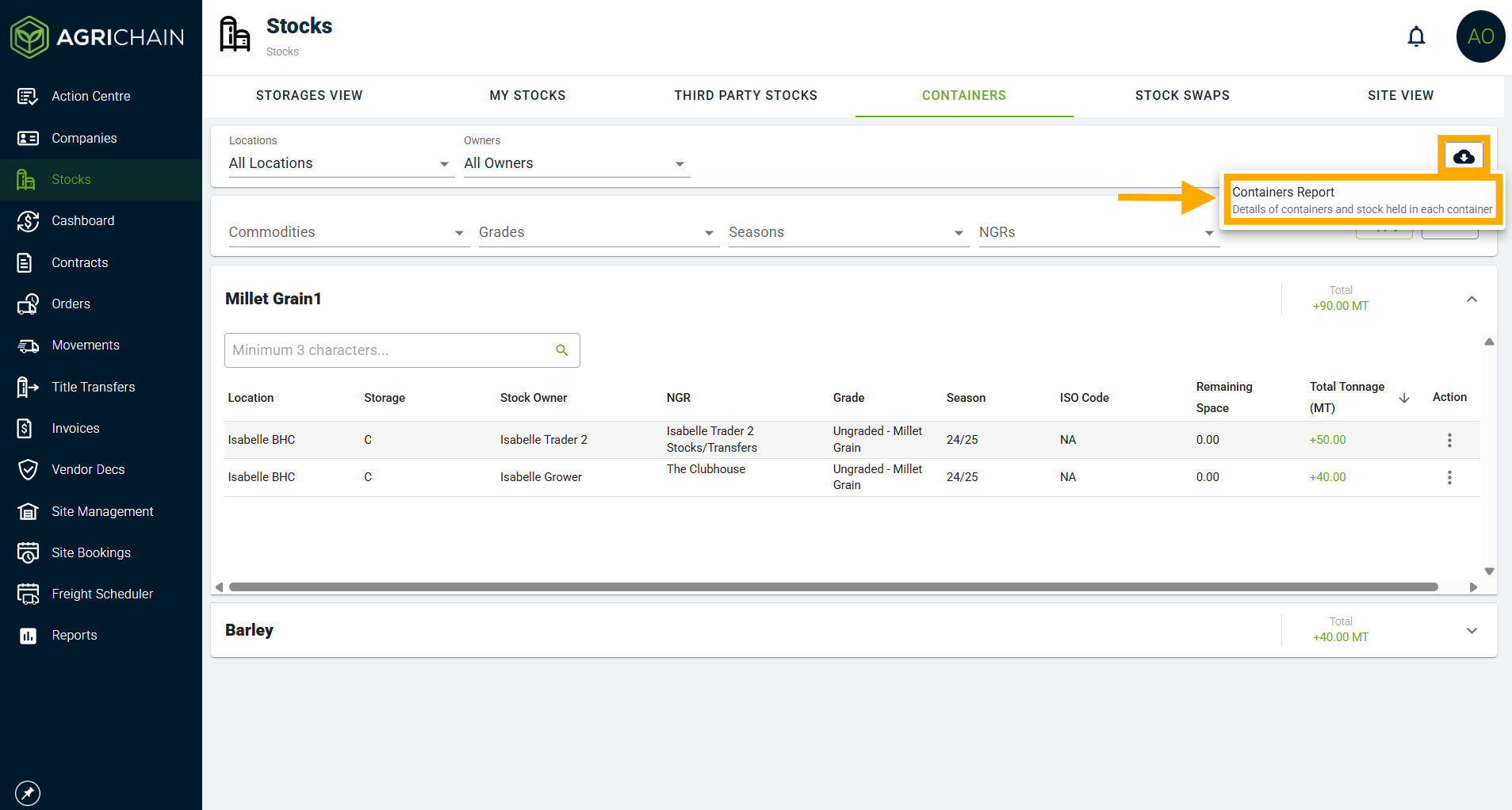
1. Click the download icon in the top right of the screen and click "Containers Report".
2. Fill the fields to set the parameters for the Container Report, click "Download" when ready to download the CSV.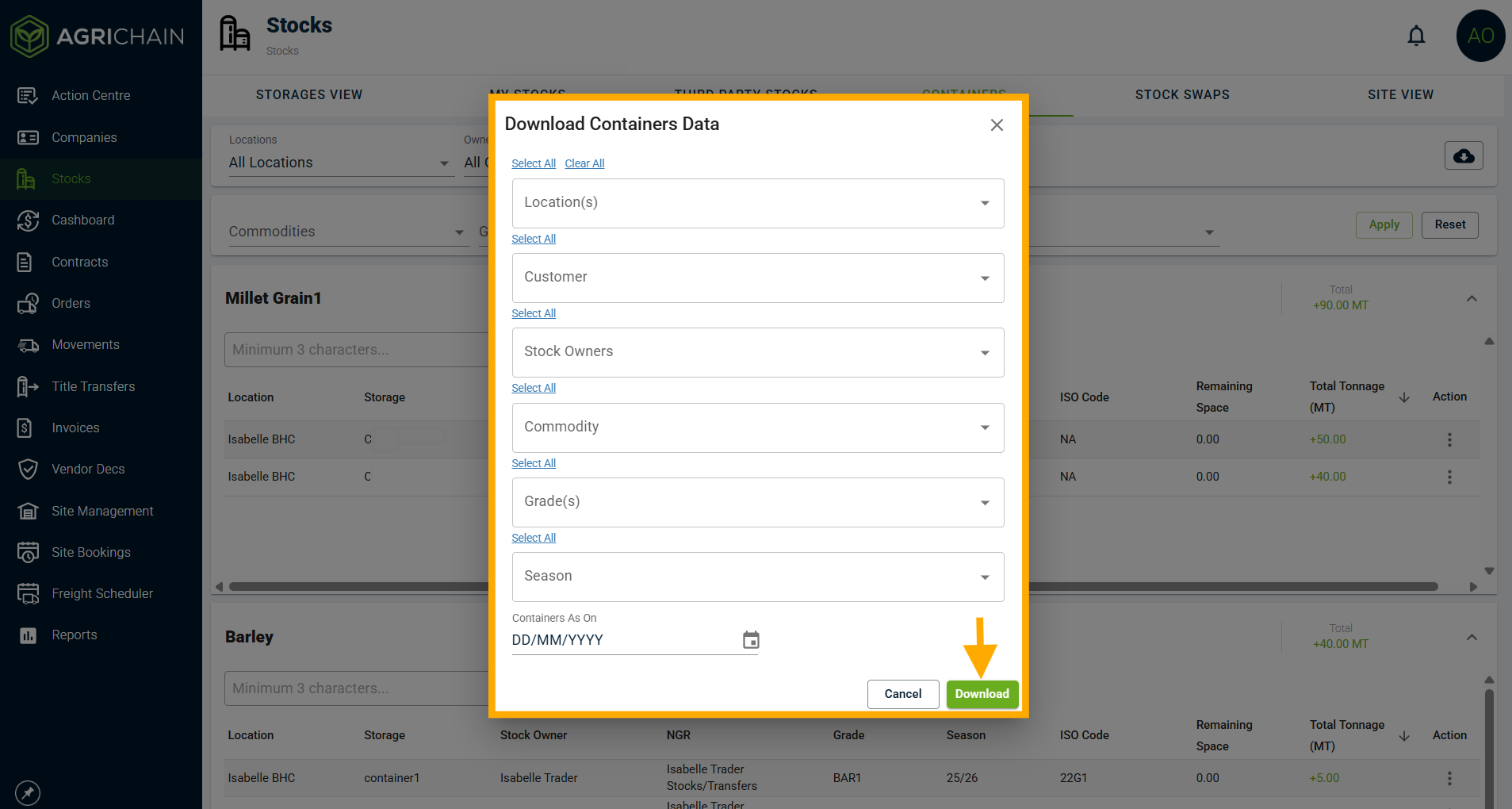
How to See Loads
1. Locate relevant line, click the 3-dot action menu and select "Loads" OR click relevant Container Stock line.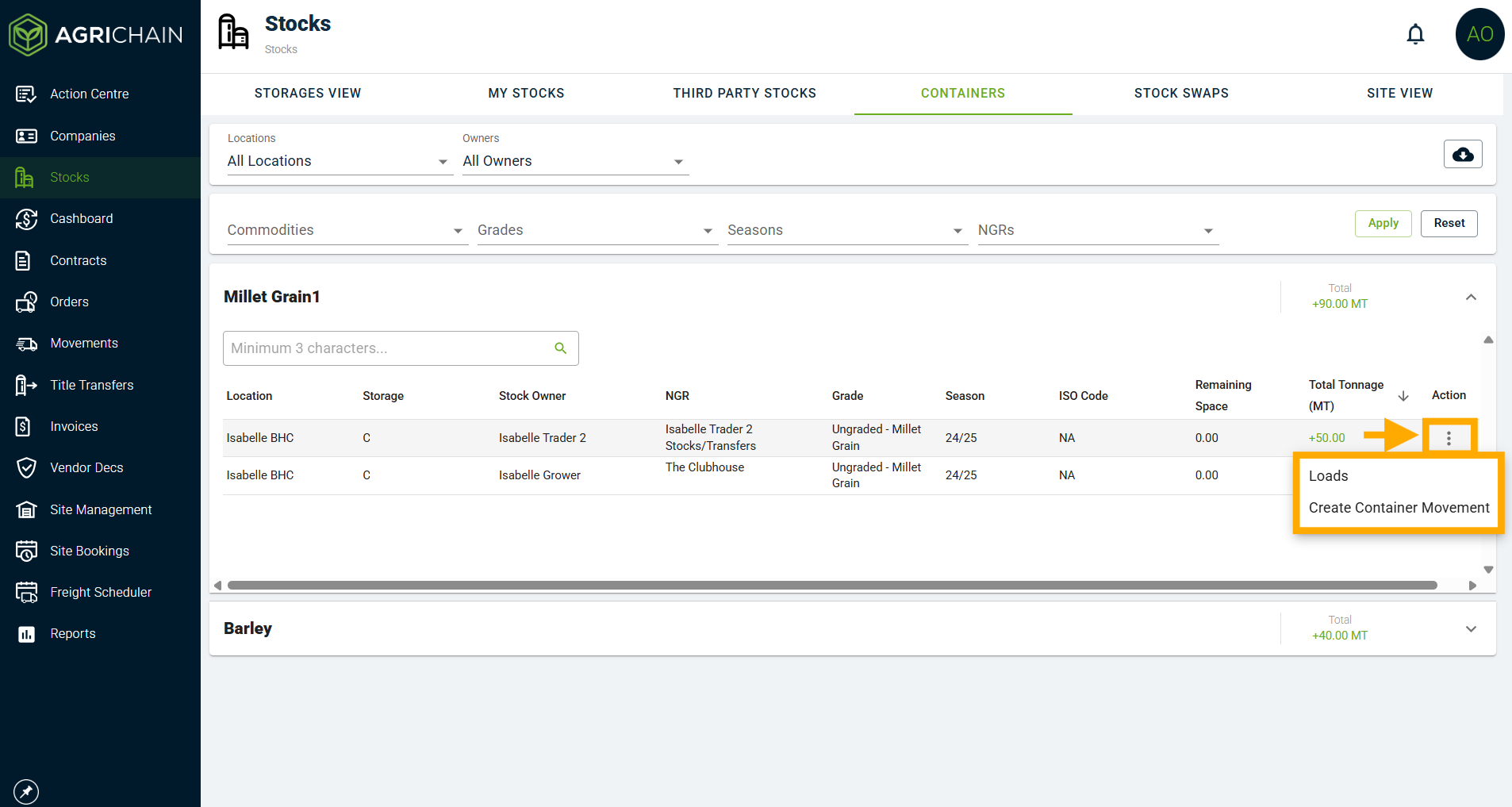
Note: The option "Create Container Movement" will not work. Currently a Pack Movement cannot be created on the Container View in Stocks. Loads can only be added/edited from the respective Pack Movement.
2. Doing this will populate loads/pack movements for that Container. If you then select a Load line, it will open the relevant Pack Movement.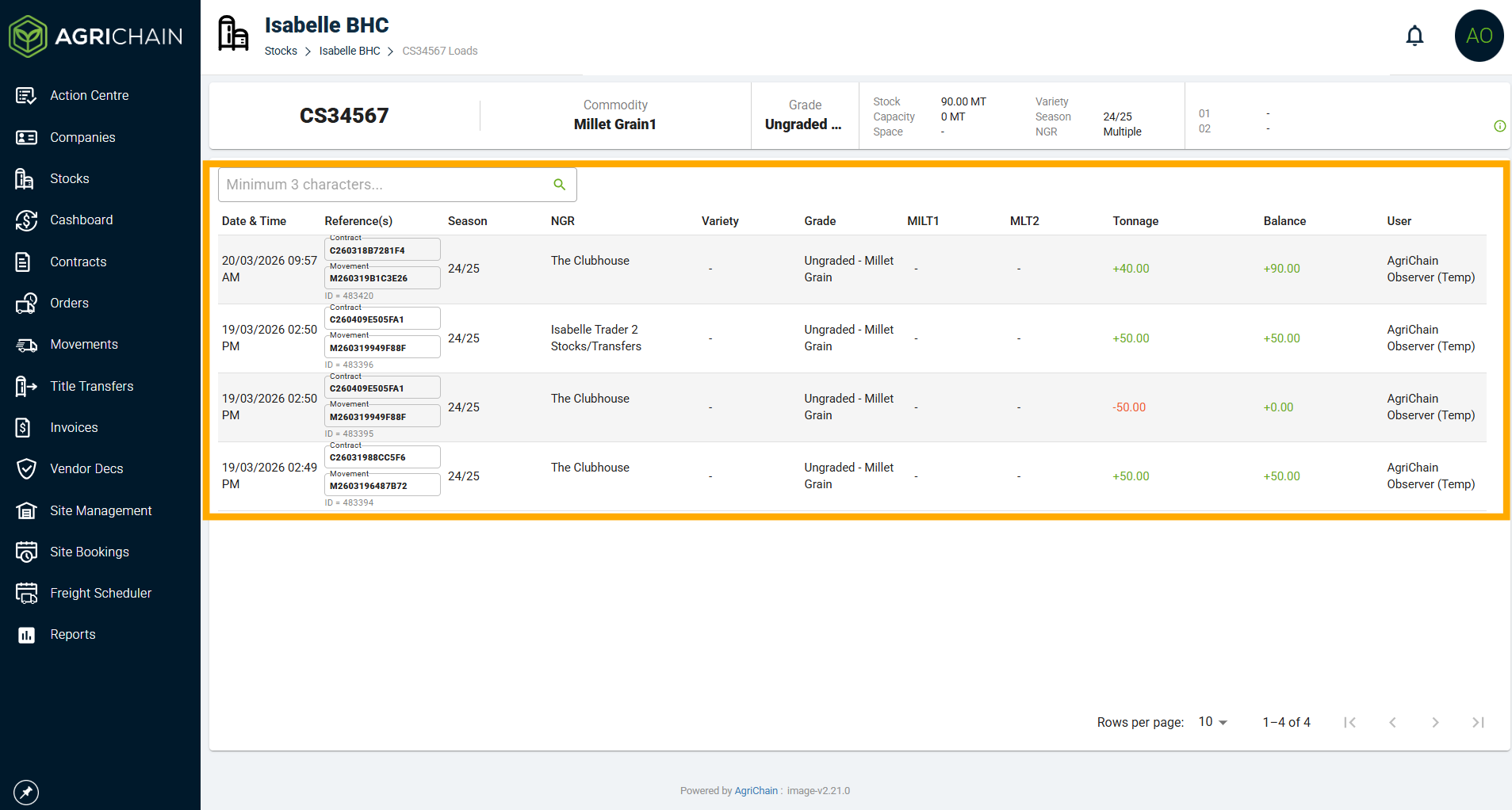
FAQs
Why can't I see containers in my Stocks module?
Containers View is only available for paid subscribers. Please get in touch with us on support@agrichain.com for more information.
I cannot see any containers at my site?
Please ensure you are on the correct site, this can be done from the locations button, also users will have to ensure that they have not selected any particular containers in container types.
Was this article helpful?
That’s Great!
Thank you for your feedback
Sorry! We couldn't be helpful
Thank you for your feedback
Feedback sent
We appreciate your effort and will try to fix the article