Introduction
Multi-Commodity Blended Contracts is a feature that builds on AgriChain's existing Blended Contract functionality, to support multiple commodities within a single Contract. This is particularly useful for stock feeder businesses where a single commercial agreement may span multiple commodities - each with their own grades, varieties, seasons, quantities, and pricing. E.g. Commodity: Blended Stockfeed.
Previously, users had to create separate contracts to represent one agreement. With this update, everything is managed under a single contract that flows seamlessly through to Orders, Movements, and Invoices.
Setting Up a Blended Commodity
Before creating a Multi-Commodity Blended Contract, AgriChain must first configure the commodity. Reach out to our Support team by visiting https://agrichain.freshdesk.com/support/home, and raise a ticket.
Creating a Multi-Commodity Blended Contract
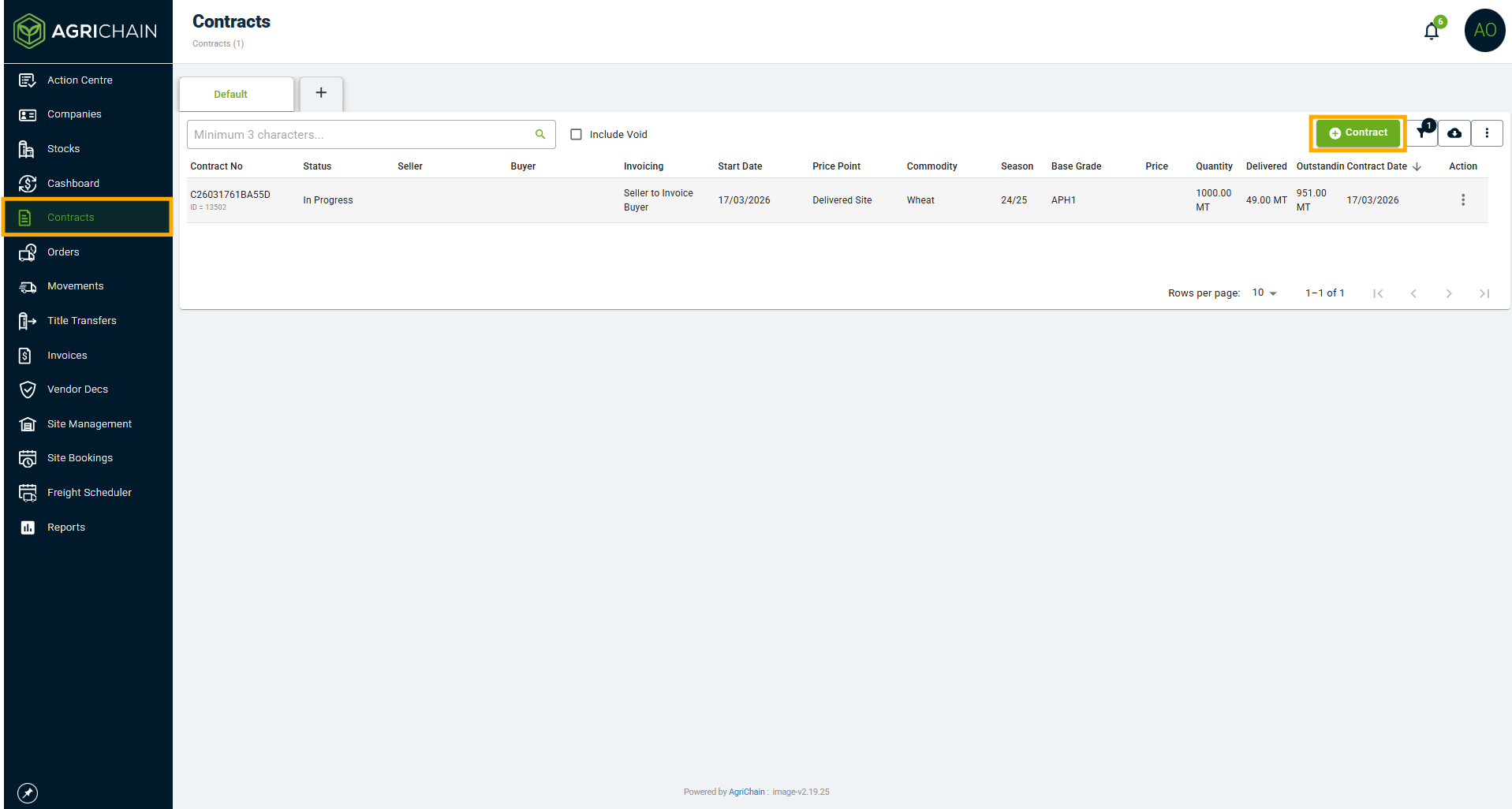
- Navigate to the Contracts module and click Create Contract.
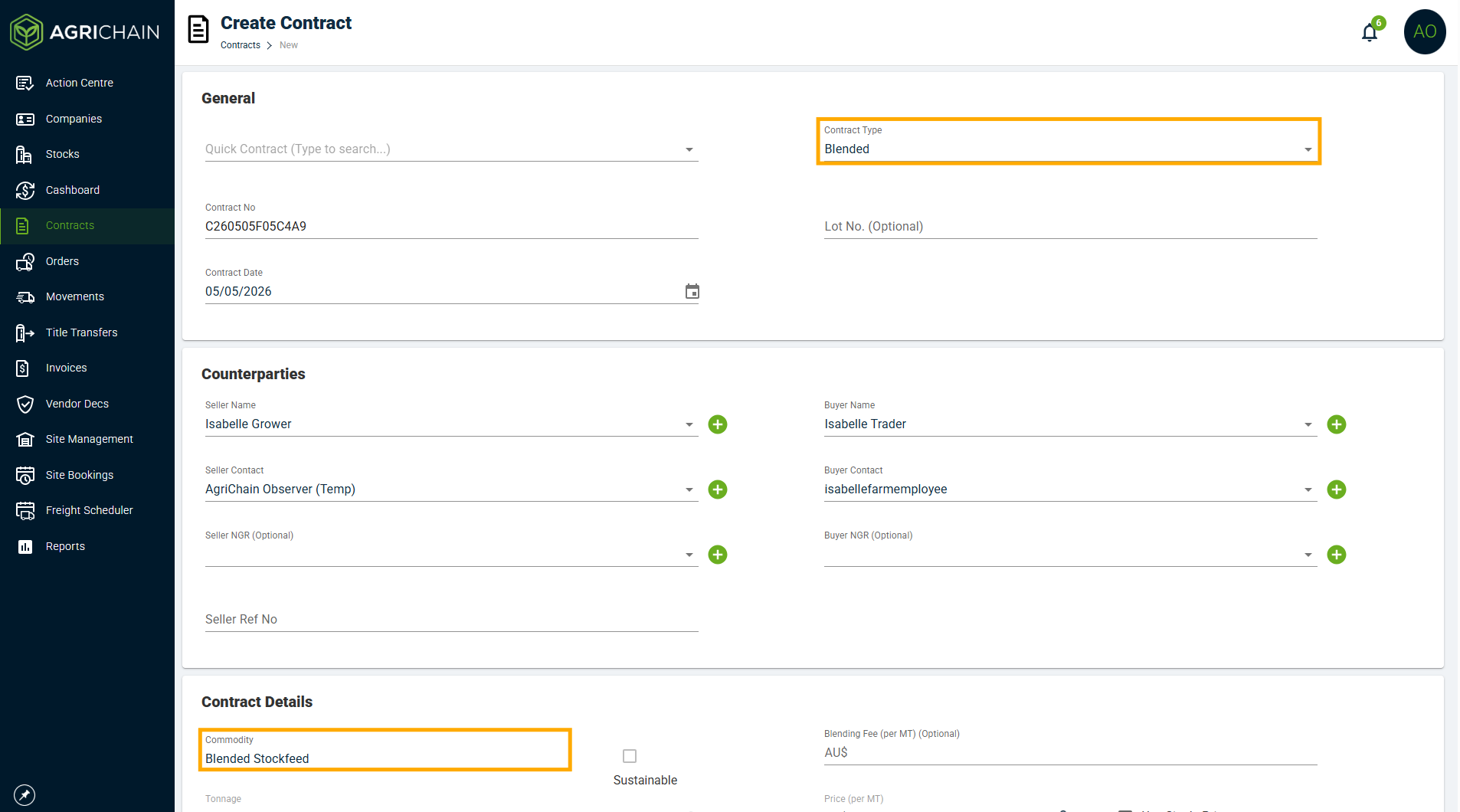
- On the Contract Creation page, select "Blended" as your Contract Type first, then select your Commodity. Fill out Counterparties information.
- The Season field will be automatically disabled at the contract level, as seasons are managed per grade line instead.
- The Season field will be automatically disabled at the contract level, as seasons are managed per grade line instead.
- Under the Spread Details section, add your commodity-grade lines. For each line, specify:
Grade
Season
Quantity (MT)
Price per MT
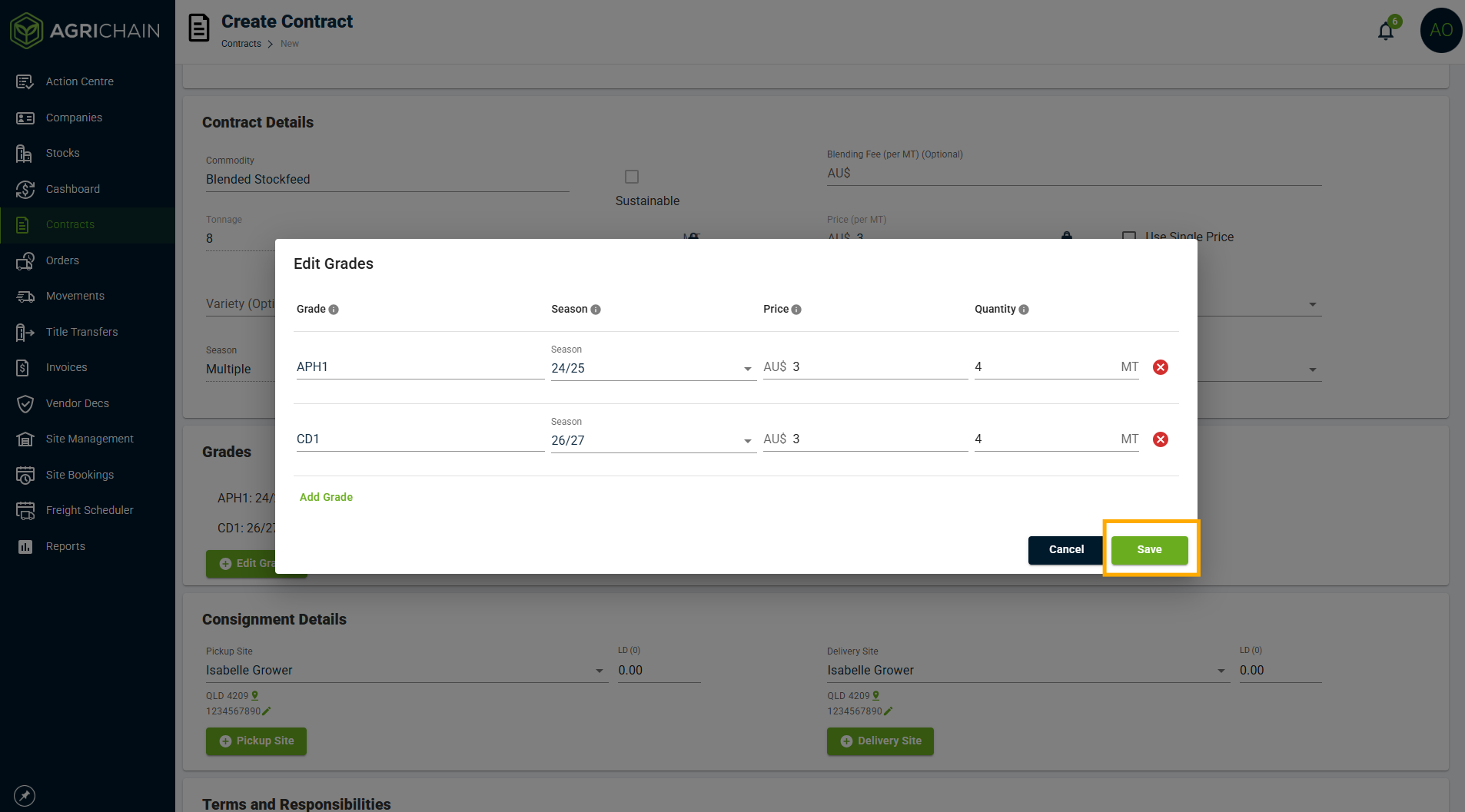
- Click "Save", review and submit the contract.
How Blended Contracts Appear Across AgriChain
Contract Module Page
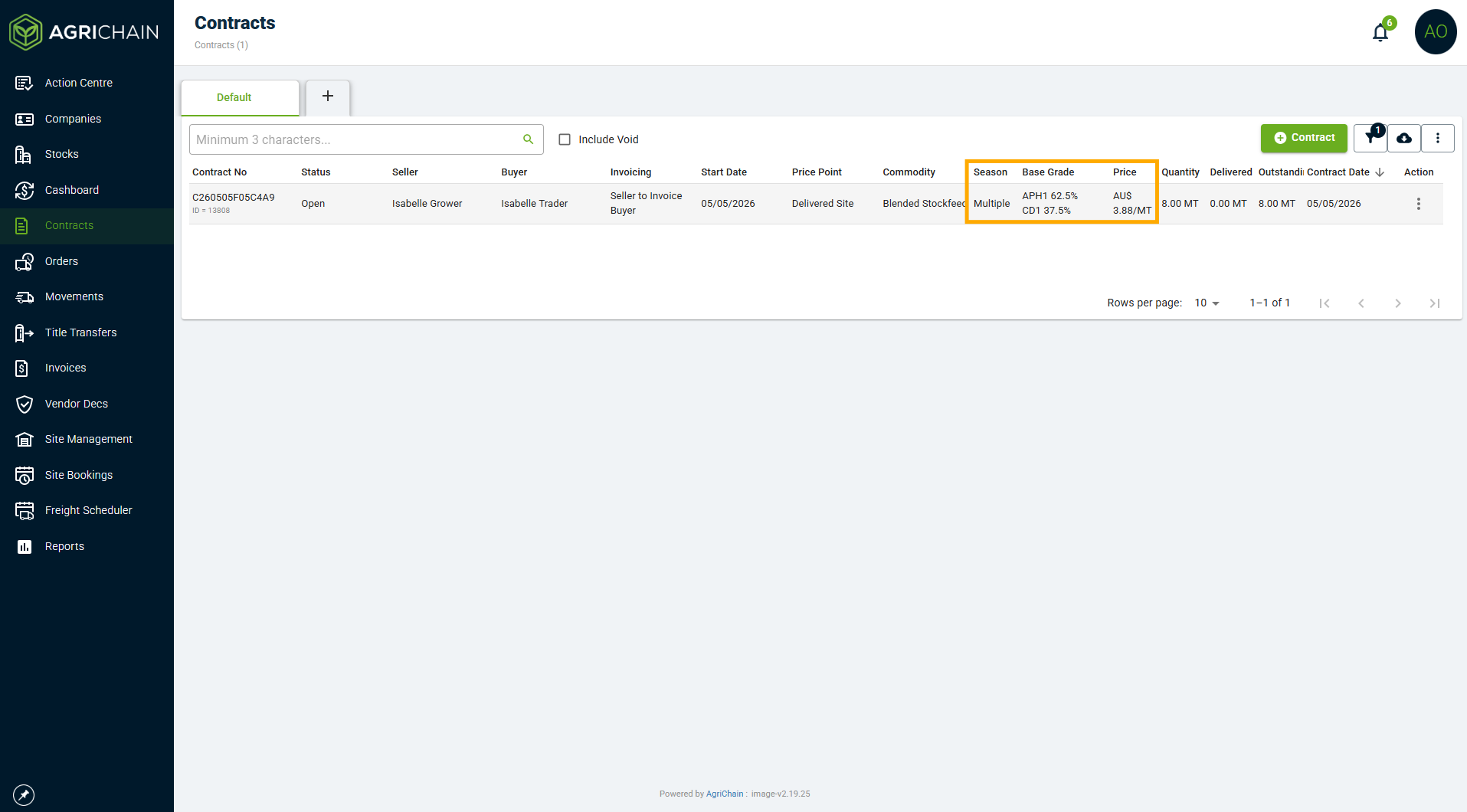
The contract will appear in your list with the following format:
Commodity - displayed as Name of Commodity (Ex. Blended Stockfeed)
Season - displays Multiple if the contract spans more than one season, or the single season if only one applies across all the grades
Grade - shown as a grade-quantity percentage breakdown (e.g. H1 – 50%, BAR1 – 25%, CAN – 25%)
Contract Detail Page
Opening a contract shows:
Commodity - 'Name of Commodity' (Ex. Blended Stockfeed)
Season - 'Multiple' or a single season
Spread Details - full breakdown by Grade, Variety, Season, and Quantity
Contract Review Page & PDF
Both the on-screen review and the downloadable PDF mirror the same structure:
Commodity - 'Name of Commodity' (E.g. Blended Stockfeed)
Season - 'Multiple' or a single season
Spread Details - Grade-Season-Quantity bifurcation
Creating Orders from a Blended Contract
Grain and Freight Orders created under contract tabs, show:
Commodity - 'Name of Commodity (Ex. Blended Stockfeed)
Season - shows 'Multiple' or a single season
Grade - shows the grade-quantity percentage breakdown
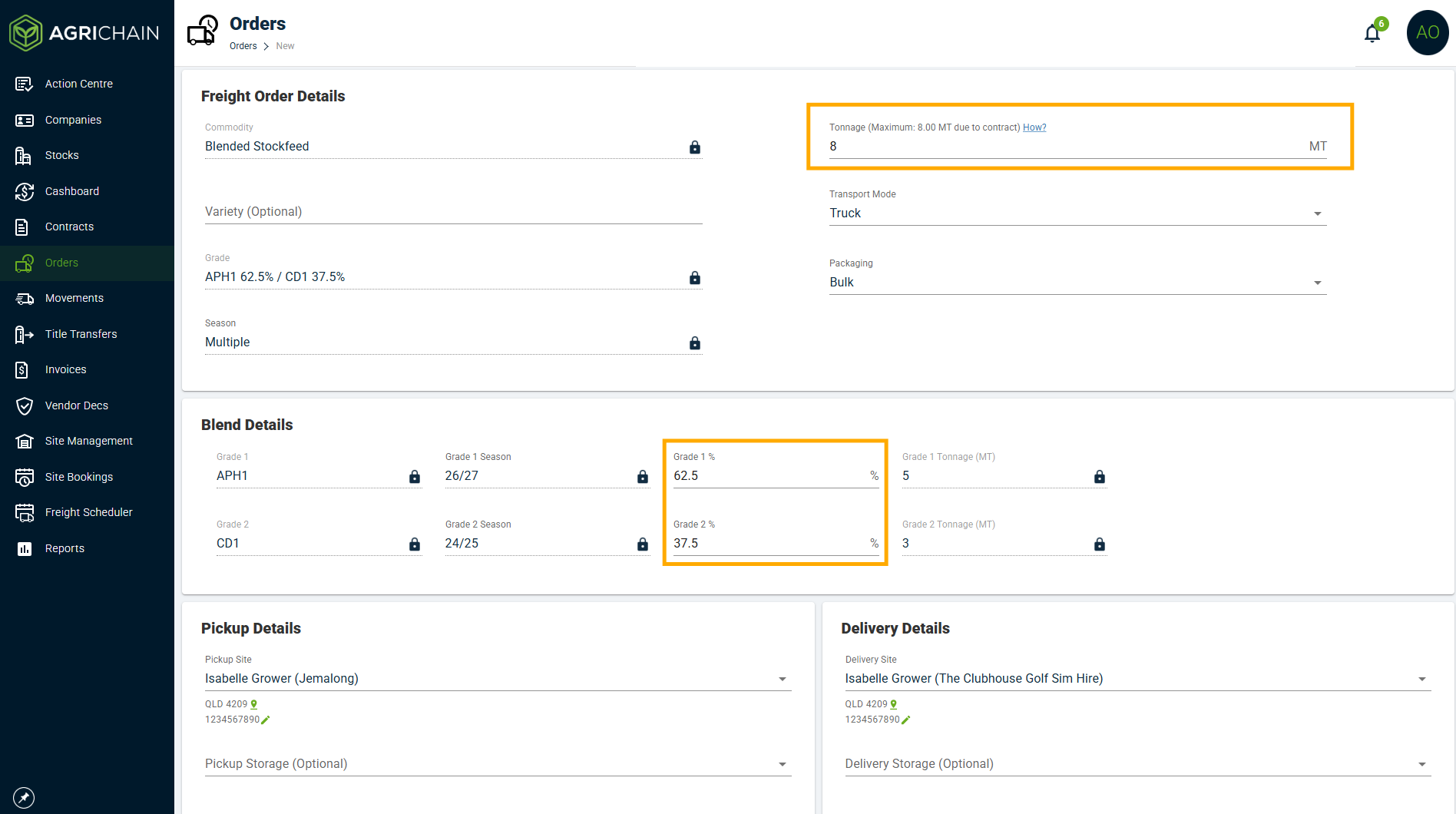
NOTE - To change the tonnage amount of each Grade, you need to alter the % of each grade. For example, if you want 0 MT of APH1 Wheat and 10 MT of Arvind Wheat the percentages need to be 0% APH1 and 100% Arvind.
Creating Movements from a Blended Contract
When creating movements, users can add multiple split outloads. Each split shows:
Commodity - displays list of grades included in the Blended Commodity Contract
Season - field is locked to the values defined in the Contract
Grade - field is also locked to the values defined in the Contract
Invoicing a Blended Contract
Invoicing for Multi-Commodity Blended Contracts follows the same workflow as standard Blended contracts, with the addition of Season details displayed per line item - giving users a complete breakdown of what is being invoiced by grade, season, and quantity.
Tips & Things to Know
The season field at the contract header level is intentionally disabled for Blended Contracts - seasons are captured per grade line in Spread Details.
If your contract spans multiple seasons, AgriChain will display "Multiple" throughout the system to indicate this clearly rather than showing a single potentially misleading season.
Grade and Season selections during Movement creation are restricted to what was defined in the contract, ensuring data integrity across the full lifecycle.
Was this article helpful?
That’s Great!
Thank you for your feedback
Sorry! We couldn't be helpful
Thank you for your feedback
Feedback sent
We appreciate your effort and will try to fix the article