Introduction
Applicable user roles
- Company Admin, Office Admin, Office Employee.
If you aren't assigned any of these roles on AgriChain, please speak to another Company employee with one of these roles so they can troubleshoot the issue and update settings if required.
How do I view and change my own company alert settings?
To view and change your own company alert settings, follow these steps:
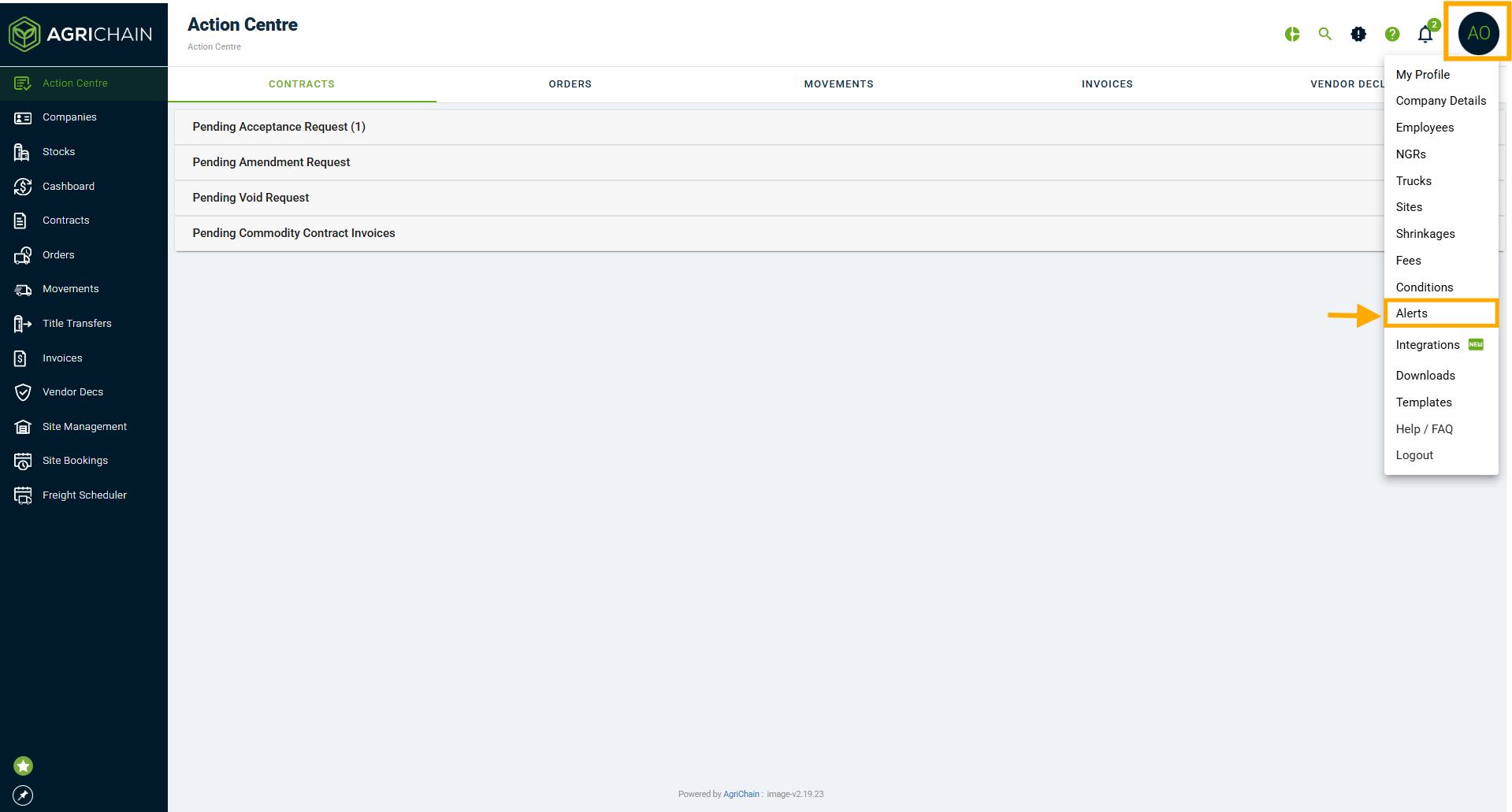
- Click on "Profile" bubble, and click "Alerts" from the drop down menu.
- Select "Send Alert" or "Receive Alert" depending on which you want to review.
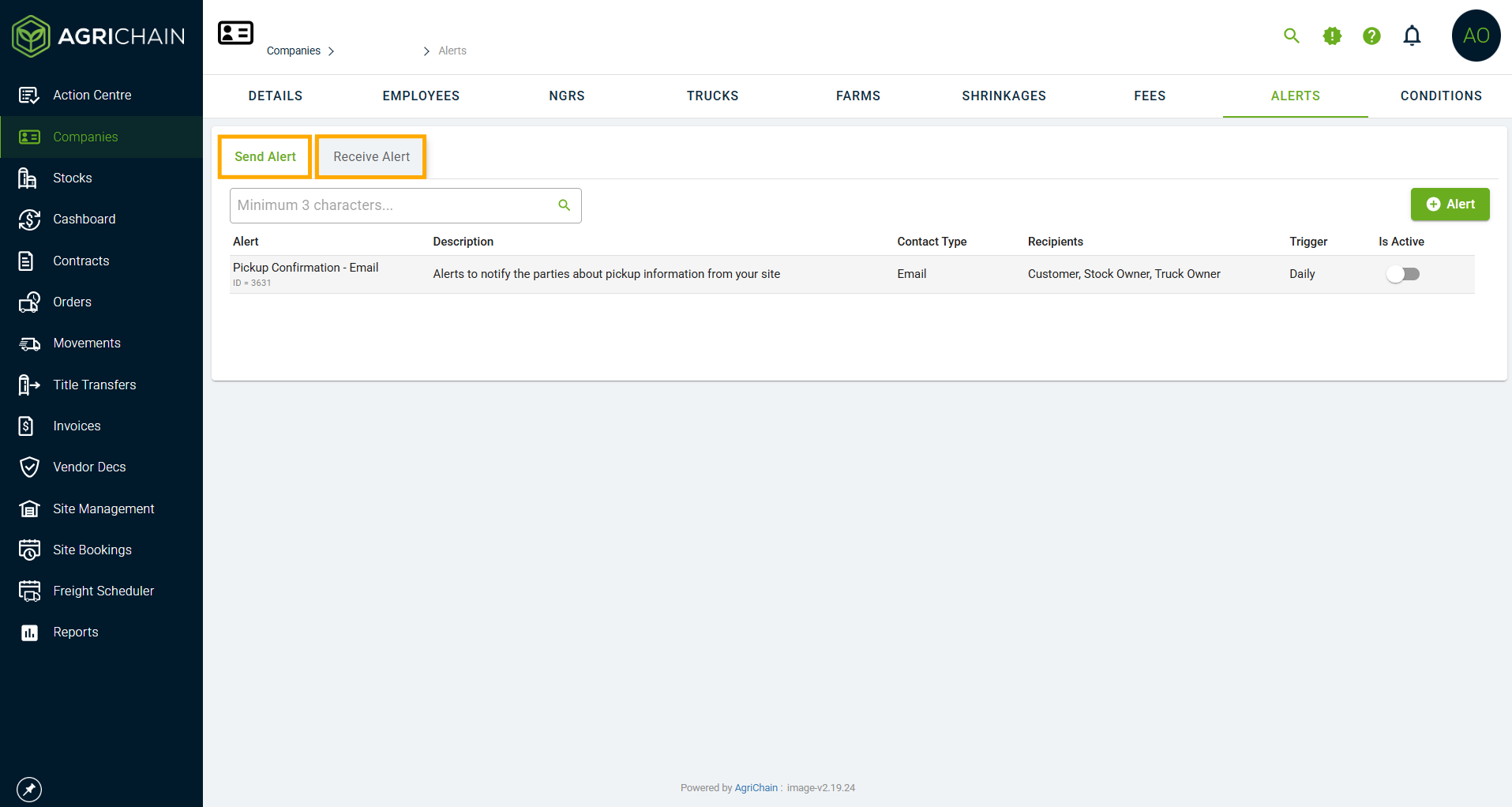
Table of Contents
Click on the issue you're facing to skip to that part of the Article.
- Why am I not receiving Alerts from my own Company?
- Why am I not receiving alerts from another Company?
- Why are some of my employees receiving Alerts, while others are not?
- Why is another company saying their employee didn't receive our alert?
- Need help, submit a ticket.
- Related Articles.
Why am I not receiving Alerts from my own Company?
This is usually caused by your company’s Send Alert and Receive Alert settings.
Check your own Send and Receive Alert settings:
A) Check alert configuration
Please checking the following settings for the alert, to check it is set up to send and/or receive correctly:
Alert Type | Ensure you are reviewing the correct alert. Utilise "Description" to understand and locate alert type. |
Is Active | Active: Must be active to work.  Not active: If Inactive, toggle to turn on. Not active: If Inactive, toggle to turn on. |
Recipient | Customer: other companies Own Company: own company Can tick both or just one. |
Trigger | Daily or Weekly, confirm which is appropriate/required. |
Contact Type | Email, SMS or both. |
B) Check Site Configuration
Sometimes Alerts are configured according to Site. Even if all other settings are correct, alerts will not be received unless the required Site has been added.
1. Navigate to the Receive Alert Tab, and look for Site column.
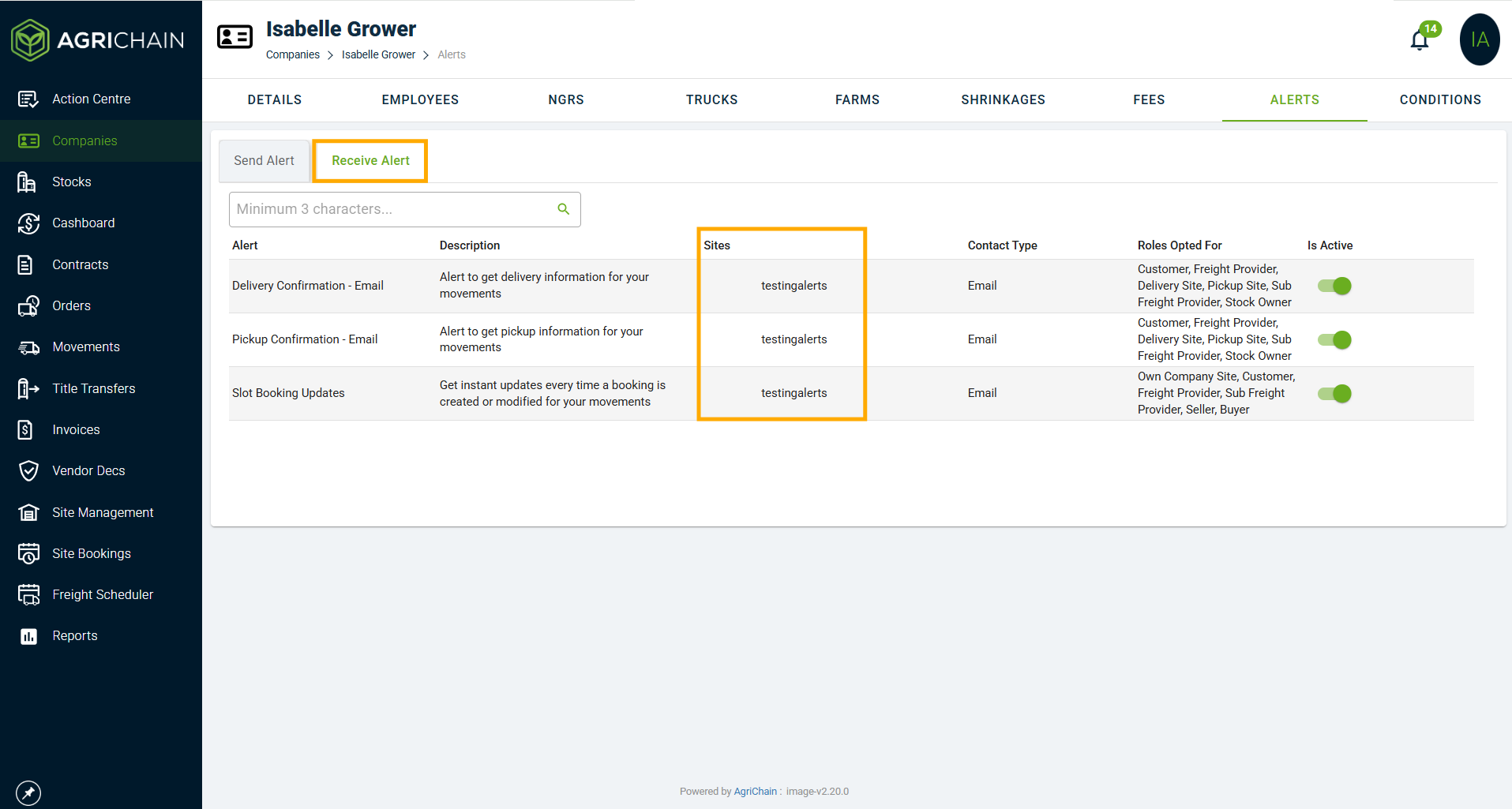
2. Locate the alert you are troubleshooting.
3. Click on the alert line to edit Sites.
4. Review the Site/s nominated to see if the involved Site is missing for that Alert.
C) Check Role Configuration
There is a section used to nominate which Roles should receive alerts.
Even if:
- The alert is active
- The Site is configured
- The External Site toggle is enabled
The alert will still not send unless the employee’s Role is selected in this section.
If the required Role is missing:
- Add the Role from the dropdown menu.

- Click Submit.
D) Check Roles and Recipient Field Category
Some alerts contain different Recipient Categories depending on the role of the Companies involved in an Order, Contract or Movement.
To Review Recipient Categories:
- Go to the Send Alert tab.
- Locate the alert you are troubleshooting.
- Click on the alert line to edit recipient settings. "Own Company" must be included for your own employees to receive.
Recipient Category | Description |
|---|---|
Customer Recipients | Employees at the Company purchasing a commodity. |
Freight Provider Recipients | Employees at the freight company providing Freight to your Company. |
Delivery Site Recipients | Employees at the Delivery Site company. |
Sub Freight Provider Recipients | Employees at Subcontracted Freight providers. |
Stock Owner Recipients | Employees belonging to the Company owning Stock. |
Own Company Recipients | Employees within your own Company. |
IMPORTANT : The Employee’s Role must be configured under the correct Recipient Category.

For example, a Freight Provider Company Employee is a Company Admin.
If Company Admin is configured under Customer Recipients but not under Freight Provider Recipients, that Employee will not receive the alert.

The Company Admin Role must be added under Freight Provider Recipients on that alert for him to receive the Alert.
My Company settings are all correct, why are alerts still not working?
Why am I not receiving alerts from another Company?
This issue may be caused by:
- Your company’s Receive Alert settings
- OR the other company’s Send Alert settings.
Check your own Receive Alert settings:
A) Check alert configuration
Please checking the following settings for the alert, to check it is set up to receive correctly:
Alert Type | Ensure you are reviewing the correct alert. Utilise "Description" to understand and locate alert type. |
Is Active | Active: Must be active to work. Not active: If Inactive, toggle to turn on. |
Recipient | Customer: other companies Own Company: own company Can tick both or just one. |
Trigger | Daily or Weekly, confirm which is appropriate/required. |
Contact Type | Email, SMS or both. |
B) Check Site Configuration
Sometimes Alerts are configured according to Site. Even if all other settings are correct, alerts will not be received unless the required Site has been added.
1. Navigate to the Receive Alert Tab, and look for Site column.
2. Locate the alert you are troubleshooting.
3. Click on the alert line to edit Sites.
4. Review the Site/s nominated to see if the involved Site is missing for that Alert.
C) External Site Alerts
Relevant for alerts such as:
- Slot Booking Updates
- Pickup Confirmations
- Other alerts triggered from Sites outside your own Company
When troubleshooting External Site alerts, review the following settings:
1. The "Include External Sites" toggle must be enabled (green).

If this toggle is disabled:
- External Site activity will not trigger alerts for your own Company employees when the site is not your own, as well as for other Companies who have a hand in what is being alerted.
If this toggle is enabled:
- External Site alerts can be received
- BUT the correct employee roles must still be configured below
D) Check Role Configuration
Above the External Site toggle is a section used to nominate which Roles should receive alerts.
Even if:
- The alert is active
- The Site is configured
- The External Site toggle is enabled
The alert will still not send unless the employee’s Role is selected in this section.
If the required Role is missing:
- Add the Role from the dropdown menu.
- Click Submit.
My Company settings are all correct, why are alerts still not working?
Why are some of my employees receiving Alerts, while others are not?
This is commonly caused by:
- Missing Role configuration
- Site mismatch
Check your own Send and Receive Alert settings:
A) Check alert configuration
Please checking the following settings for the alert, to check it is set up to send and/or receive correctly:
Alert Type | Ensure you are reviewing the correct alert. Utilise "Description" to understand and locate alert type. |
Is Active | Active: Must be active to work. Not active: If Inactive, toggle to turn on. |
Recipient | Customer: other companies Own Company: own company Can tick both or just one. |
Trigger | Daily or Weekly, confirm which is appropriate/required. |
Contact Type | Email, SMS or both. |
B) Check Site Configuration
Sometimes Alerts are configured according to Site. Even if all other settings are correct, alerts will not be received unless the required Site has been added.
1. Navigate to the Receive Alert Tab, and look for Site column.
2. Locate the alert you are troubleshooting.
3. Click on the alert line to edit Sites.
4. Review the Site/s nominated to see if the involved Site is missing for that Alert.
C) Check Role Configuration
Go to above the External Site toggle is a section used to nominate which Roles should receive alerts.
Even if:
- The alert is active
- The Site is configured
- The External Site toggle is enabled
The alert will still not send unless the employee’s Role is selected in this section.
If the required Role is missing:
- Add the Role from the dropdown menu.
- Click Submit.
D) Check Roles and Recipient Field Category
Some alerts contain different Recipient Categories depending on the role of the Companies involved in an Order, Contract or Movement.
To Review Recipient Categories:
- Go to the Send Alert tab.
- Locate the alert you are troubleshooting.
- Click on the alert line to edit recipient settings.
Recipient Category | Description |
|---|---|
Customer Recipients | Employees at the Company purchasing a commodity. |
Freight Provider Recipients | Employees at the freight company providing Freight to your Company. |
Delivery Site Recipients | Employees at the Delivery Site company. |
Sub Freight Provider Recipients | Employees at Subcontracted Freight providers. |
Stock Owner Recipients | Employees belonging to the Company owning Stock. |
Own Company Recipients | Employees within your own Company. |
Within those Recipient fields, you must then nominate the Roles of the Employees that you want to receive the specific Alerts. This is important to check.
IMPORTANT : The Employee’s Role must be configured under the correct Recipient Category.

For example, a Freight Provider Company Employee is a Company Admin.
If Company Admin is configured under Customer Recipients but not under Freight Provider Recipients, that Employee will not receive the alert.

The Company Admin Role must be added under Freight Provider Recipients on that alert for him to receive the Alert.
My Company settings are all correct, why are alerts still not working?
Why is another company saying their employee didn't receive our alert?
Check your own Send Alert settings:
A) Check alert configuration
Please checking the following settings for the alert, to check it is set up to send correctly:
Alert Type | Ensure you are reviewing the correct alert. Utilise "Description" to understand and locate alert type. |
Is Active | Active: Must be active to work. Not active: If Inactive, toggle to turn on. |
Recipient | Customer: other companies Own Company: own company Can tick both or just one. |
Trigger | Daily or Weekly, confirm which is appropriate/required. |
Contact Type | Email, SMS or both. |
B) Check Roles and Recipient Field Category
Some alerts contain different Recipient Categories depending on the role of the Companies involved in an Order, Contract or Movement.
Note: If you do not know the other company employee's role, you need to bring up the other company's details, select "Employees" and check what role the employee is at that company.To Review Recipient Categories:
- Go to the Send Alert tab.
- Locate the alert you are troubleshooting.
- Click on the alert line to edit recipient settings.
Recipient Category | Description |
|---|---|
Customer Recipients | Employees at the Company purchasing a commodity. |
Freight Provider Recipients | Employees at the freight company providing Freight to your Company. |
Delivery Site Recipients | Employees at the Delivery Site company. |
Sub Freight Provider Recipients | Employees at Subcontracted Freight providers. |
Stock Owner Recipients | Employees belonging to the Company owning Stock. |
Own Company Recipients | Employees within your own Company. |
Within those Recipient fields, you must then nominate the Roles of the Employees that you want to receive the specific Alerts. This is important to check.
IMPORTANT : The Employee’s Role must be configured under the correct Recipient Category.

For example, a Freight Provider Company Employee is a Company Admin.
If Company Admin is configured under Customer Recipients but not under Freight Provider Recipients, that Employee will not receive the alert.

The Company Admin Role must be added under Freight Provider Recipients on that alert for him to receive the Alert.
My Company settings are all correct, why are alerts still not working?
My Company settings are all correct, why are alerts still not working?
After troubleshooting, if you're still unable to find the issue, please reach out to our Support team by visiting https://agrichain.freshdesk.com/support/home and raise a ticket. Related Articles
Was this article helpful?
That’s Great!
Thank you for your feedback
Sorry! We couldn't be helpful
Thank you for your feedback
Feedback sent
We appreciate your effort and will try to fix the article