Introduction
If you know what your password is to gain access to your account in AgriChain but are wanting to change it to a different password, this article will explain how to do that.
If you are looking to reset your password because you can't get into AgriChain at all, please refer to this article instead: [How to reset your password on AgriChain].
How do I change my password?
- Log in to AgriChain using your credentials.
- Navigate to and click on the Profile Menu in the top-right corner of the screen.
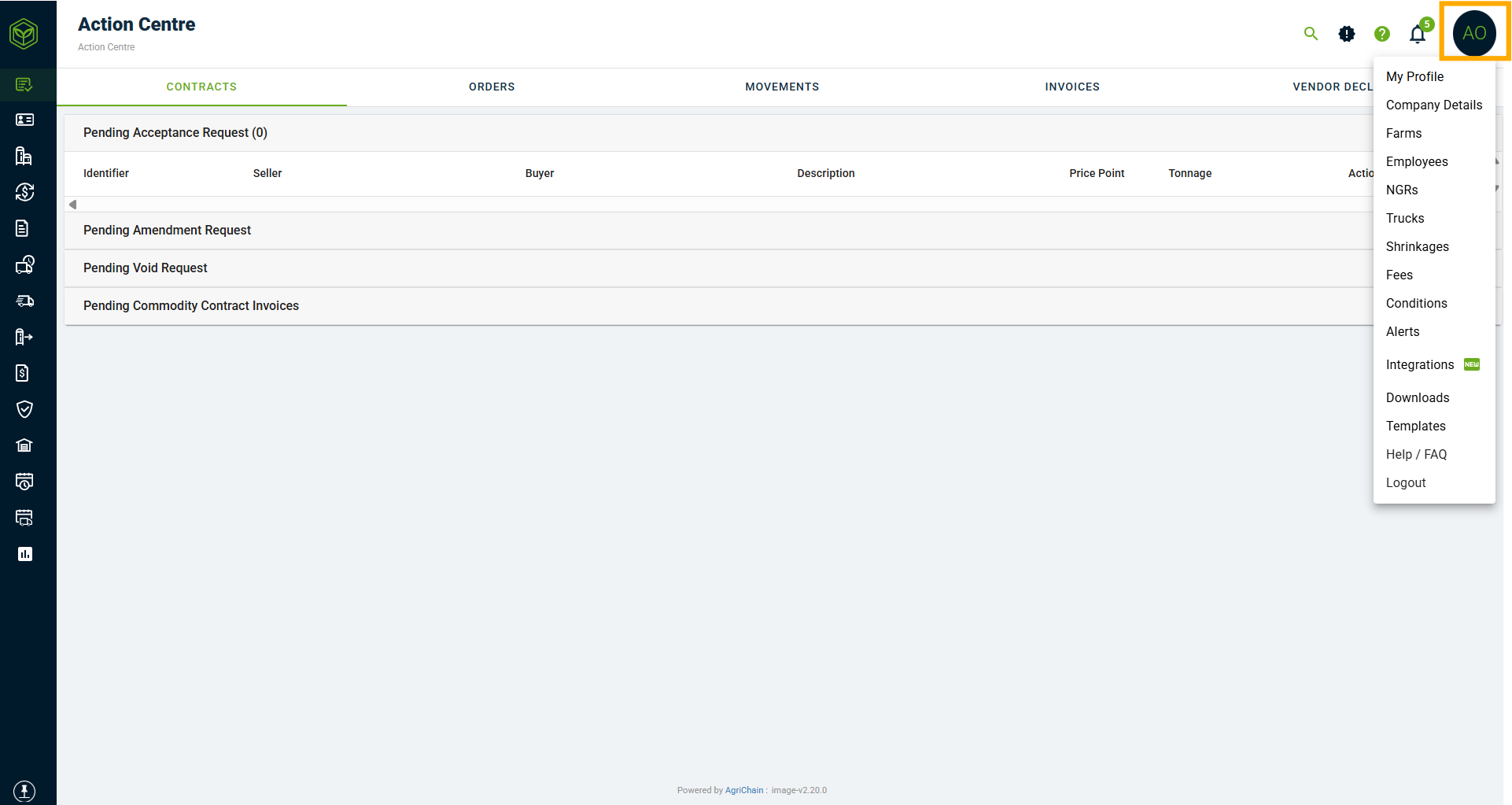
- Click on "My Profile" from drop down menu and navigate to "Change Password" at the top of the page.
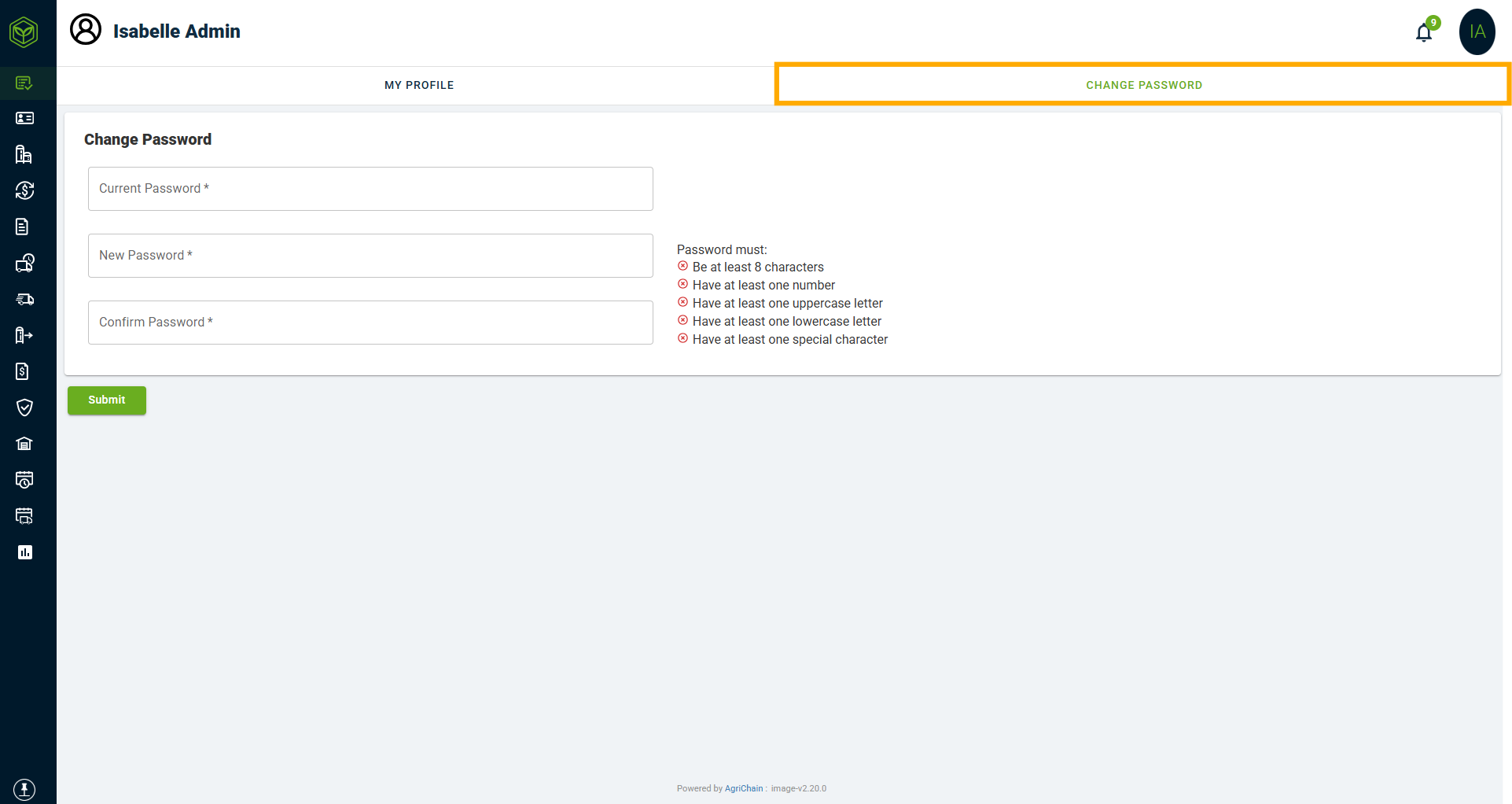
- Now fill out the three fields:
- Enter your current password
- Enter your new password
- Re-type (confirm) your new password.
- Click the "Submit" button at the bottom of the page to save your changes.
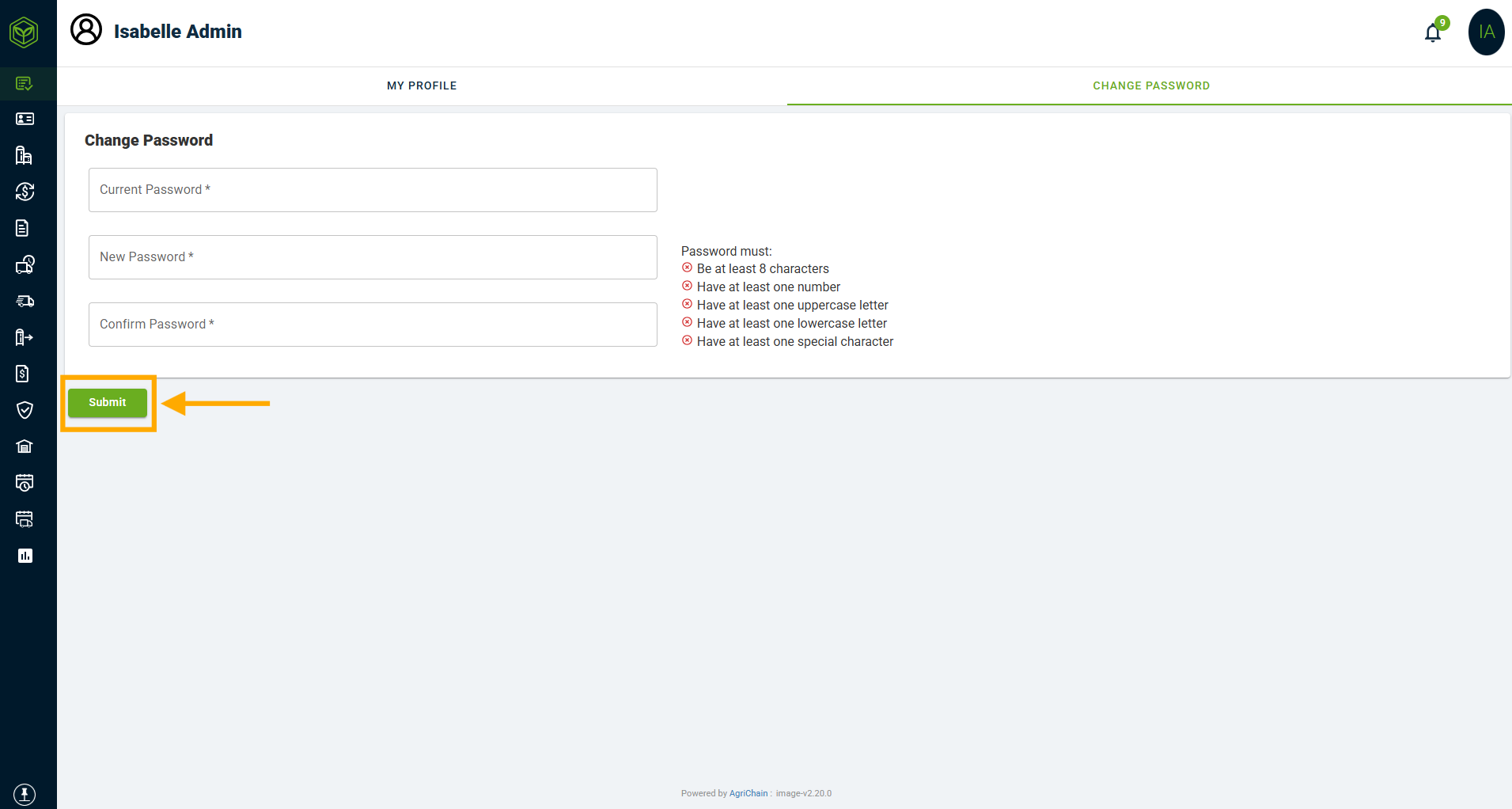
Note: Password requirements each have a red (x) next to them, as you fulfill each requirement they will change to a green (tick). Once all password requirements switch to a green tick and each box is filled, you will be able to "Submit" the change.Important notes
- Updating your password will change your login details for AgriChain.
- Ensure you enter a strong password. AgriChain mandates that passwords are a minimum of eight characters and include a combination of uppercase and lowercase letters (A-Z), numbers (0-9) and special characters (!, @, #, $, %, ^, &, *, etc).
Was this article helpful?
That’s Great!
Thank you for your feedback
Sorry! We couldn't be helpful
Thank you for your feedback
Feedback sent
We appreciate your effort and will try to fix the article