Introduction
Employees can be added into and system by another employee at that Company. Details such as email address, phone number, title, and role within the company can also be updated.
Applicable user roles
- Company Admin, Office Admin.
If you aren't assigned either of these roles on AgriChain, please speak to another Company employee with one of these roles so they can troubleshoot the issue and update settings if required.
Adding an employee
To add an employee, please follow the steps below:
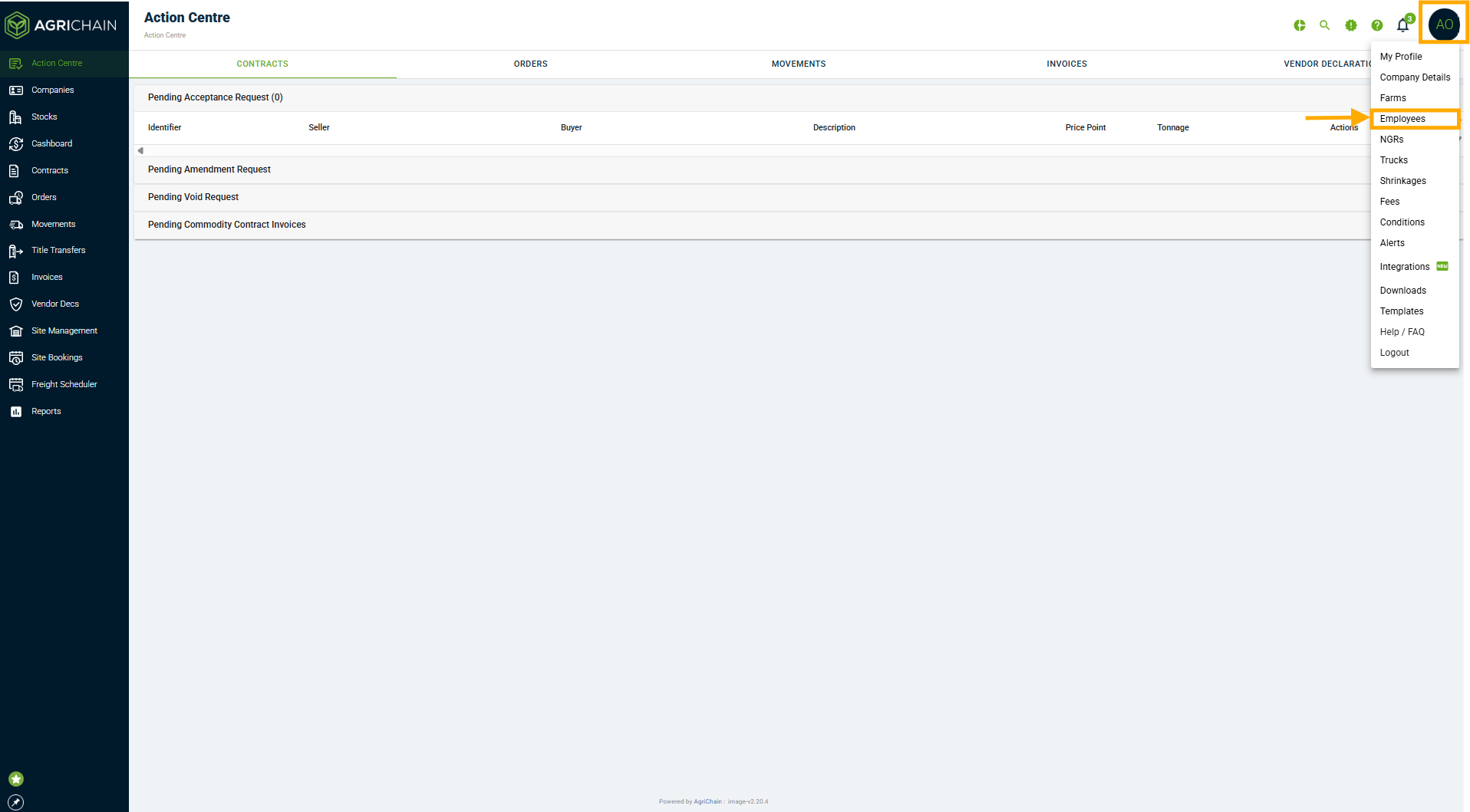
- Click on your initial/profile on the top right corner of your screen and click on "Employees" from the dropdown menu.
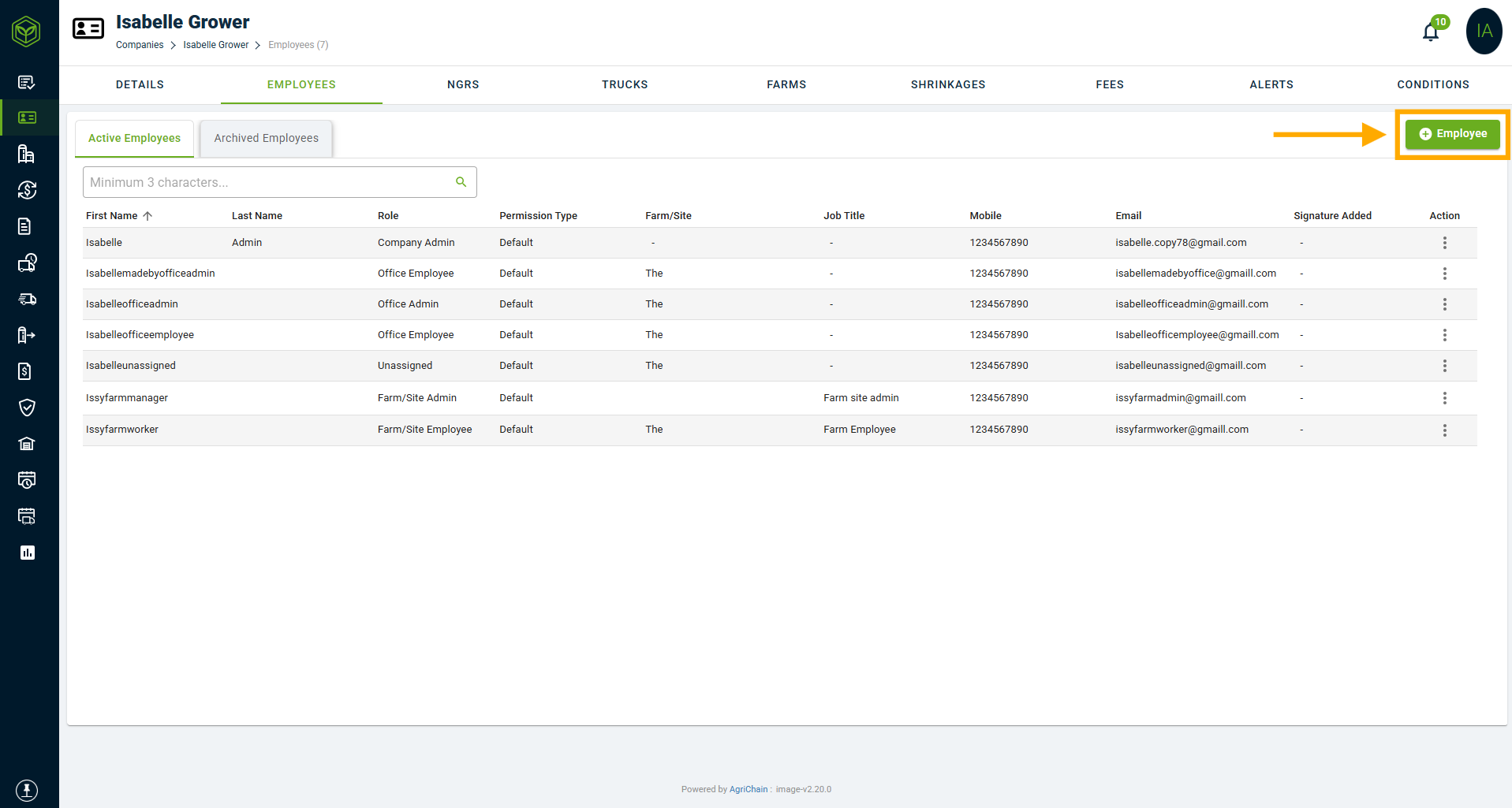
- In the Employee Tab, click "+Employee".
- Add in all relevant details, including email address and Roles and Permissions. You may read more about Roles and Permissions here: Navigating company roles and permissions article.
- Password: For the password section, you can either create a Password for the employee or you can just click "Let User Create Password" to send a Password reset link.
- Username: System will generate an automatic username for the employee, this username is case-sensitive and space-sensitive so if user has trouble logging in - this may be why.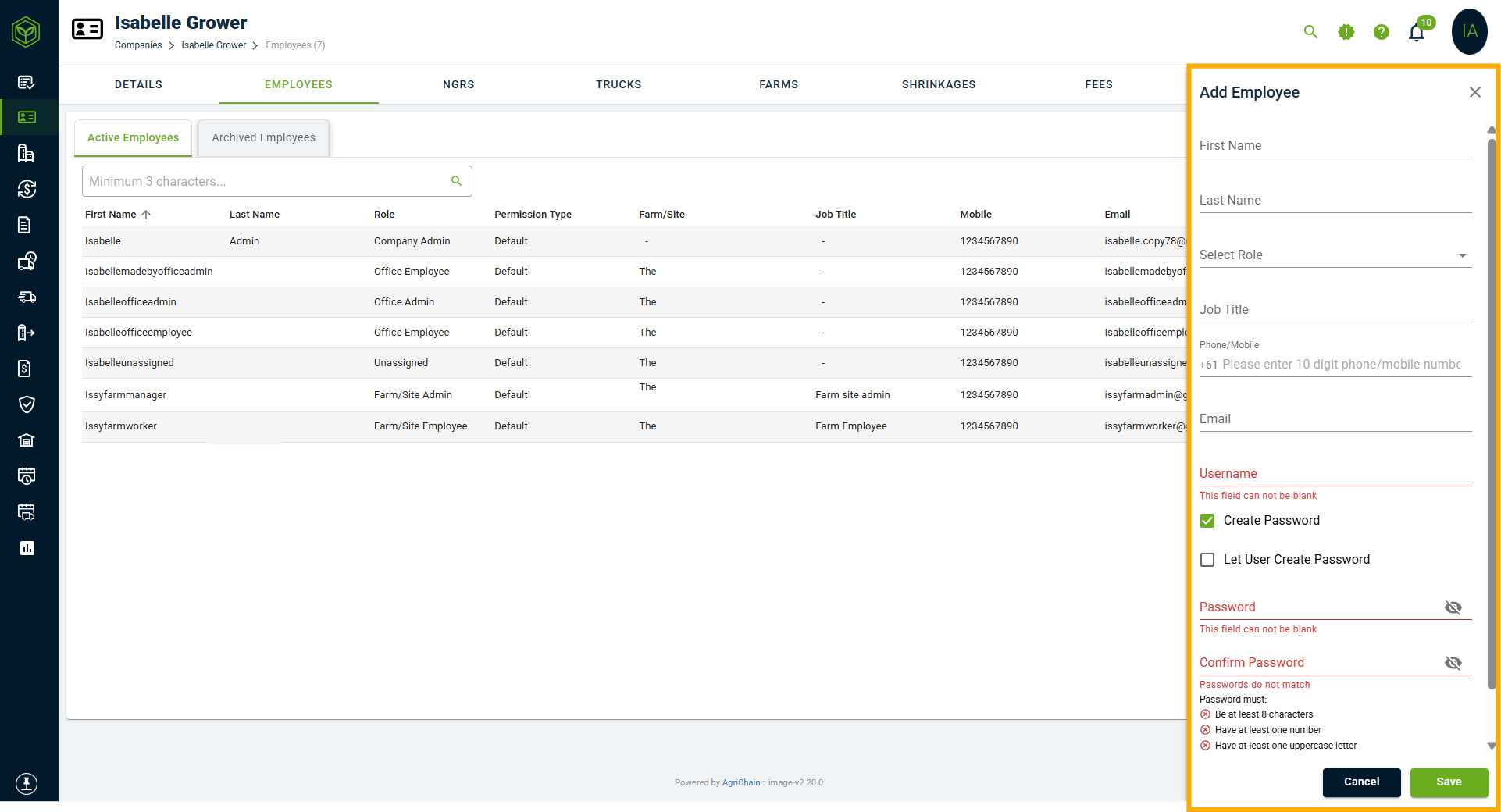
- Once the employee has been added, the system will send an email to the employee providing them their username and guiding them in setting up their AgriChain account.
Note: If you want to delay employee access until a future start date, you may prefer to create the password yourself instead of triggering "Let User Create Password". When the employee is ready to access the system, you can provide them with the password and direct them to article - How to reset your password on AgriChain.Updating/editing employee details
To update/edit an employee details, please follow the steps below:
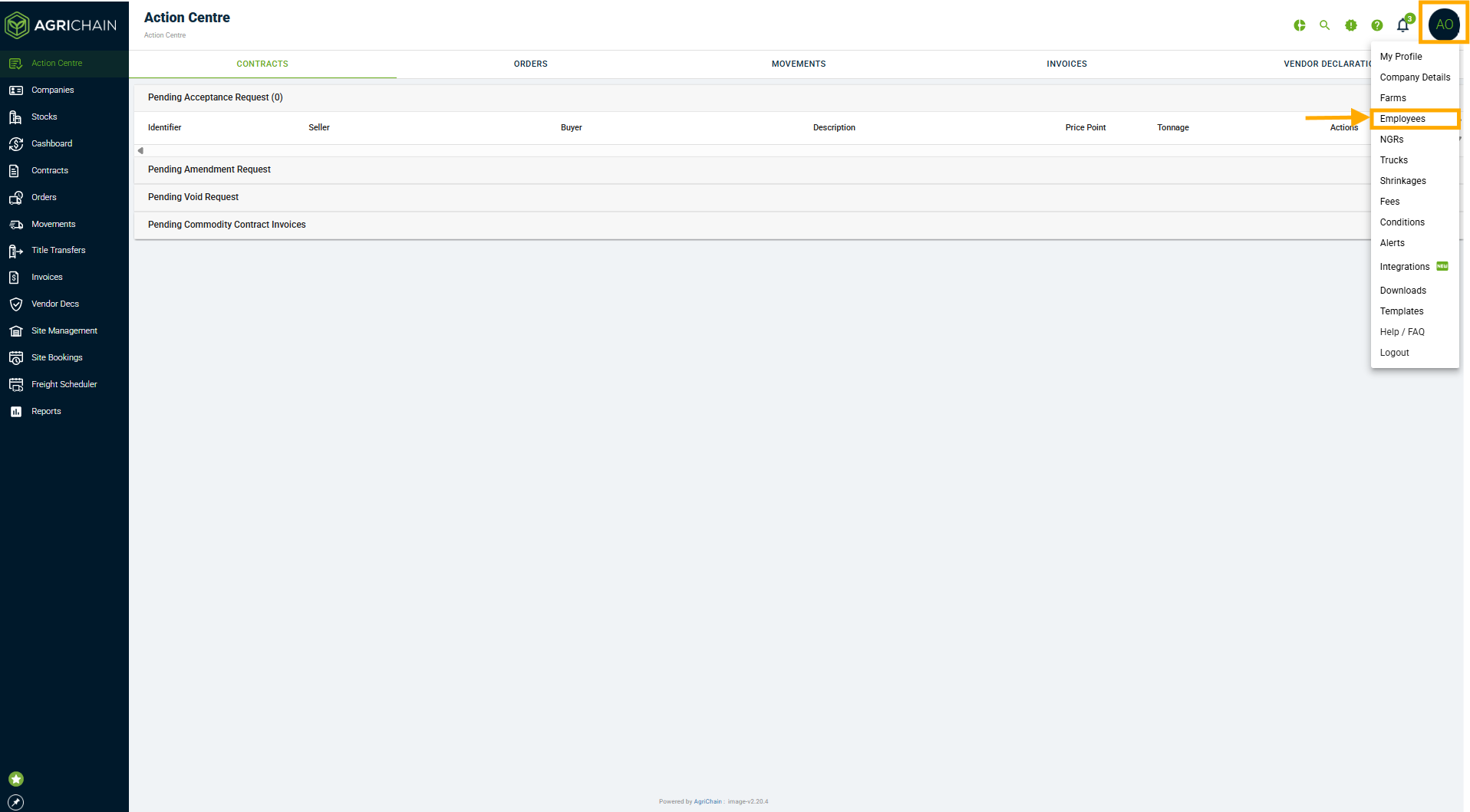
- Click on your profile bubble in the top-right corner of the screen. Select "Employees" from the drop down menu.
- In the Employees tab, select the employee whose details need to be amended/edited.
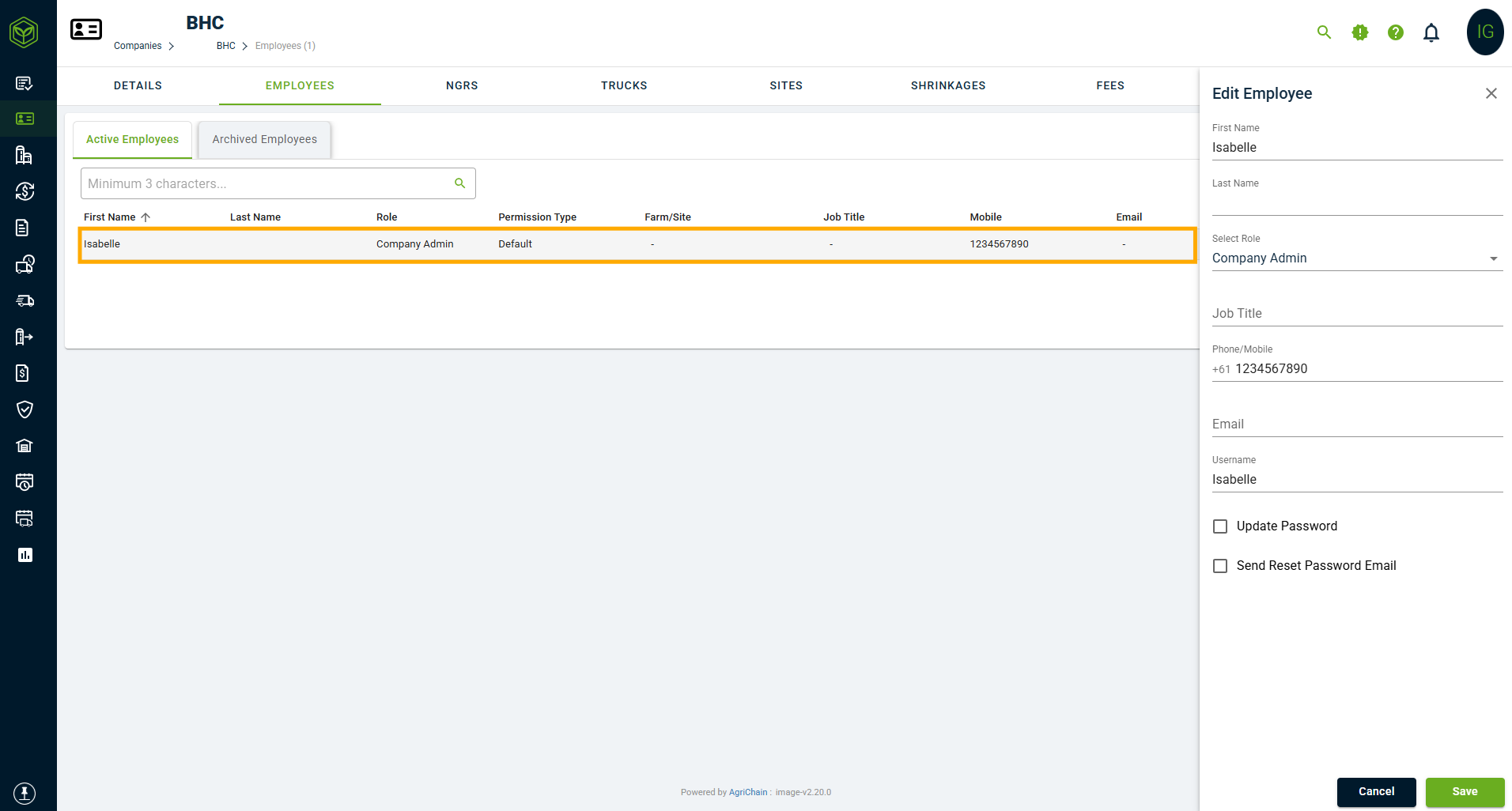
- Update the relevant information, such as email address, username role. (You can read more here: Navigating company roles and permissions article).
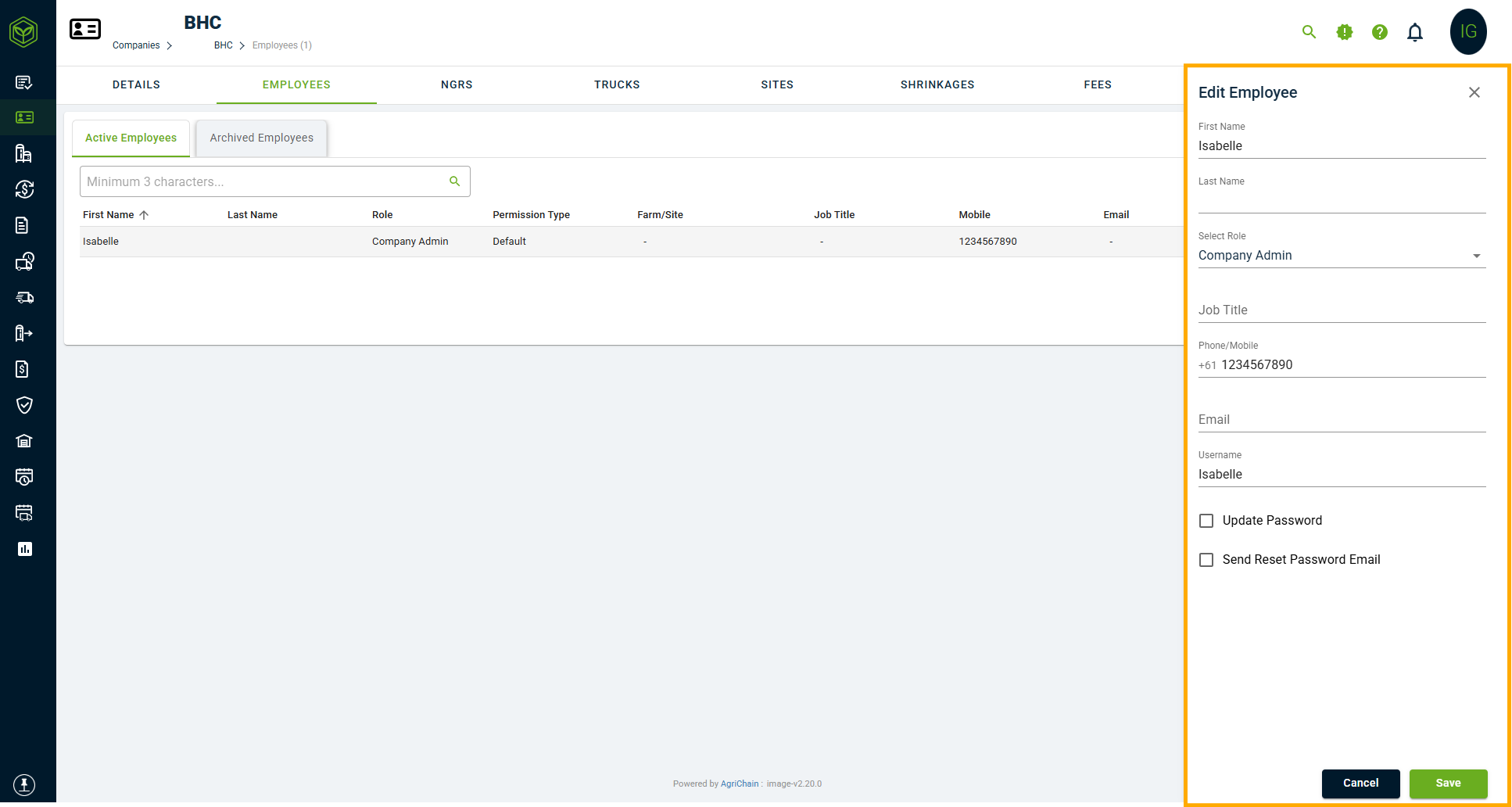
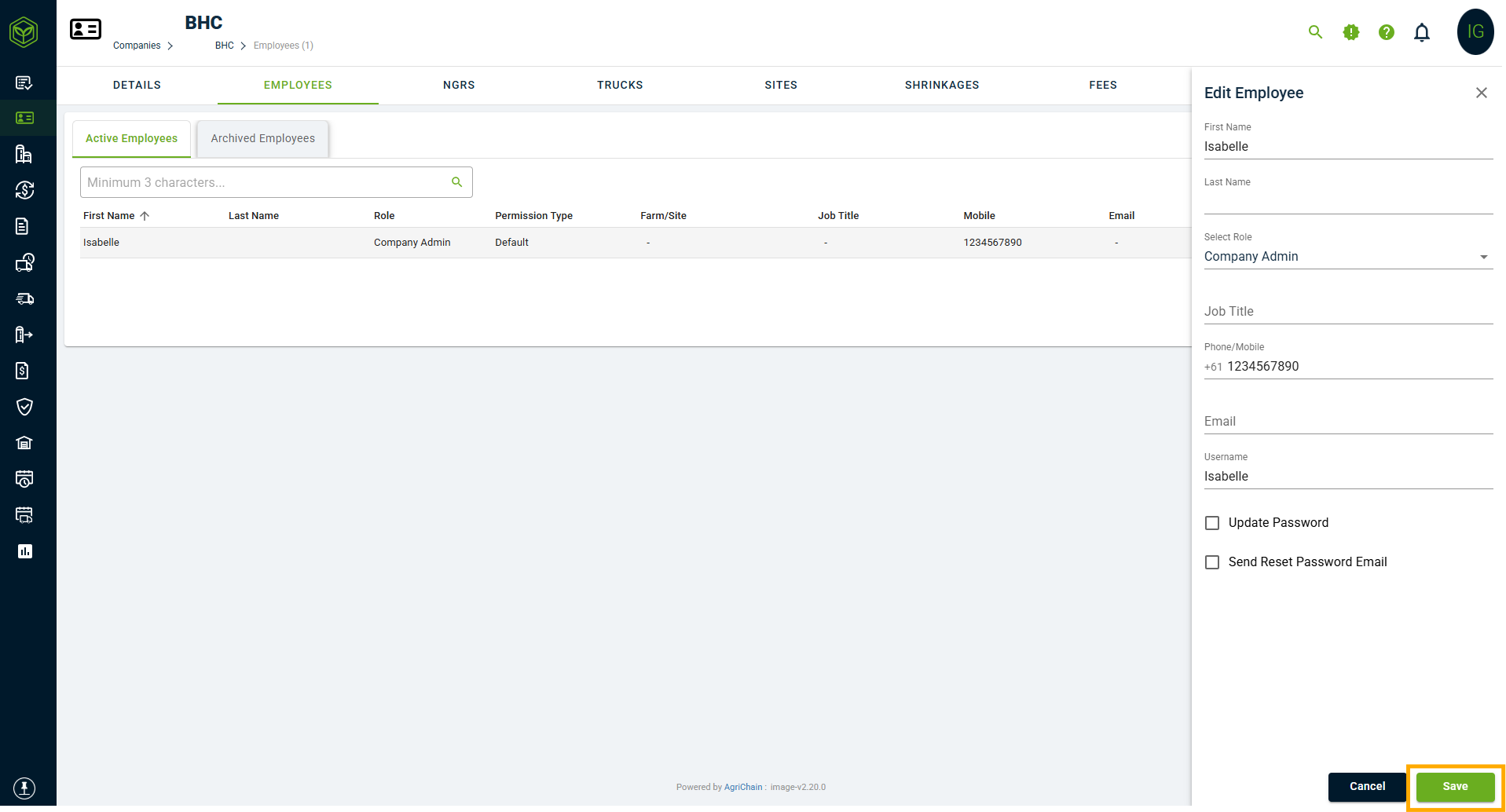
- Once all necessary changes are made, click "Save" to confirm.
Note: Whenever a new email address or username is entered for an employee, the system will prompt for authentication. The user making the change (e.g. Company Admin) must enter their own AgriChain password to confirm and save the update.
Related Articles
Was this article helpful?
That’s Great!
Thank you for your feedback
Sorry! We couldn't be helpful
Thank you for your feedback
Feedback sent
We appreciate your effort and will try to fix the article