Introduction
When another company is not an AgriChain user, their details are input by another company. This means it is important for other AgriChain companies to edit their company details to ensure accuracy prior to using that company in invoices, contracts, pickup/delivery information amongst other tasks. This guide outlines the steps to editing another company's details.
How to update another company's details on AgriChain
1. Log in to AgriChain using your credentials
2. Navigate to Companies from the left-hand menu, this will take you to your company's directory (can click pin icon to expand taskbar if required). 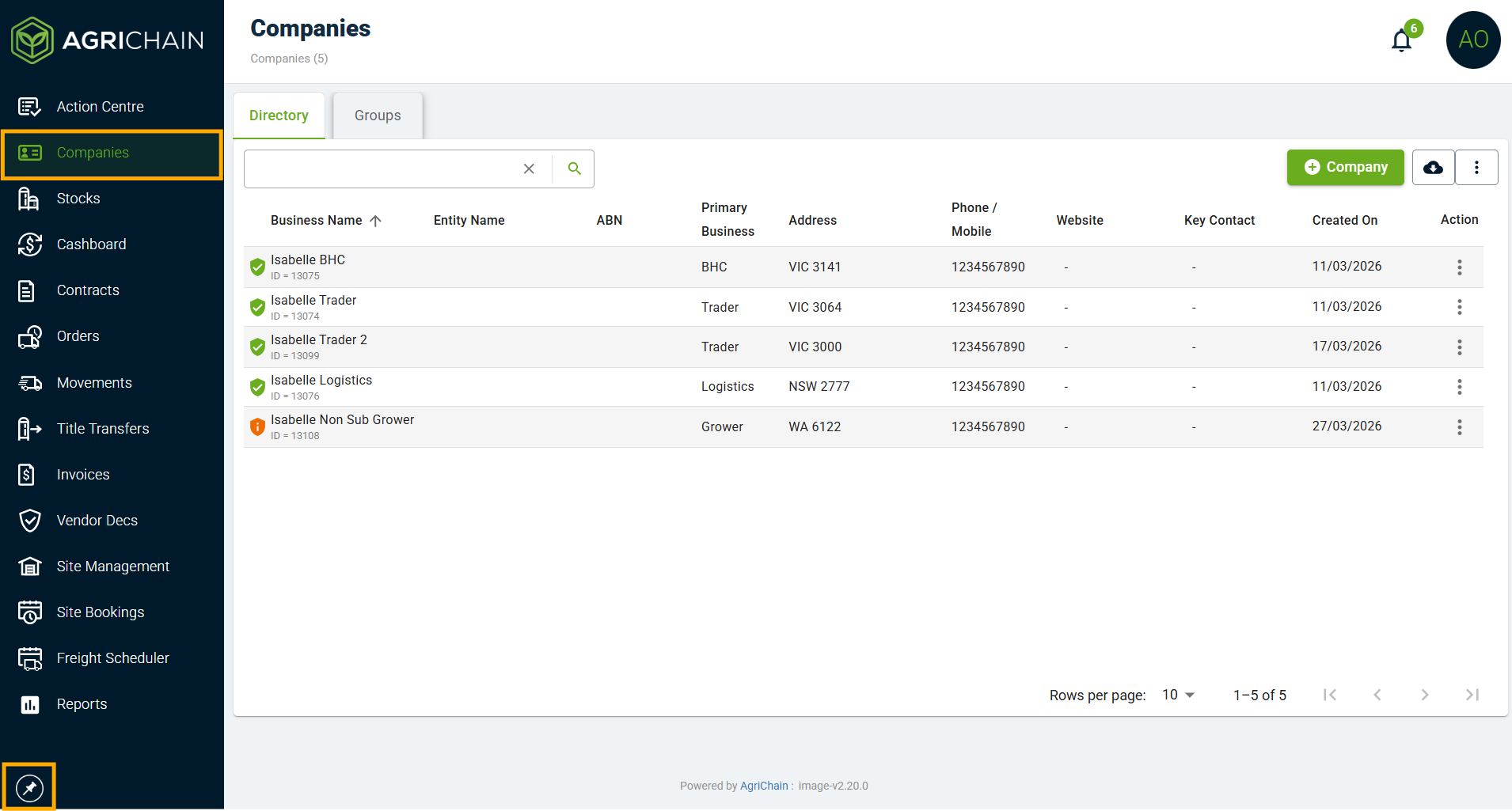
3. Locate and click on the company you wish to edit details for, you'll be directed to its details page.
4. Click the "Edit" button in the top right corner.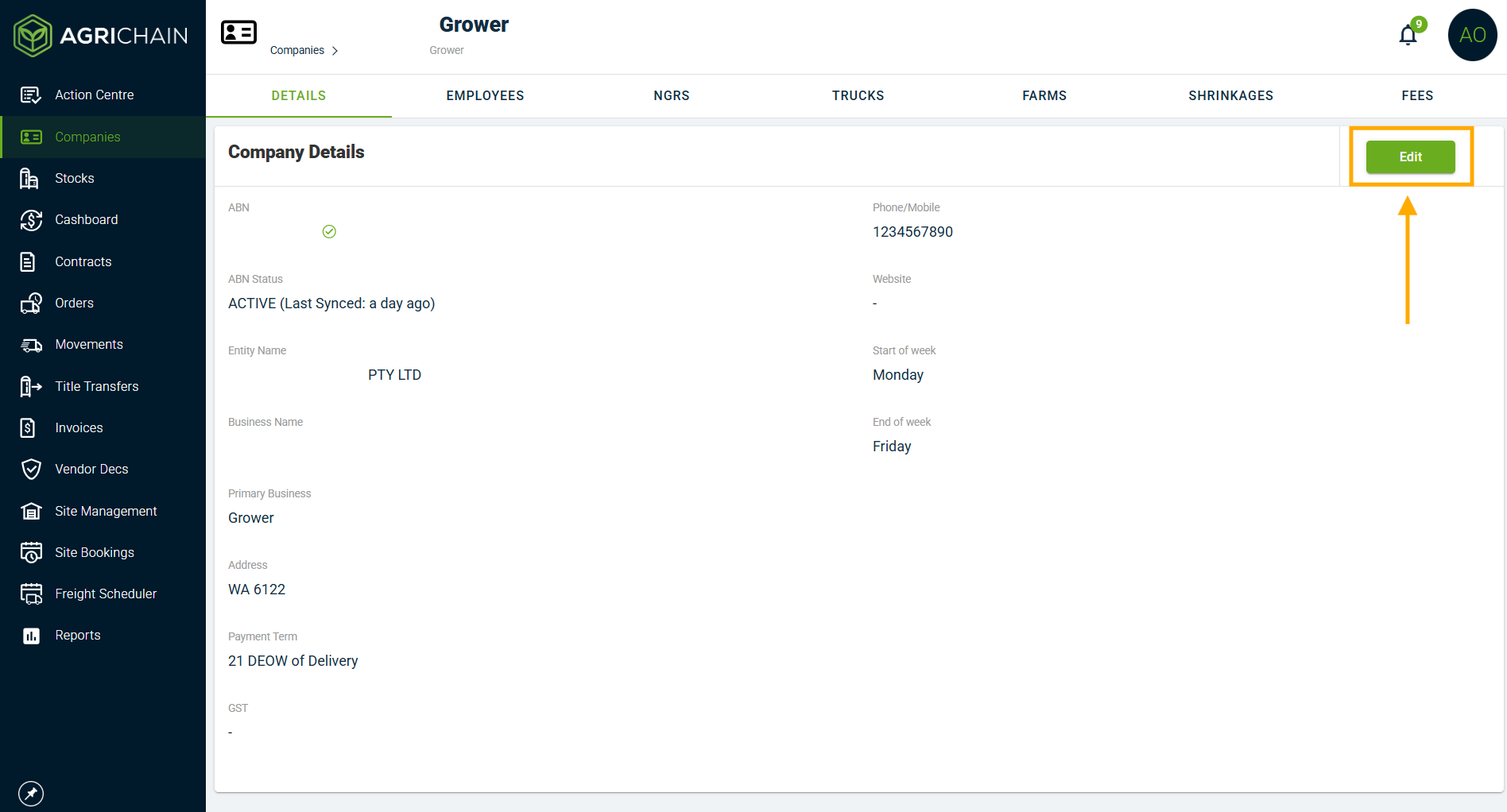
5. Make the necessary changes to the company information in the right pop up task bar (locked fields are not editable), then click "Submit".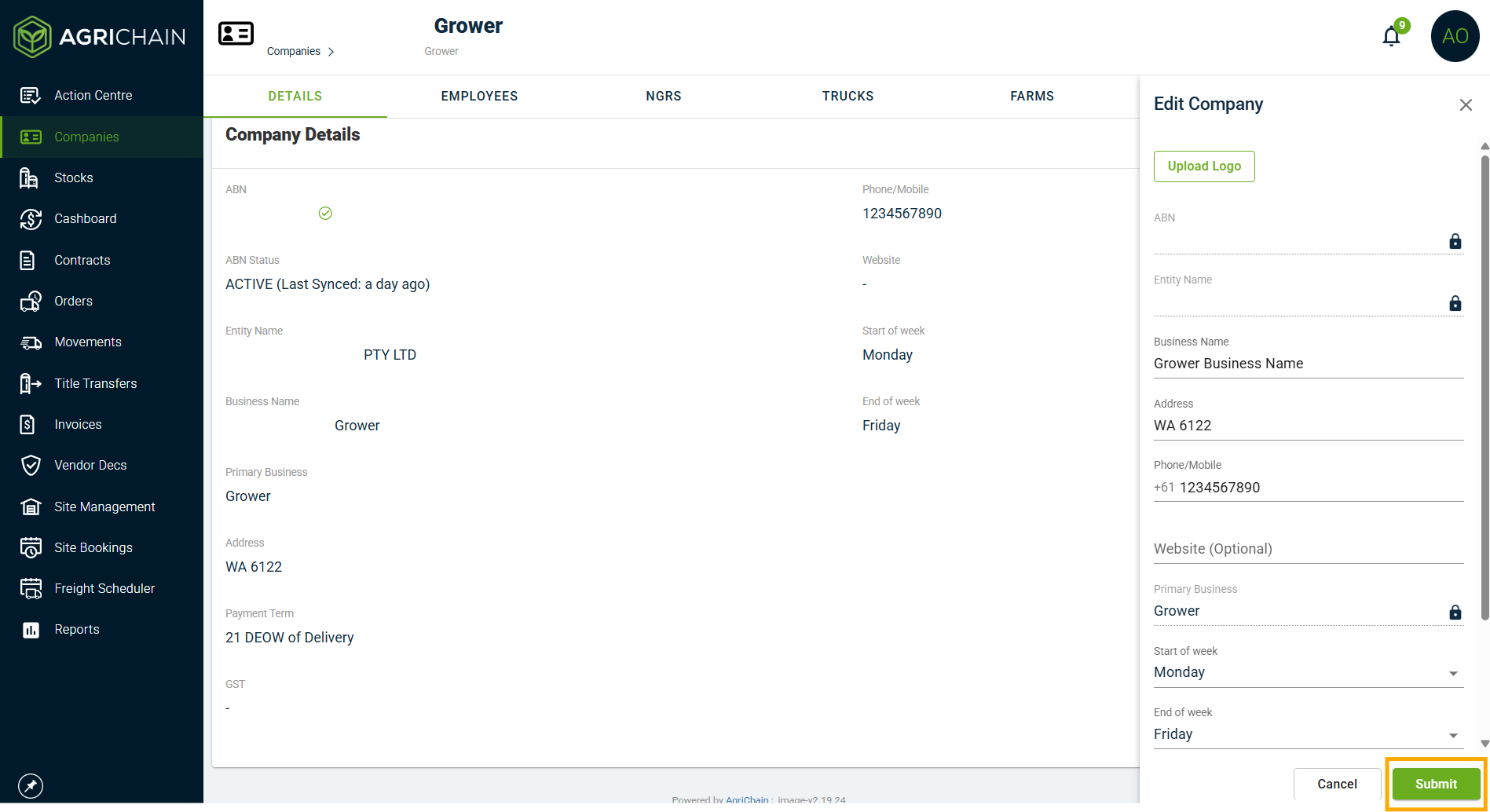
What details can I edit for a Company in my Company Directory?
NOTE: If the company isn't listed in your Company Directory, please refer to the article [Adding Companies to Directory]
- Business name: The business name of the company (may differ from the registered entity name)
- Logo: You can optionally upload the logo image for the company
- Address: The company's primary business address (this may be a PO box or the nearest township/locality)
- Phone/mobile: The company's primary business phone number (this may be a landline or mobile)
- Fax: The company's primary business fax number (if applicable)
- Website: The company's website (if applicable)
- Start of week: The company's start of invoicing week. Monday will be set by default.
- End of week: The company's end of invoicing week. Friday will be set by default.
- Payment term: The company's most common payment term for invoicing. 21 DEOW of Delivery will be set by default.
- GST: Applicable for AU and NZ based companies.
What other categories can I edit for another company apart from "Details"?
Once in the Company's details, you can also explore the other categories under company. Here are actions you can edit: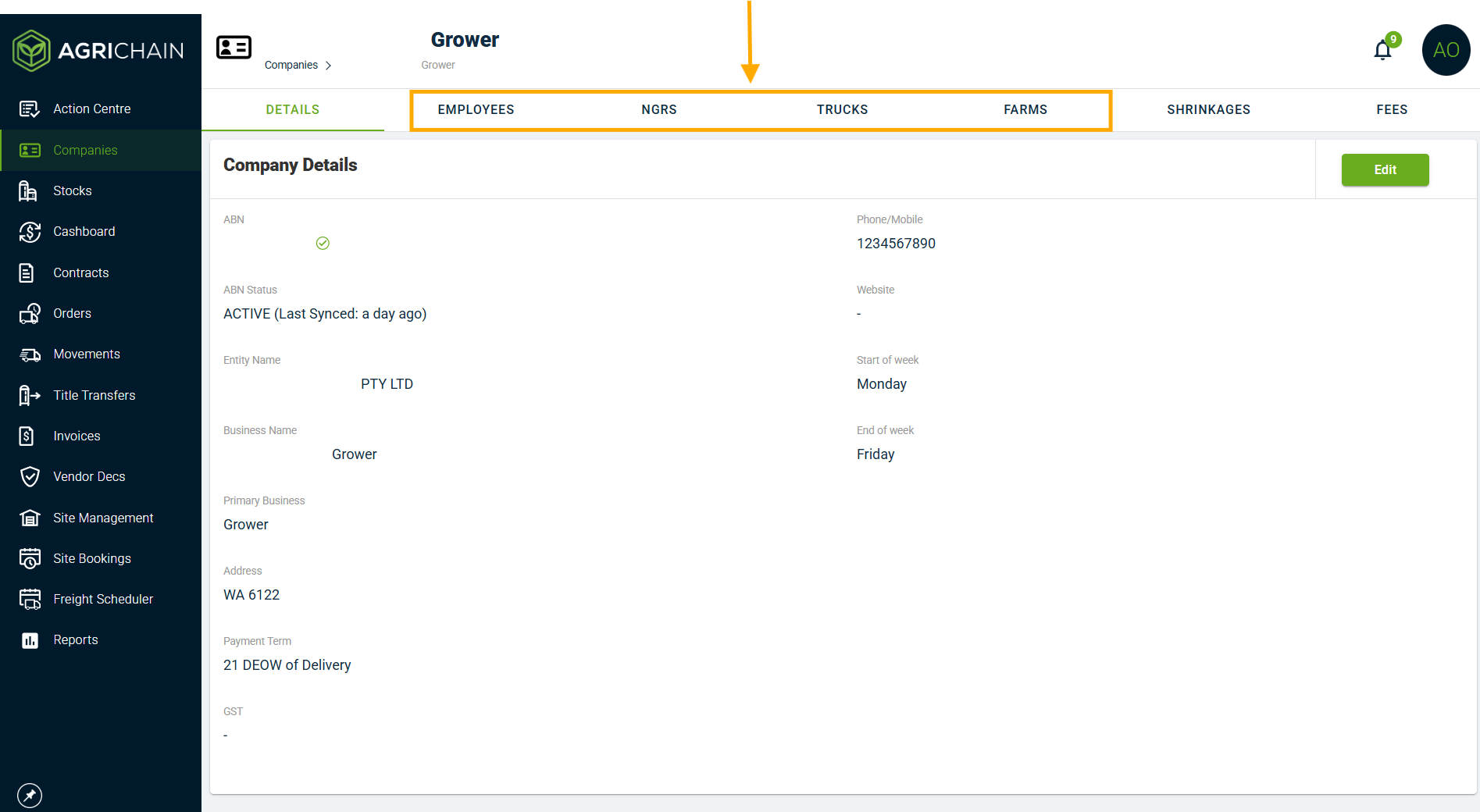
NGRs:
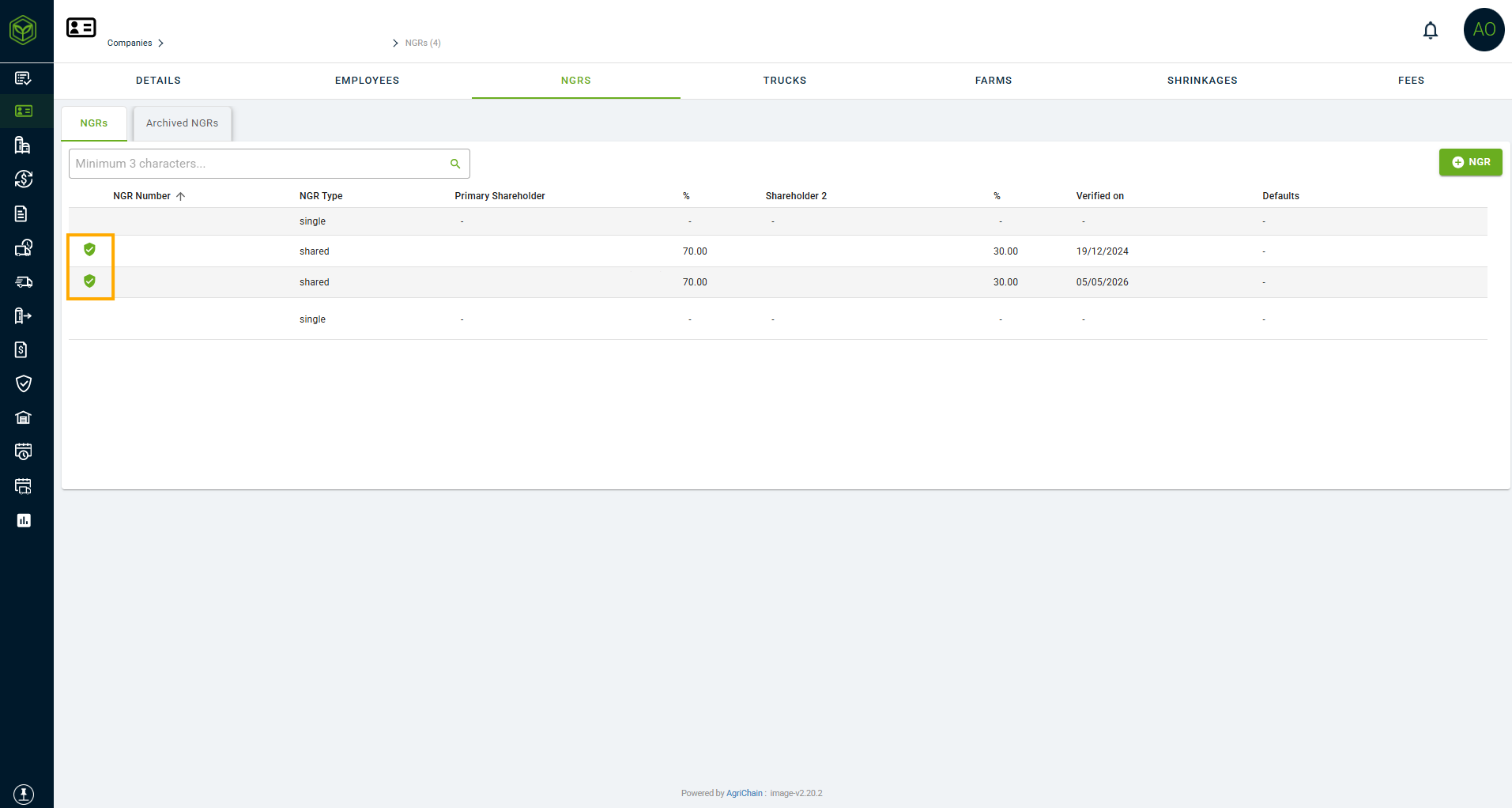
- You can edit an unverified existing NGR (no green shield icon = unverified) and its associated bank details as well as add NGRs, but it's very important to verify these before using them in any formal contract or invoice. Refer to article: NGR
- You cannot edit a verified existing NGR (green shield icon = verified), see below:
Trucks:
- You can add new trucks and edit the details of existing company trucks. You cannot delete or transfer ownership of trucks, you must contact AgriChain support for this.
Farms:
- Location, phone number, site name, site address of pre existing site
- Can add new site to company
Employees:
- You can add new employees to unregistered Companies; inclusive of employee role, full name, email and phone number.
- If a Company is registered and your Company is a subscriber, you can add all details except for "role", for this to be added please submit a ticket to AgriChain.
Reach out to our Support team by visiting https://agrichain.freshdesk.com/support/home, and raise a ticket.
FAQs
Can I edit the details of any company in the AgriChain system?
No, your ability to edit company details depends on the type of company and your permissions. Subscriber companies restrict editing to their own employees.
What fields can I edit when modifying company details?
Most fields are editable, but certain critical fields like ABN, entity name, NGR, and bank details are not editable for security and compliance reasons.
How can I edit the NGR or bank details of another company?
Users lacking permission to edit NGR or bank details of other companies must request the respective company to log in and make the changes. If necessary, the company can create an account in the system for this purpose. See related article below for more.
Related Articles
Was this article helpful?
That’s Great!
Thank you for your feedback
Sorry! We couldn't be helpful
Thank you for your feedback
Feedback sent
We appreciate your effort and will try to fix the article