Introduction
Autoweigh is an AgriChain-powered solution that automates the pickup (outload) and delivery (inload) of commodities at your site.
Parameters
This will be be applicable for the following:
- Post-Harvest Pickup Orders
- Fully Automated solution with weigh ins and weigh outs at the AutoWeigh kiosk(s)
- Bulk commodities
- NO Slot Bookings (NO ‘Site Management/Booking’ module).
At the Inbound AutoWeigh Kiosk
1. The ANPR camera will detect the truck registration number (rego). The driver touches the inbound kiosk screen to begin.
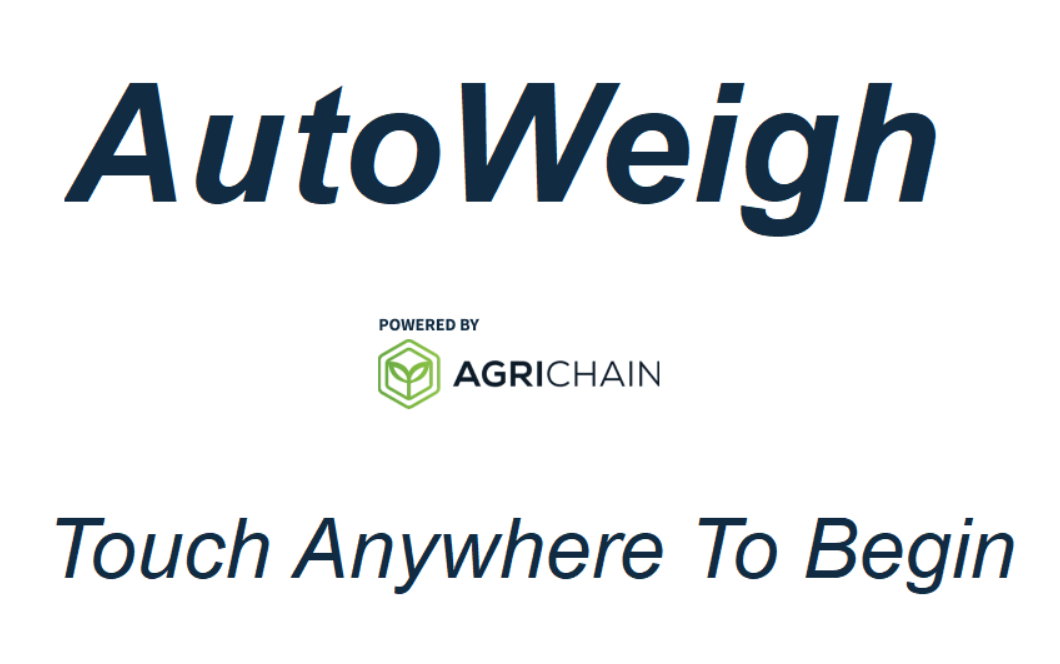
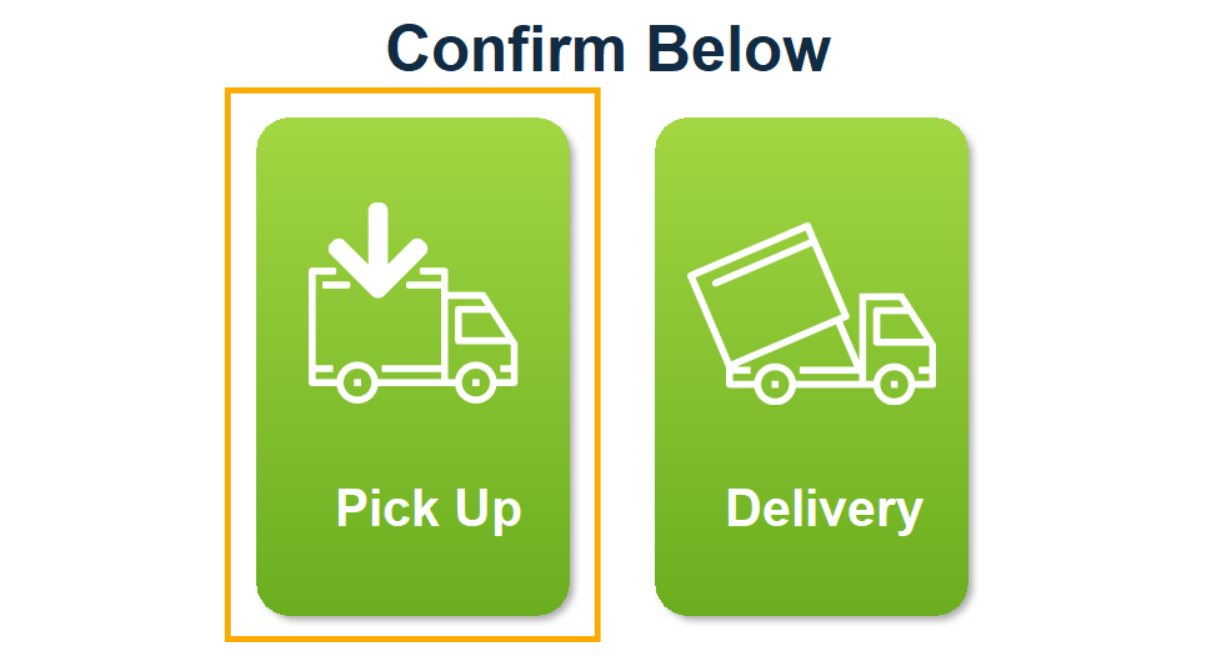
2. The driver will be asked to select and confirm that their truck load is for a ‘Pick Up’.
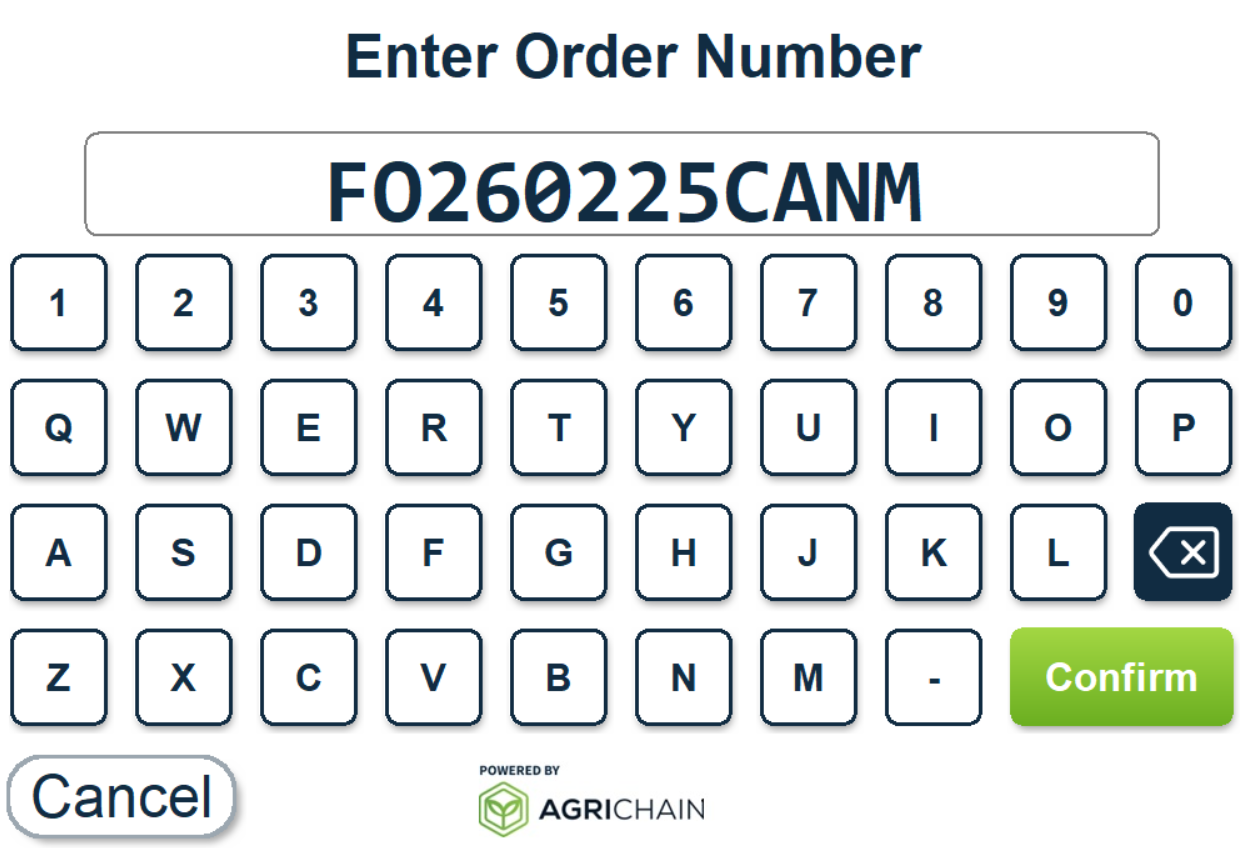
3. Once confirmed, the driver will enter the pickup order number.
Important: If a scheduled load is detected, the driver must select the correct scheduled load. Drivers do NOT need to 'Load their truck' using the AgriChain Mobile App.
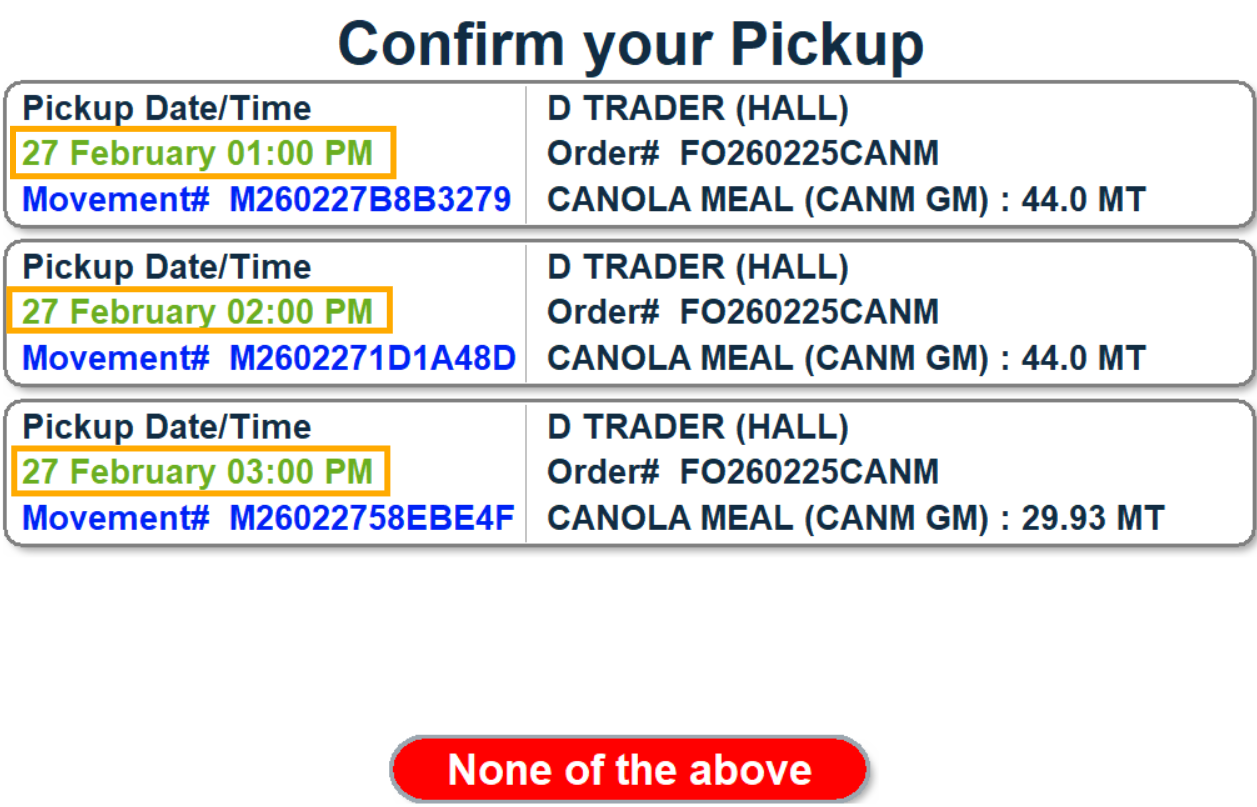
4. The driver will then need to confirm the pickup order’s details.
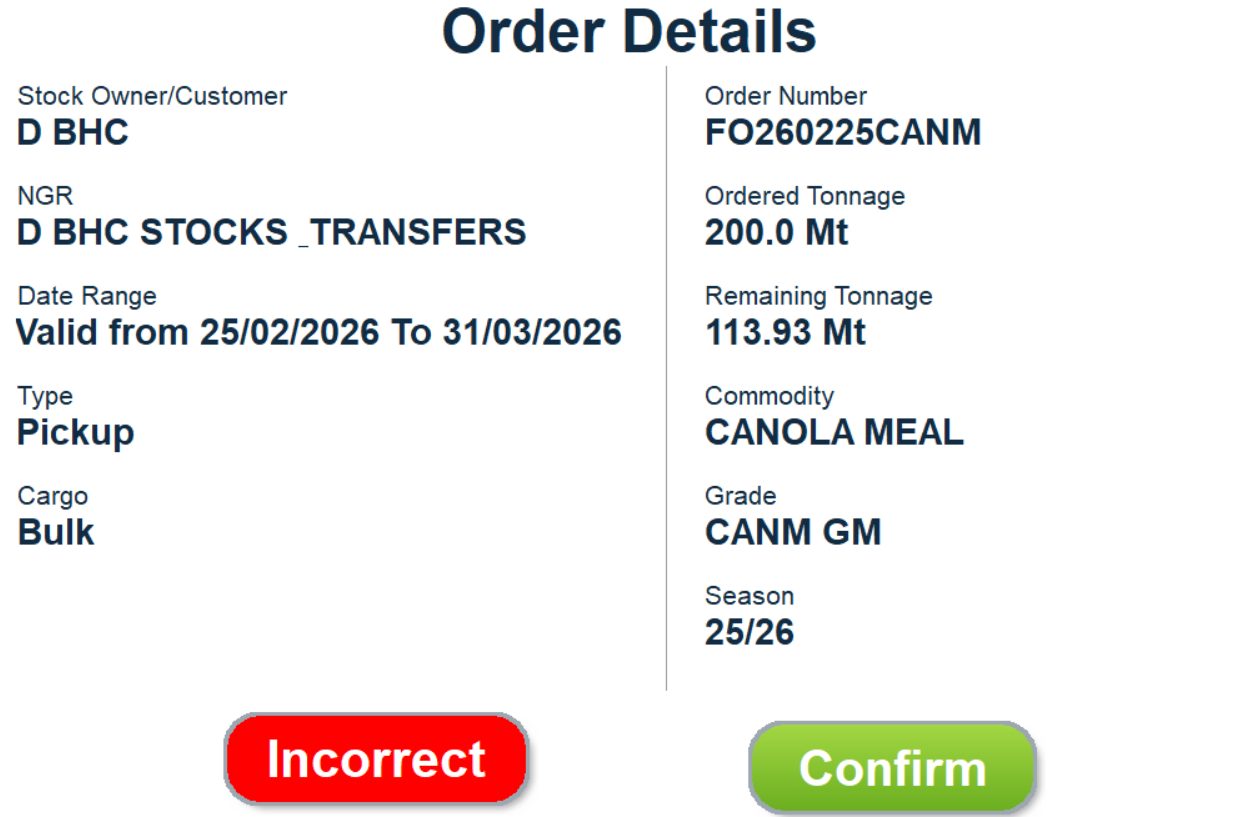
5. This is followed by re-confirming their saved mass limit details.
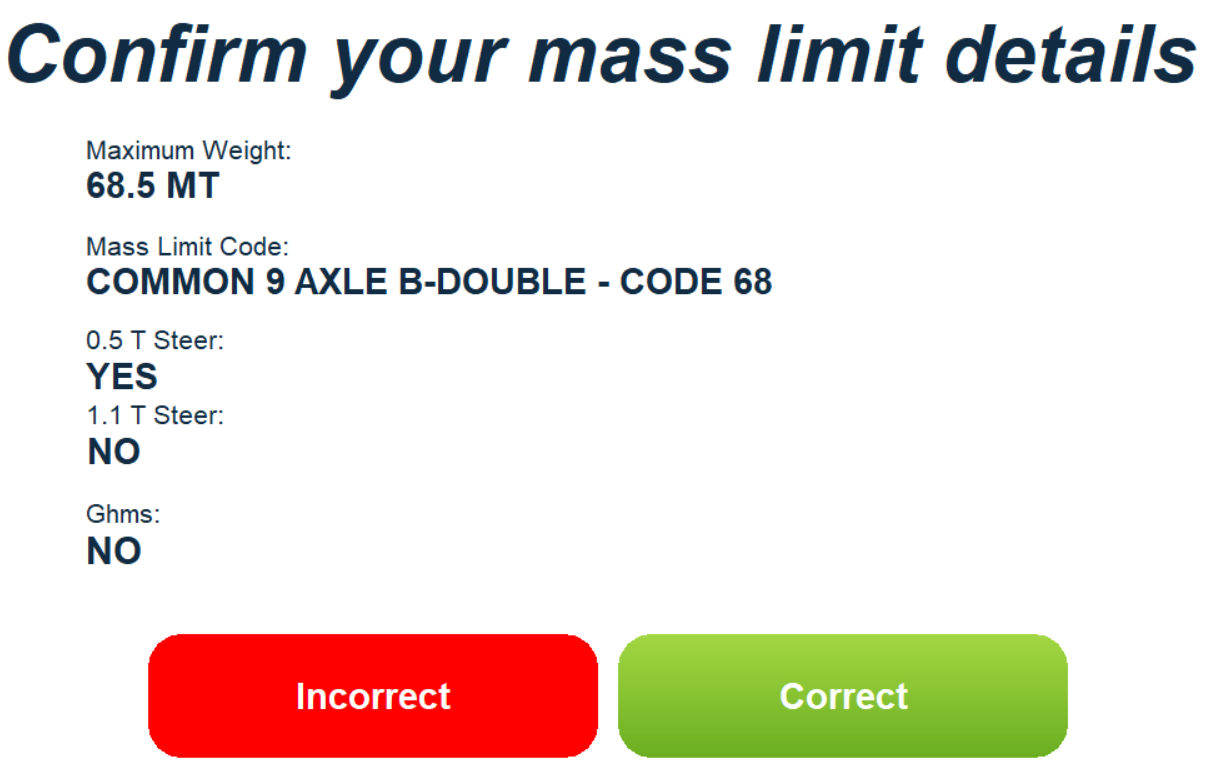
6. If unavailable or incorrect, the driver will need to input the truck’s mass limit weight and select the applicable truck code.
Important: Please note that saved mass limit details will only be displayed if a truck has previously visited the site and completed a movement.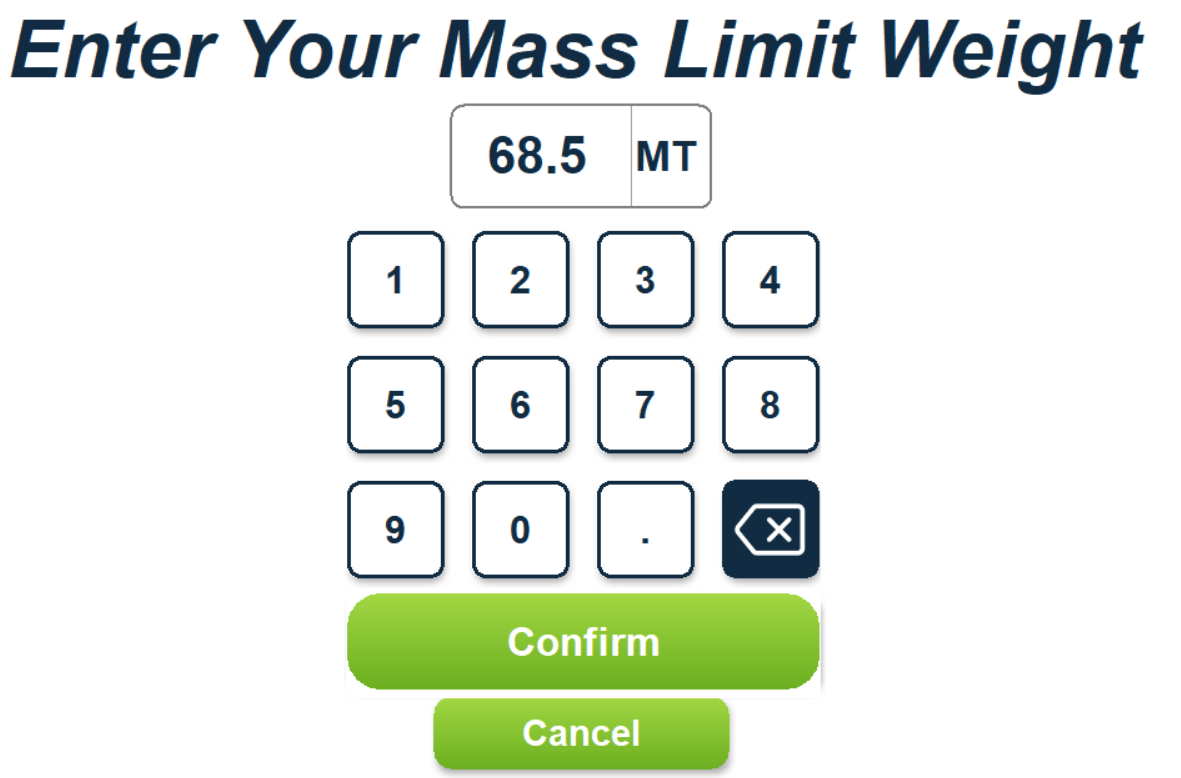
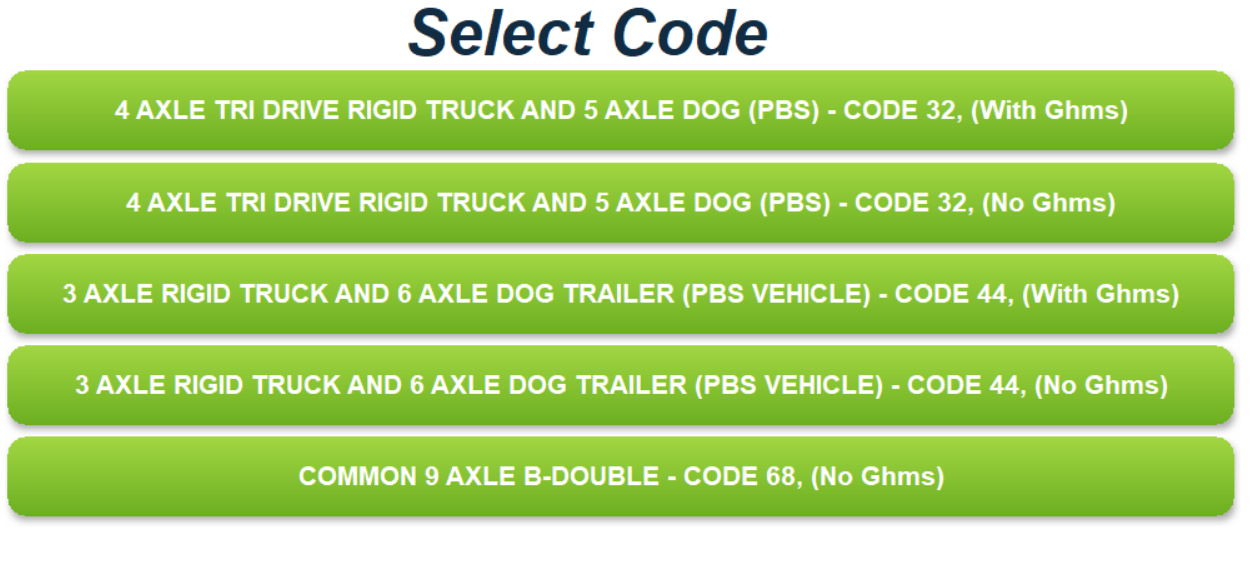
7. Once done, the driver will nominate whether split weighing is required.
Important: Split weighing will ONLY be required if the truck is longer than the site’s weighbridge.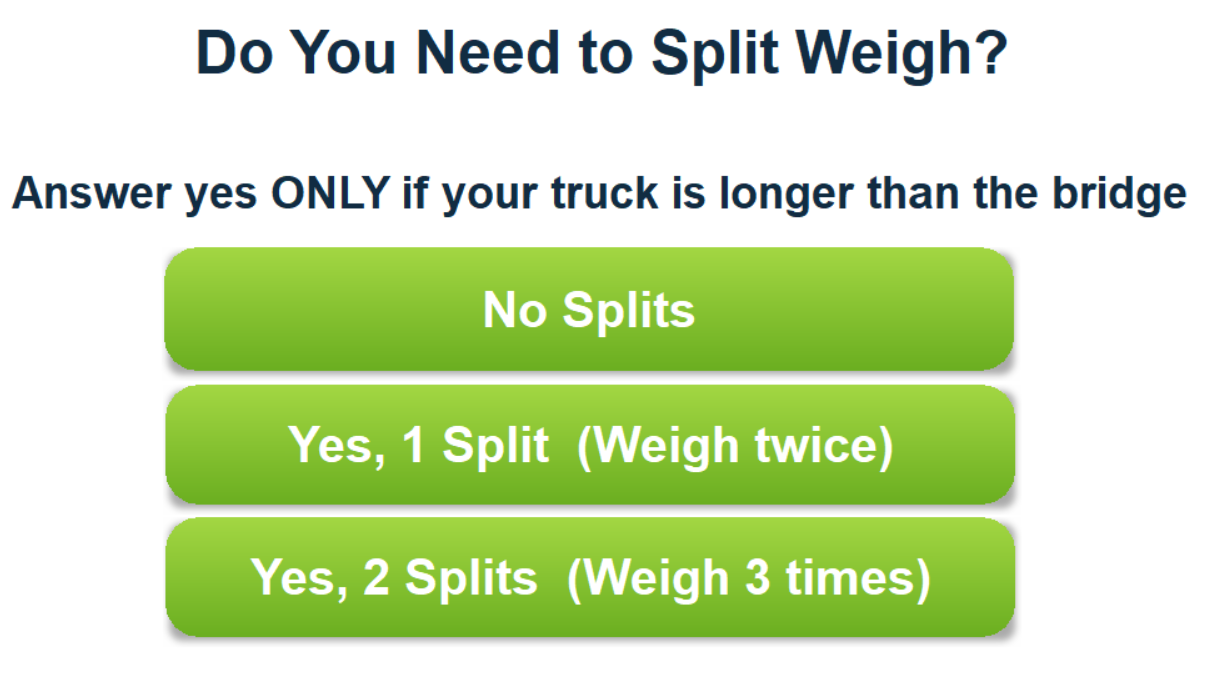
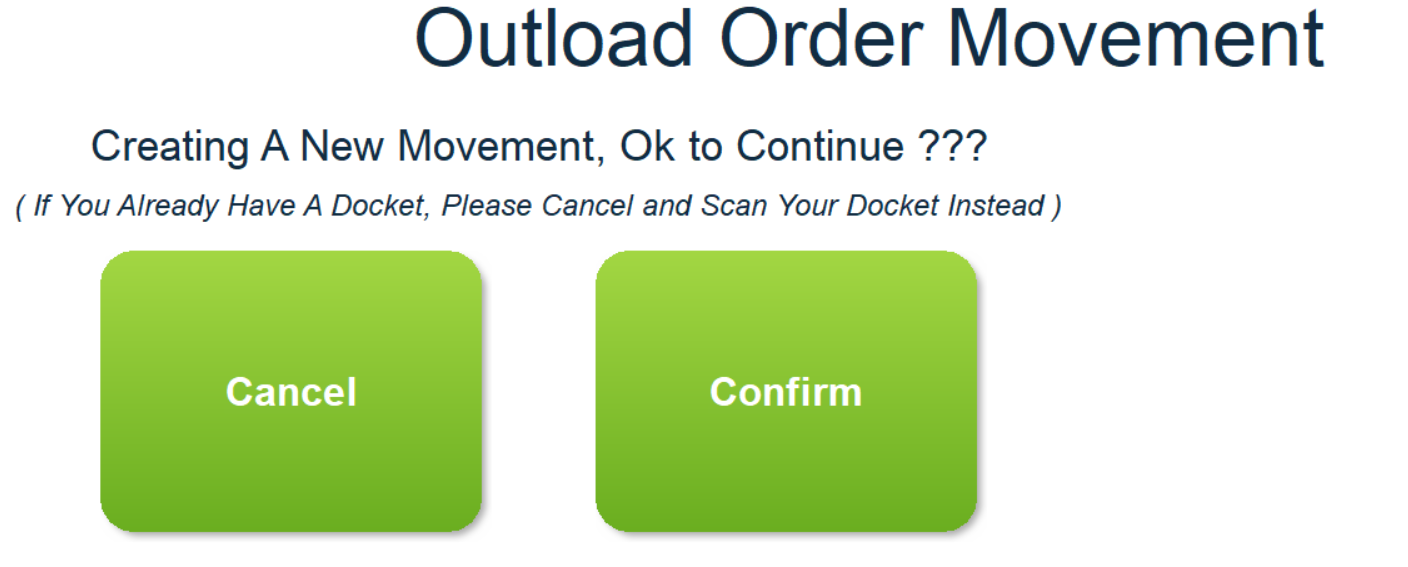
8. The driver will then need to confirm that they are here to pick up a new load.
9. Next, the driver will be instructed on the VMS display board to drive onto the weighbridge for the weigh in.
10. At the weighbridge stand, outload data will need to be entered on the AgriChain Mobile App by the weighbridge stand operator. This includes:
- Commodity details, if editable.
- Outload Storage location.
- Specifications, if applicable.
The weighbridge stand operator can also ‘Print [a] Storage Docket’ and pass this to the driver. The driver will then know which storage to load at.
Important: Autoweigh will not allow the driver/truck to complete its weigh out if load data is not entered on the AgriChain Mobile App.11. Once the driver finishes loading their truck, they will make their way to the outbound kiosk to weigh out.
At the Outbound AutoWeigh Kiosk
1. The ANPR camera will detect the truck registration number (rego). The driver touches the outbound kiosk screen to begin.
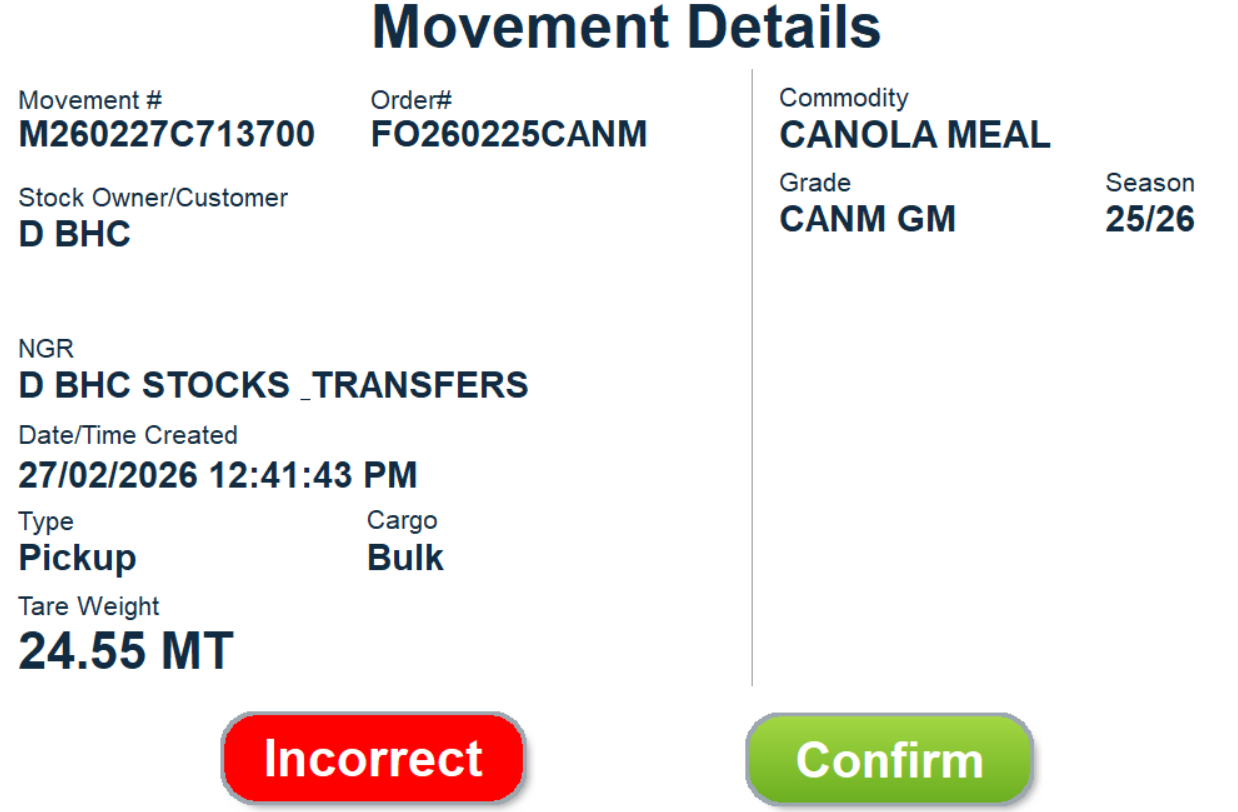
2. The driver will review and confirm the weigh in details displayed on the kiosk screen.
3. Once done, the driver will nominate whether split weighing is required.
Important: Split weighing will ONLY be required if the truck is longer than the site’s weighbridge.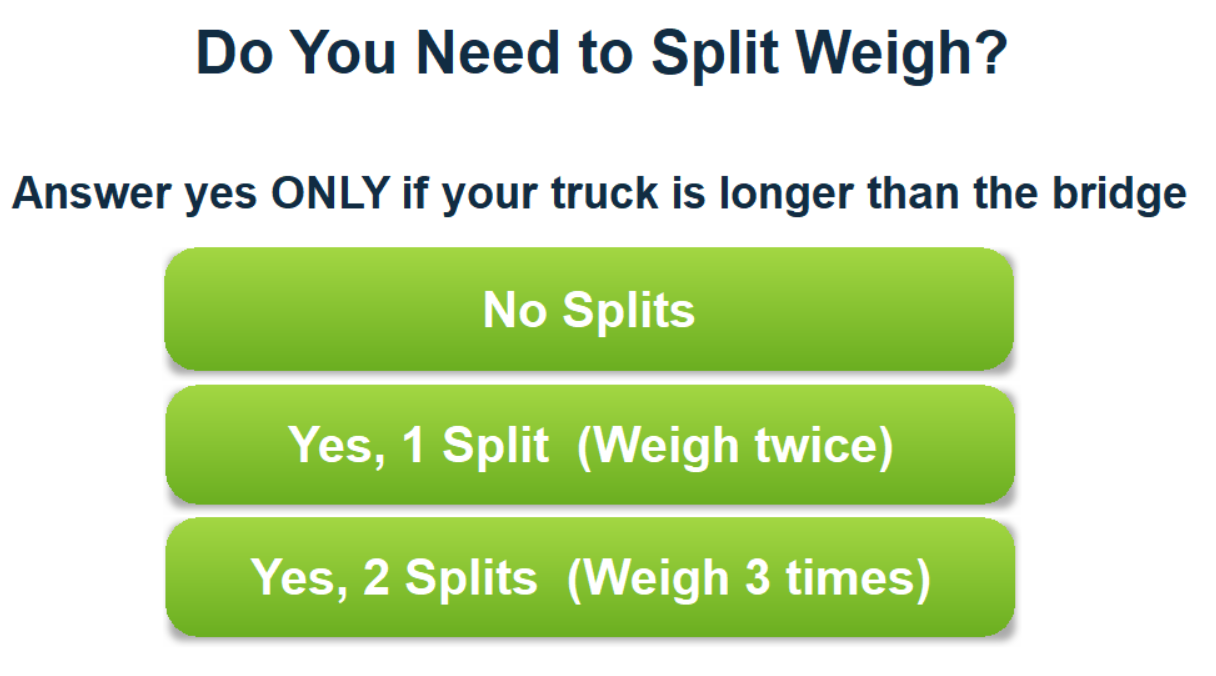
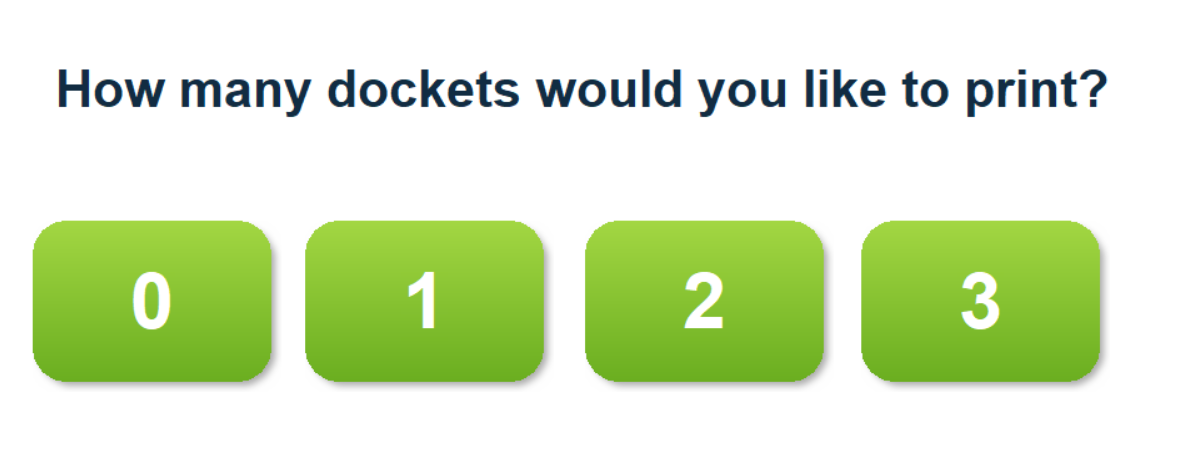
4. The driver will also be asked on the number of dockets they would like printed.
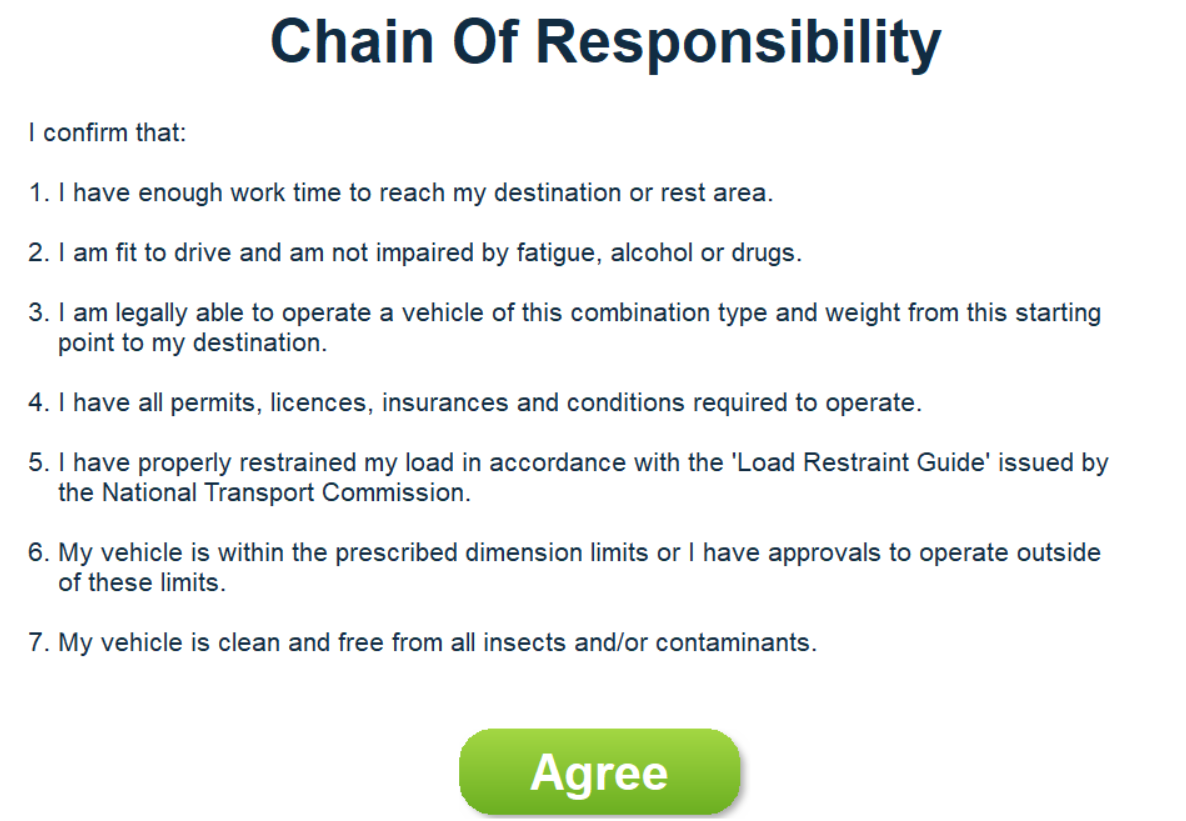
5. The driver will then need to sign off on their Chain of Responsibility declaration.
6. Finally, the driver will be instructed on the VMS display board to drive onto the weighbridge for the weigh out.
7. Once weighed out, the pickup is complete.
Was this article helpful?
That’s Great!
Thank you for your feedback
Sorry! We couldn't be helpful
Thank you for your feedback
Feedback sent
We appreciate your effort and will try to fix the article