Introduction
Stock swaps allow users to substitute stock stored at one location to storing it at another location. Users can also attach freight differential for these swaps. Here, essentially, the ownership of the stock is still with the same company, just moved to another location. Tonnage of a specific Commodity is removed at the original site and added to another of the company's sites.
Step-by-step instructions on how to swap Stocks:
Users can swap stocks under their ownership as well as 3rd party stocks at their sites.
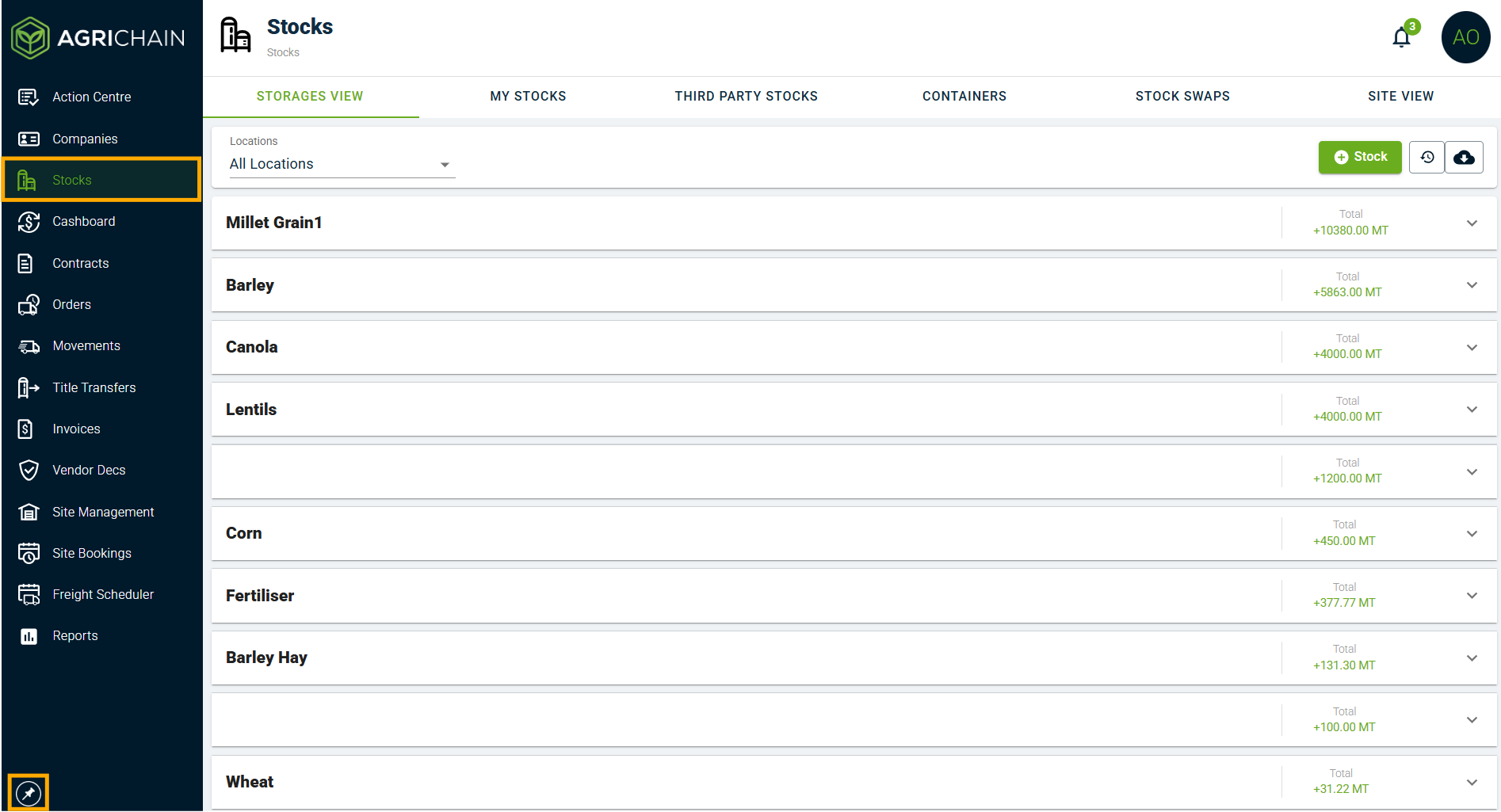
- Open Stocks module in left taskbar, can click pin icon to expand taskbar if required.
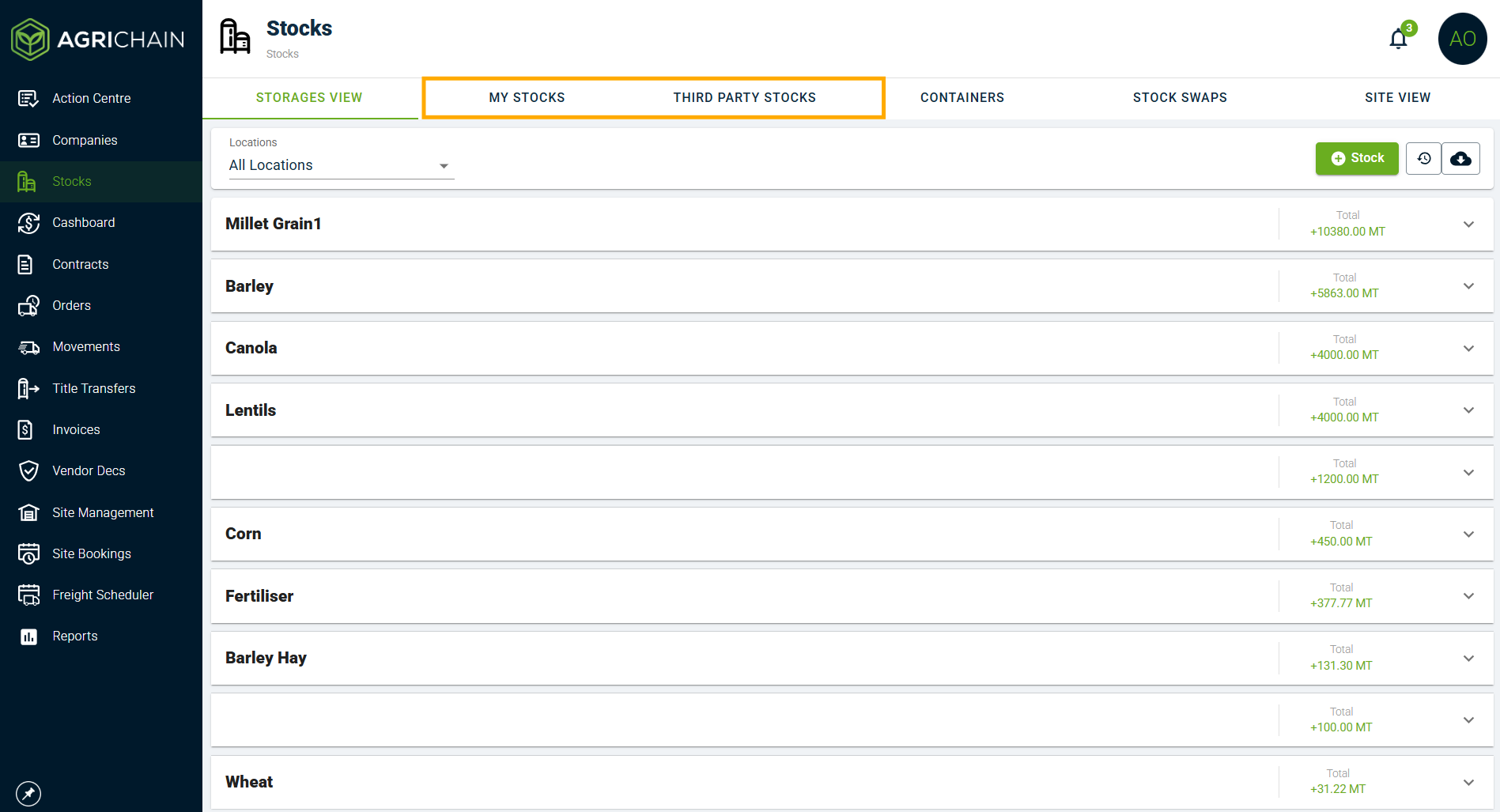
- Users must locate the stock they're wanting to swap - this can be done from the either of the ownership views; My Stocks and Third Party Stocks.
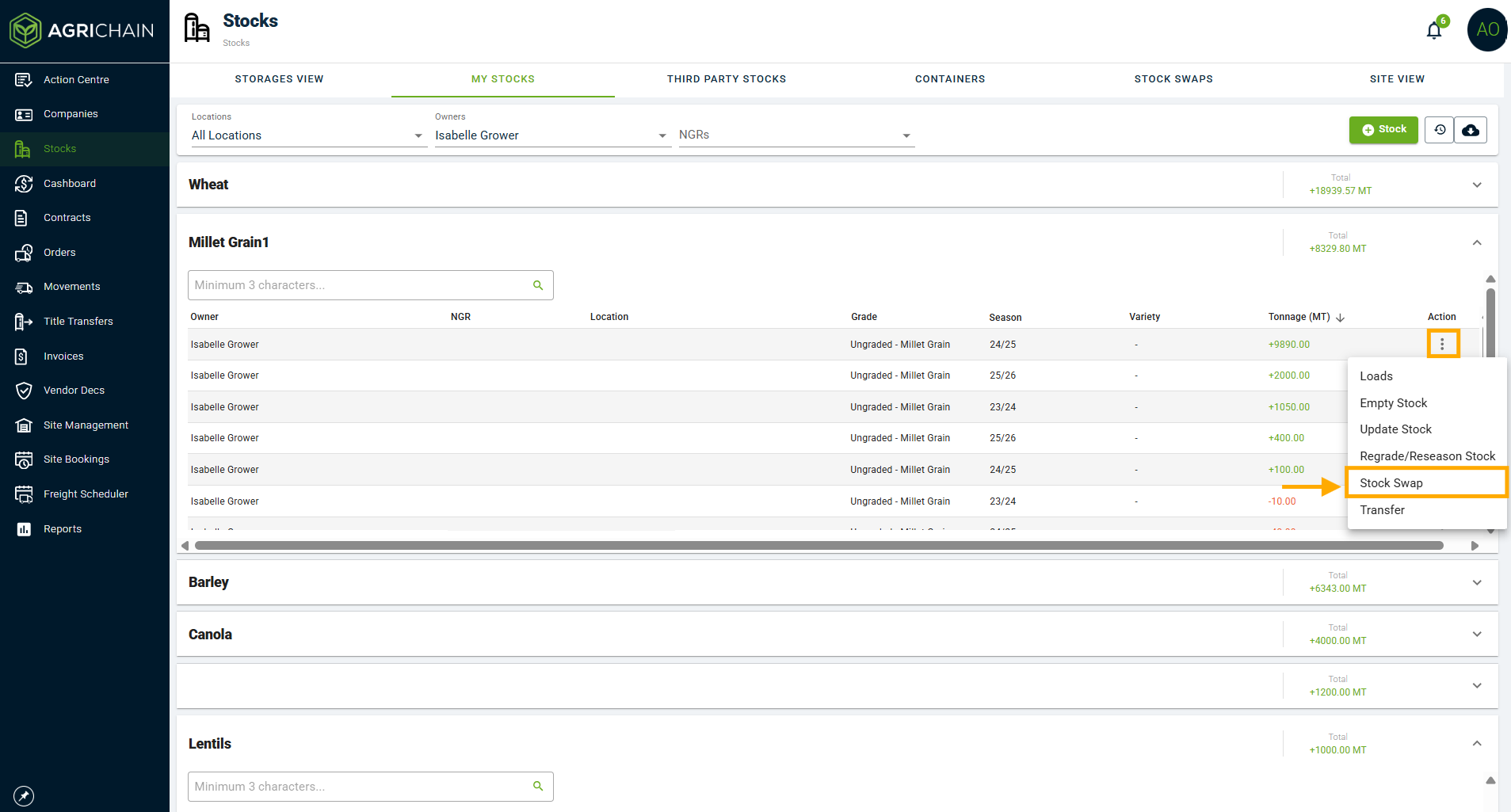
- Click the 3-dot action menu on the stock line you're needing to edit and select "Stock Swap" from drop down menu.
Where can I find previously executed Stock Swaps?
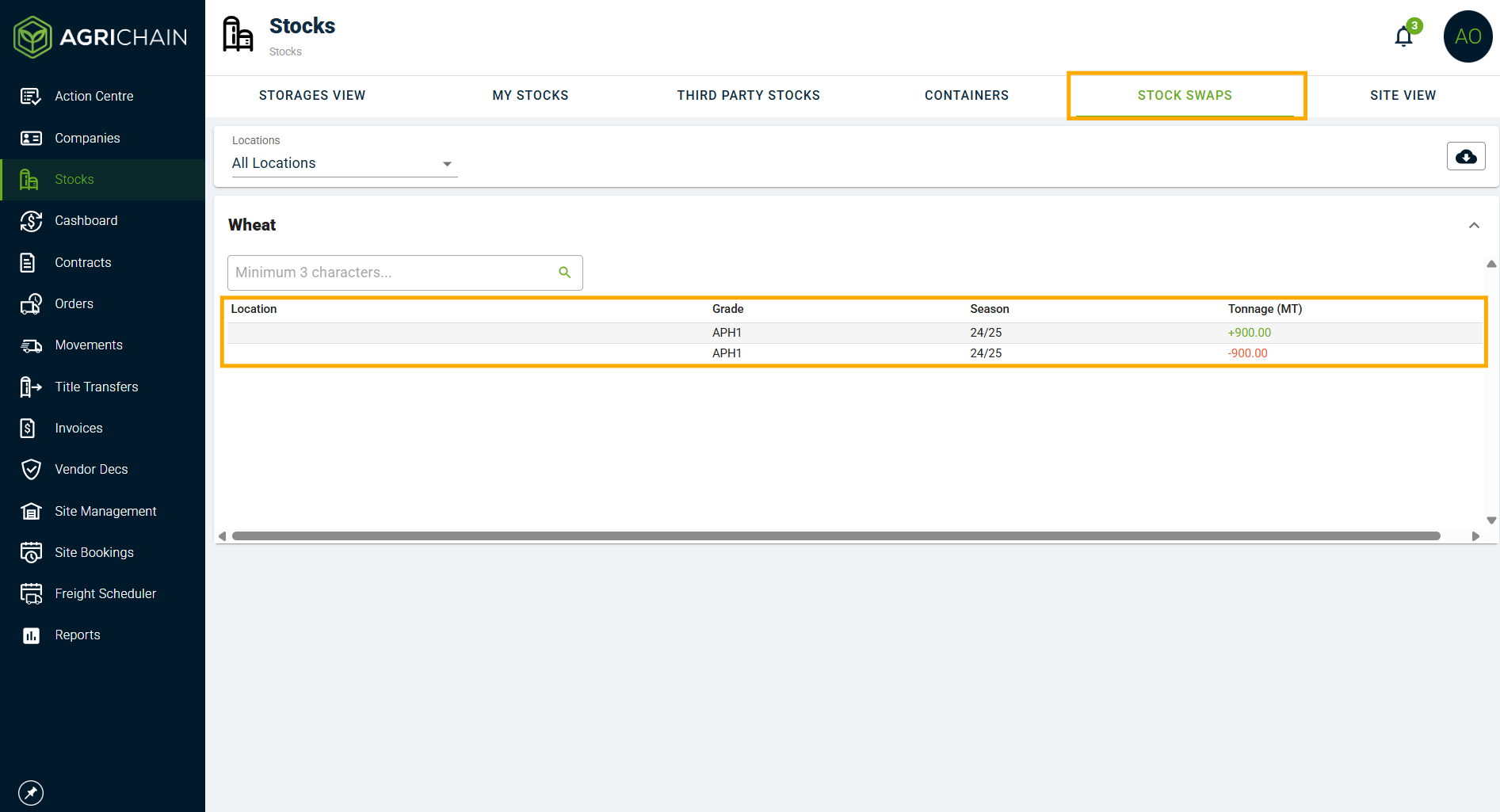
To view previously executed stock swaps users can head over to the "Stock Swaps" tab on the top task bar. Here users will see all the stock swaps that have been carried out, separated by Commodity.
- Stock swaps come in pairs, since each swap consists of removal of tonnage from user ownership at the original site and addition of tonnage to user ownership at the swap site.
- Clicking on one of the swap line items will take users to the load listing for that site and stock combination.
NOTE: Stock Swaps do not affect the tonnage in Storages view and might cause an imbalance between the Ownership and Storages views. This can be corrected by creating a "Stock Update" on the Storages view if required.
Related Articles
Was this article helpful?
That’s Great!
Thank you for your feedback
Sorry! We couldn't be helpful
Thank you for your feedback
Feedback sent
We appreciate your effort and will try to fix the article