Introduction
The AgriChain platform seamlessly integrates with QuickBooks, allowing you to generate invoices directly in AgriChain based on real-time movement (load) data, which then flows into QuickBooks.
To set this up:
Link and authorise the AgriChain-QuickBooks integration.
Map your QuickBooks accounts in AgriChain, ensuring your Customer Display Name in QuickBooks and Business Name on AgriChain both are the same.
Key flow details to remember:
Invoice Amendments: If you create an invoice in AgriChain and need to make changes, always update the invoice within AgriChain. These changes will automatically sync to QuickBooks.
No Sync from QuickBooks to AgriChain for Invoices: Any amendments to Invoices made directly in QuickBooks will not sync back to AgriChain. To ensure accuracy across both systems, all invoice updates must be done in AgriChain.
Payment Handling: QuickBooks is the system used for payment processing. AgriChain does not process payments directly. Instead, it receives the payment status (e.g., Paid or Reconciled) from QuickBooks once a payment is recorded there.
This help article will guide you through setting up or re-linking your AgriChain-QuickBooks integration.
To Set Up or Re-Link your QuickBooks Integration:
Go into your QuickBooks Account (not AgriChain) and obtain your QuickBooks Client ID and Secret (copy both of these).
Once you have obtained your QuickBooks Client ID and Secret, log into your AgriChain Account.
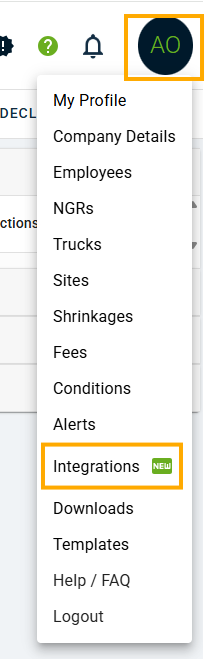
From your AgriChain Profile Initials in the top right-hand corner of the page, go to the 'Integrations' page.
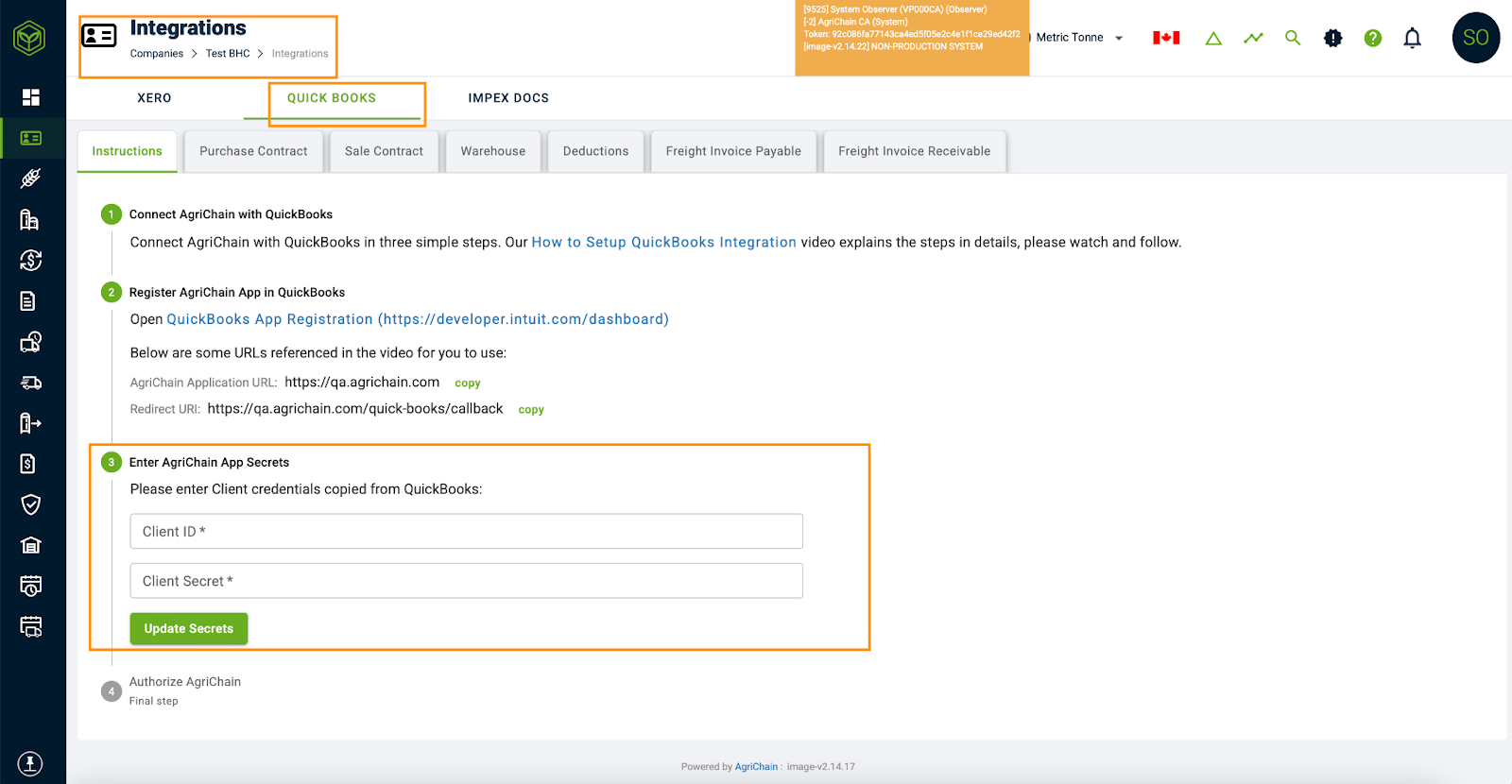
On the 'Integrations' page, go to the 'QUICKBOOKS’' tab and enter your copied QuickBooks Client ID and Secret in Item Number 3.
Once done, click on the 'UPDATE SECRETS' button.
From there, Item Number 4 - 'Authorise AgriChain' will be activated and click on the 'CONNECT QuickBooks' button to proceed.
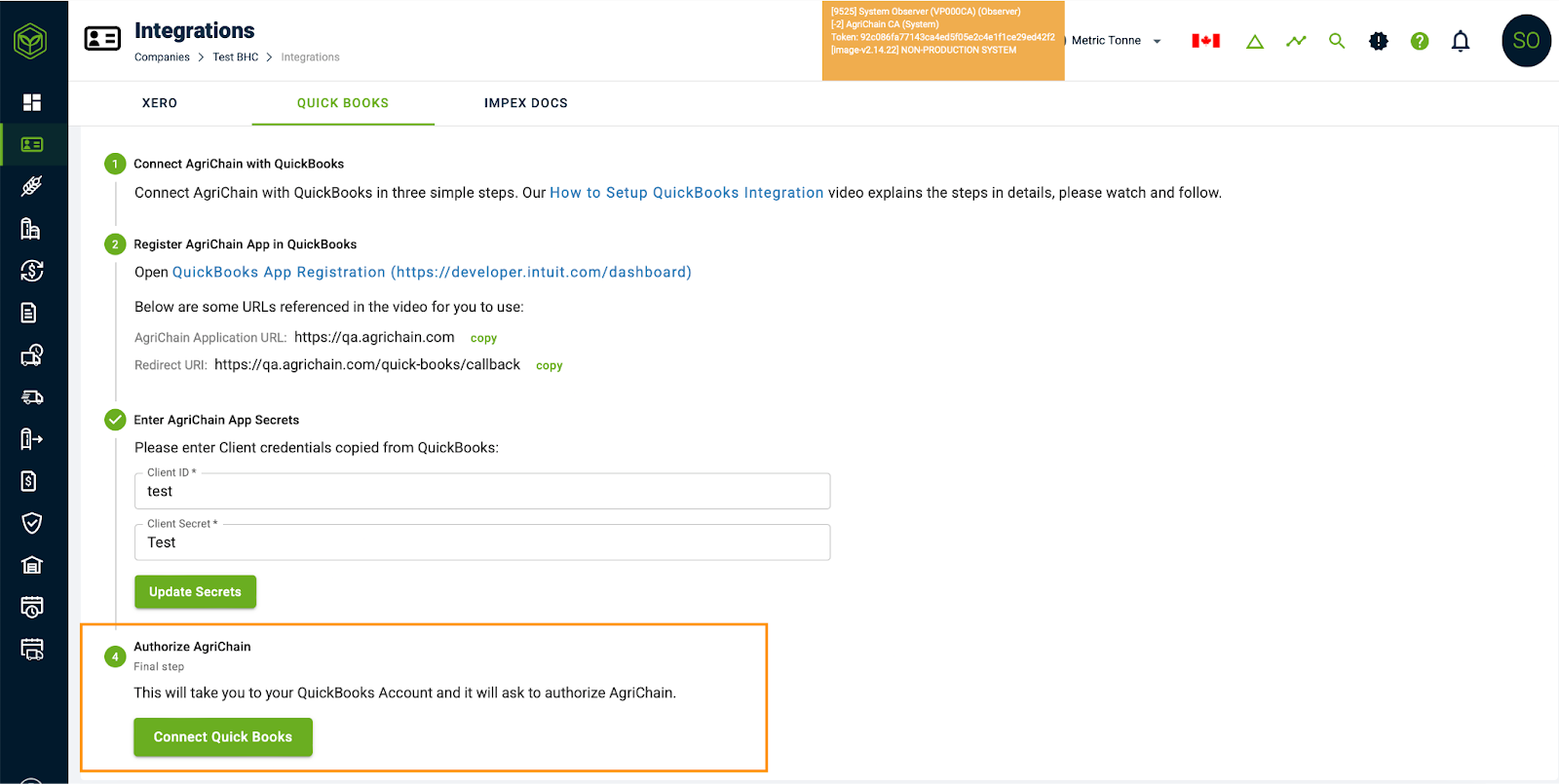
You will then be brought directly to your QuickBooks Account, sign in and authorize AgriChain.
Finally, return to your AgriChain Account and start invoicing.
Noting that you will need to map your QuickBooks accounts in AgriChain first, ensuring your Customer Display Name in QuickBooks and Business Name on AgriChain are the same.
The Business Name on AgriChain and Customer Display Name on QuickBooks must match exactly and not have any spaces in between the numbers.
FAQs
I'm receiving 'Re-connect' notifications that my QuickBooks integration has been disconnected. How can I re-link it?
To re-link your QuickBooks integration:
Go to the 'Integrations' page from your Profile menu (click on your initials in the top right corner).
In the 'QUICKBOOKS' tab, click the 'RECONNECT QUICKBOOKS' button (Item Number 4).
You'll be re-directed to QuickBooks, where you can sign in and authorise AgriChain.
Related Article
- Mapping Quick Books and AgriChain [US and Canada]
- Managing Payments in Quick Books and Voiding invoices in AgriChain [US and Canada]
Was this article helpful?
That’s Great!
Thank you for your feedback
Sorry! We couldn't be helpful
Thank you for your feedback
Feedback sent
We appreciate your effort and will try to fix the article