Introduction
AgriChain’s Overseas Operations feature enables businesses operating across multiple countries to seamlessly transact beyond their home region. However, before proceeding, you must first add the overseas company to your own directory. This can only be done once the company-level setting for Overseas Operations has been enabled for your account.
Please get in touch with support to activate this setting:
Reach out to our Support team by visiting https://agrichain.freshdesk.com/support/home, and raise a ticket.
To add a company to your companies directory (once the setting is enabled):
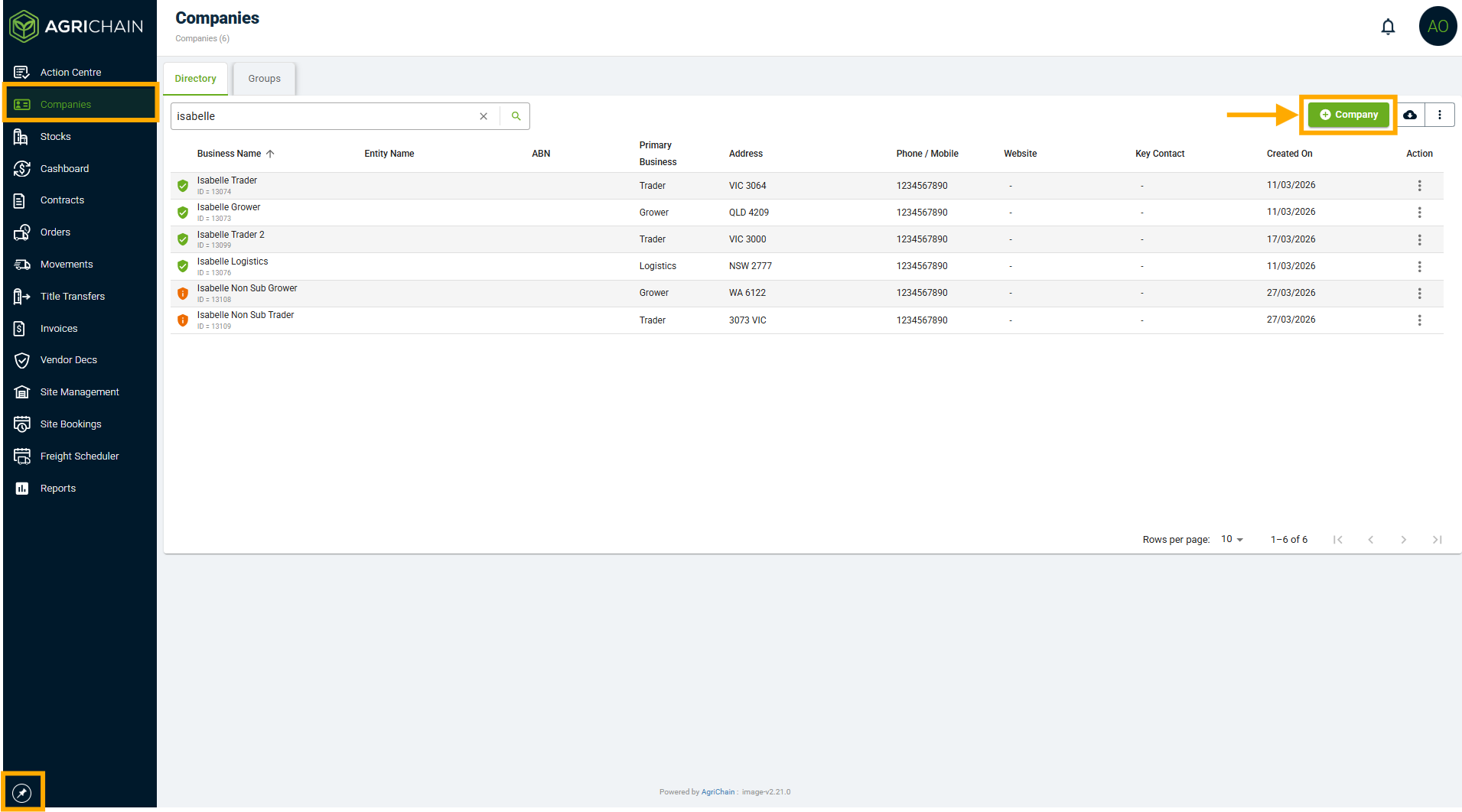
- Navigate to the Companies module from the left-hand side menu.
- Click the "+Company" button in the top-right of the screen to add a company to your directory.
- Select the home country of the company from the drop down list.
- Once you have filled the necessary details, click the "Next" button at the bottom of the form to save. The company will then be added to your company's directory. See below for details to add for international companies.
- Once the company is added the your company directory, then that country along with its flag will be visible in the company directory list.
Add the following mandatory Company Details
Relevant business identifier based on the country: ABN (Australia – mandatory), EIN (US – optional), BN (Canada – optional), NZBN (New Zealand – optional)
- If it is Australia Entity, it will follow the flow as mentioned in the article [Refer Article]
- If the entity is from a country other than Australia, the business identifier field is optional. If you enter a valid business identifier, the system will automatically fetch and populate the relevant details. Otherwise, you may leave it blank and manually enter the required fields mentioned below.
Entity name: This will be populated automatically from the Business Register via API. Fields like Entity name, Business name and Address gets populated which you can edit.
Business name: The business name of the company (may differ from the registered entity name) [Mandatory Field]
Primary business: The company's primary business operation (ie. grower, logistics, trader) [Mandatory Field]
Address: The company's primary business address (this may be a PO box or the nearest township/locality) [Mandatory Field].
Phone/mobile: The company's primary business phone number (this may be a landline or mobile) [Mandatory Field]
Start of week: The company's start of invoicing week. Monday will be set by default. [Mandatory Field]
End of week: The company's end of invoicing week. Friday will be set by default.[Mandatory Field]
Payment term: The company's most common payment term for invoicing. 21 DEOW of Delivery will be set by default.[Mandatory Field]
Add the following optional Company Details
Logo: You can optionally upload the logo image for the company
Fax: The company's primary business fax number [Optional field]
Website: The company's website [Optional field]
GST: Applicable for AU and NZ based companies. [Optional field]
FAQS
Why can't I edit a company's details when I enter their identifiers?
If the company is currently an AgriChain Subscriber, all company details fields will be locked, and you will not be able to edit them. This is because the company controls their details in the AgriChain system. If you believe their company details need amending, please contact the company directly.
Why are their details automatically populating when I enter their identifiers?
If the company is not an AgriChain user but has already been added to the global directory by another user, the company details will be automatically populated, but can still be edited by you. Please note that if you make changes to the company details, these changes will be system-wide and all other AgriChain users with that company in their directory will be able to see the changes you make.
Why do they have almost no Company details when I added them to my directory?
If the company has never been added to the AgriChain system by any user, you will need to enter the company details and complete their profile.
Related Articles
Was this article helpful?
That’s Great!
Thank you for your feedback
Sorry! We couldn't be helpful
Thank you for your feedback
Feedback sent
We appreciate your effort and will try to fix the article