Introduction
Partial Slot Booking allows users to book either a Pickup (Outload) or Delivery (Inload) slot independently, without needing to book both sides simultaneously. Previously, when site booking was enabled for both pickup and delivery sites, the system required both slots to be booked at the same time - creating friction in fast-moving environments where slots open and fill quickly.
With Partial Slot Booking, you can secure one side of the movement when it becomes available and return to book the other side later, at your own pace.
Booking the First Partial Slot via Site Booking / Site Management
- Navigate to the Site Booking page, select the Site you want to book at in the top left corner to see the available slots in Blue
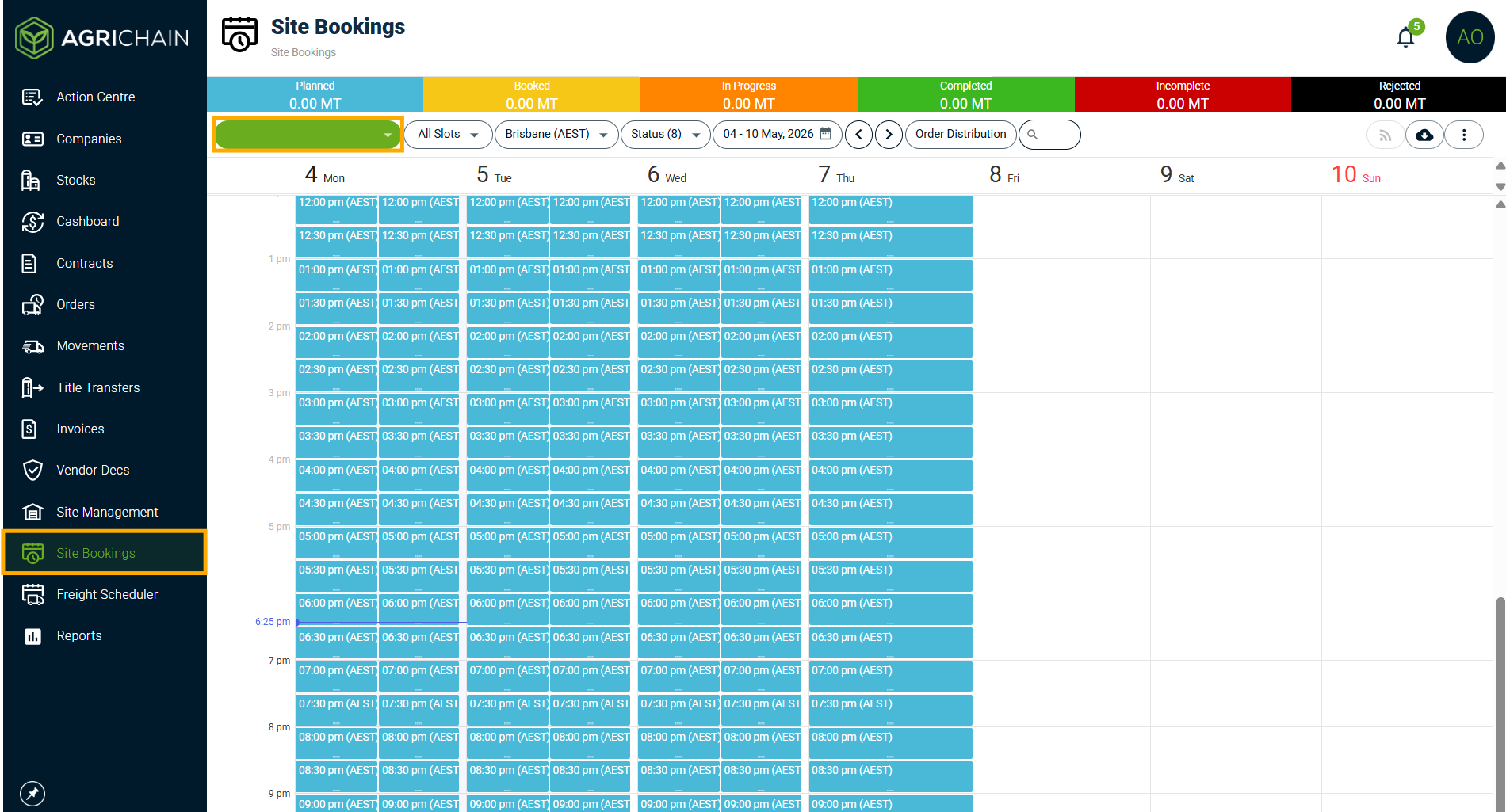
- Find and click the Inload or Outload slot you want to book to bring up its details
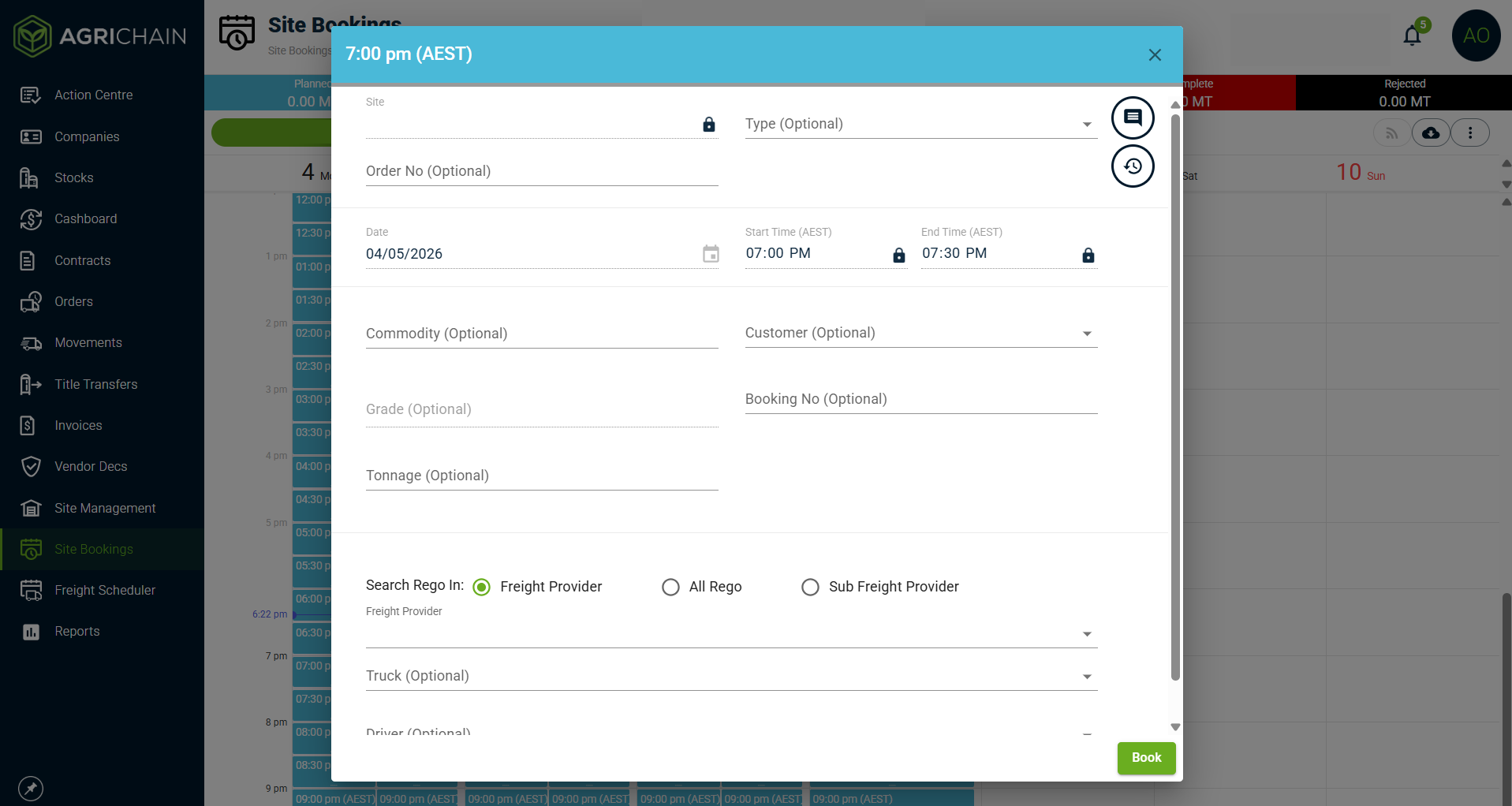
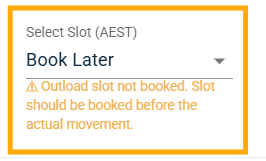
- Enter Order Number, then select only the Inload or Outload slot time and date, select "Book Later" for the slot you don't want to or cannot book yet and complete other fields as required.
A warning will appear: "Inload/Outload slot not booked. Slot should be booked before the actual movement." This is a reminder - you can still proceed with the booking at this stage.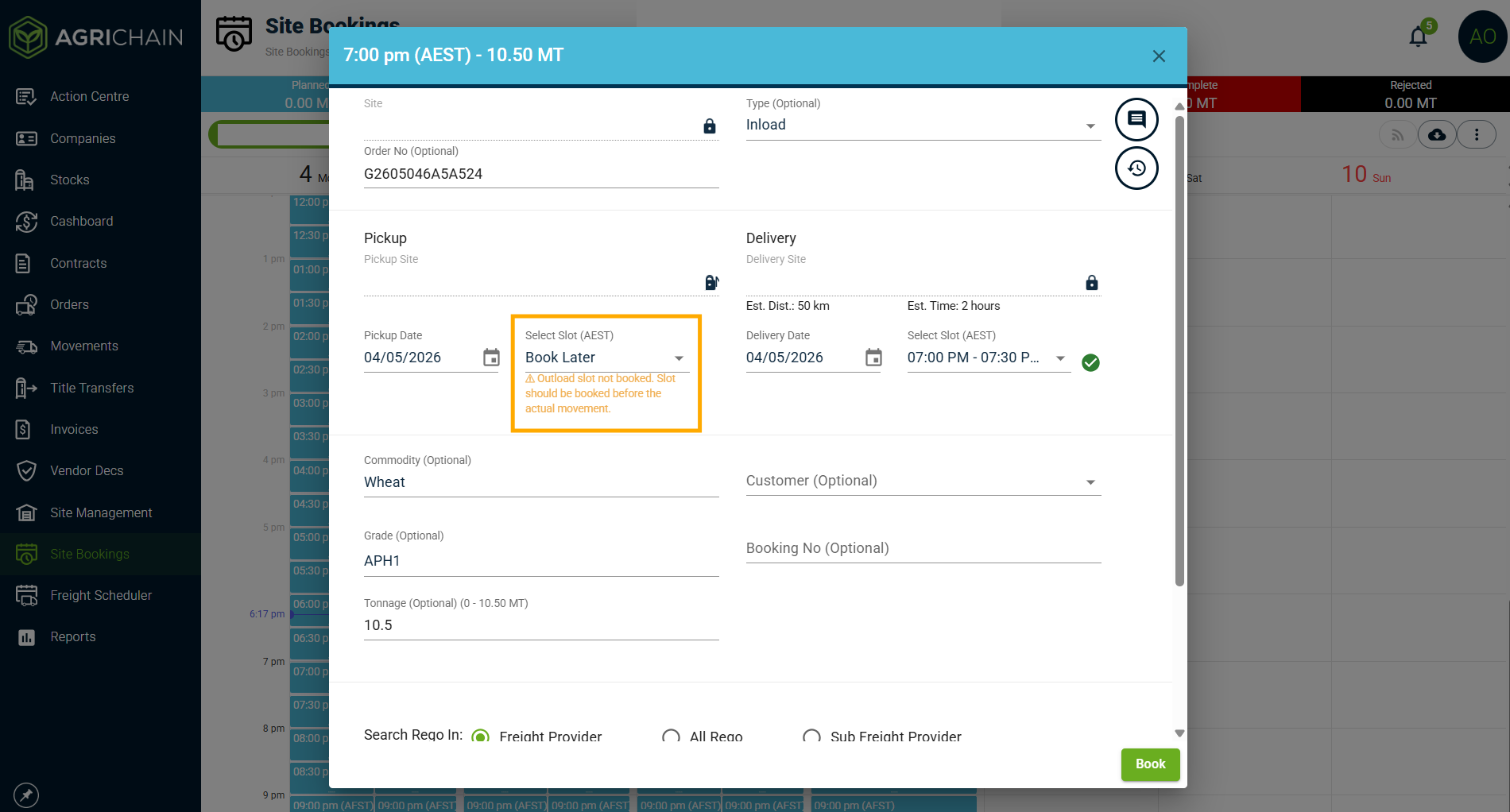
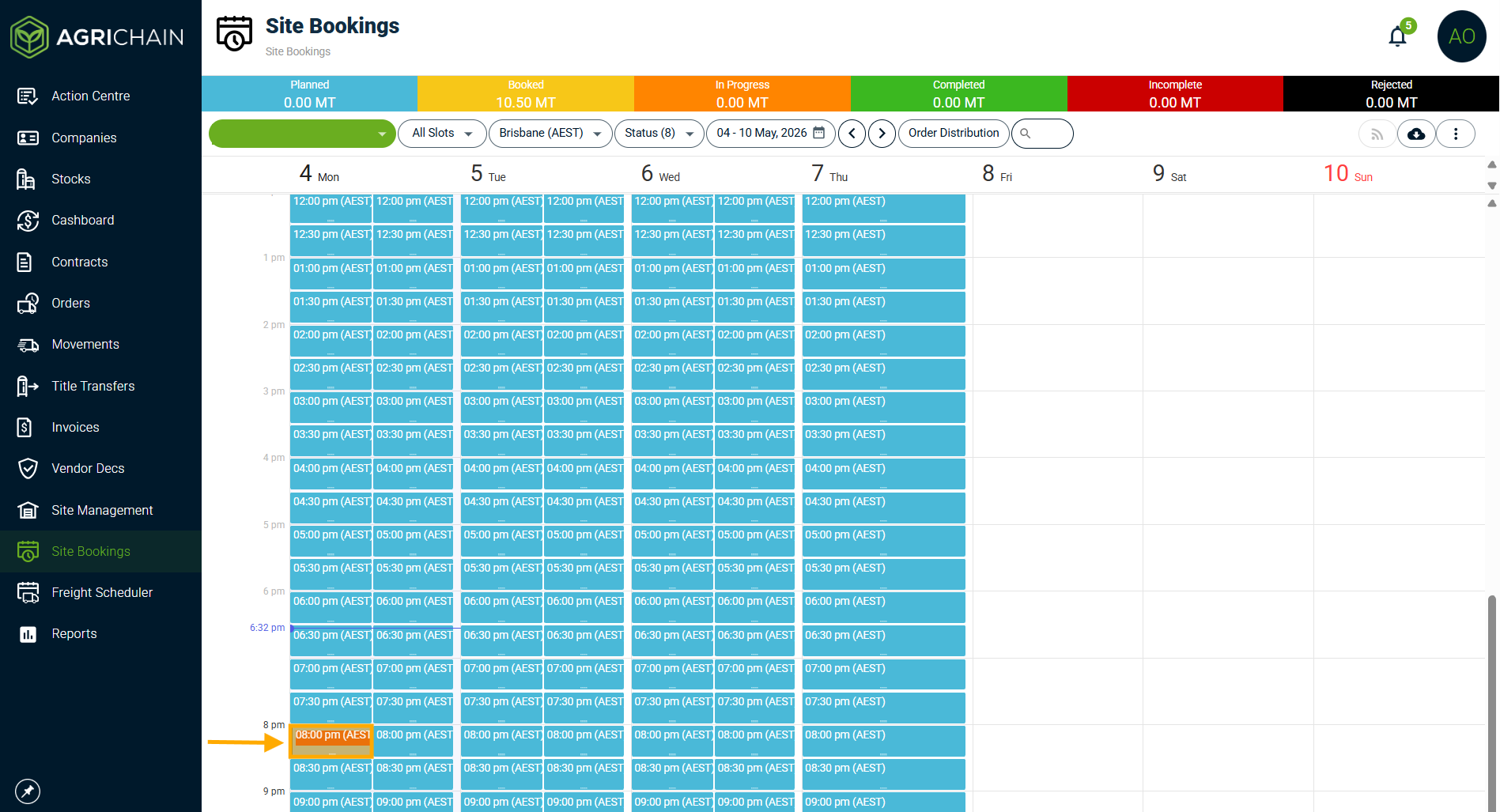
- Once saved, the partially booked slot will appear on the Slot Booking page in an amber flashing colour, making it easy to identify slots that still require the other side to be booked.
Booking the Second Partial Slot via Site Booking / Site Management
- When you are ready to book the remaining slot, enter the relevant order number while booking. Partially booked slots for that order will appear at the top of the dropdown as a separate group, so they are easy to identify and select.
- Selecting a partially booked slot will complete the booking - no new movement is created. The slot is simply linked to the existing movement.
- When the remaining slot is subsequently booked, the email notification will revert to the standard slot update template - not the partial slot one.
How Will I Know if a Booking Is Only Partially Booked?
If you open the Movement through any Module on AgriChain, you will see a warning alerting you that either the Inload or Outload slot is not booked.
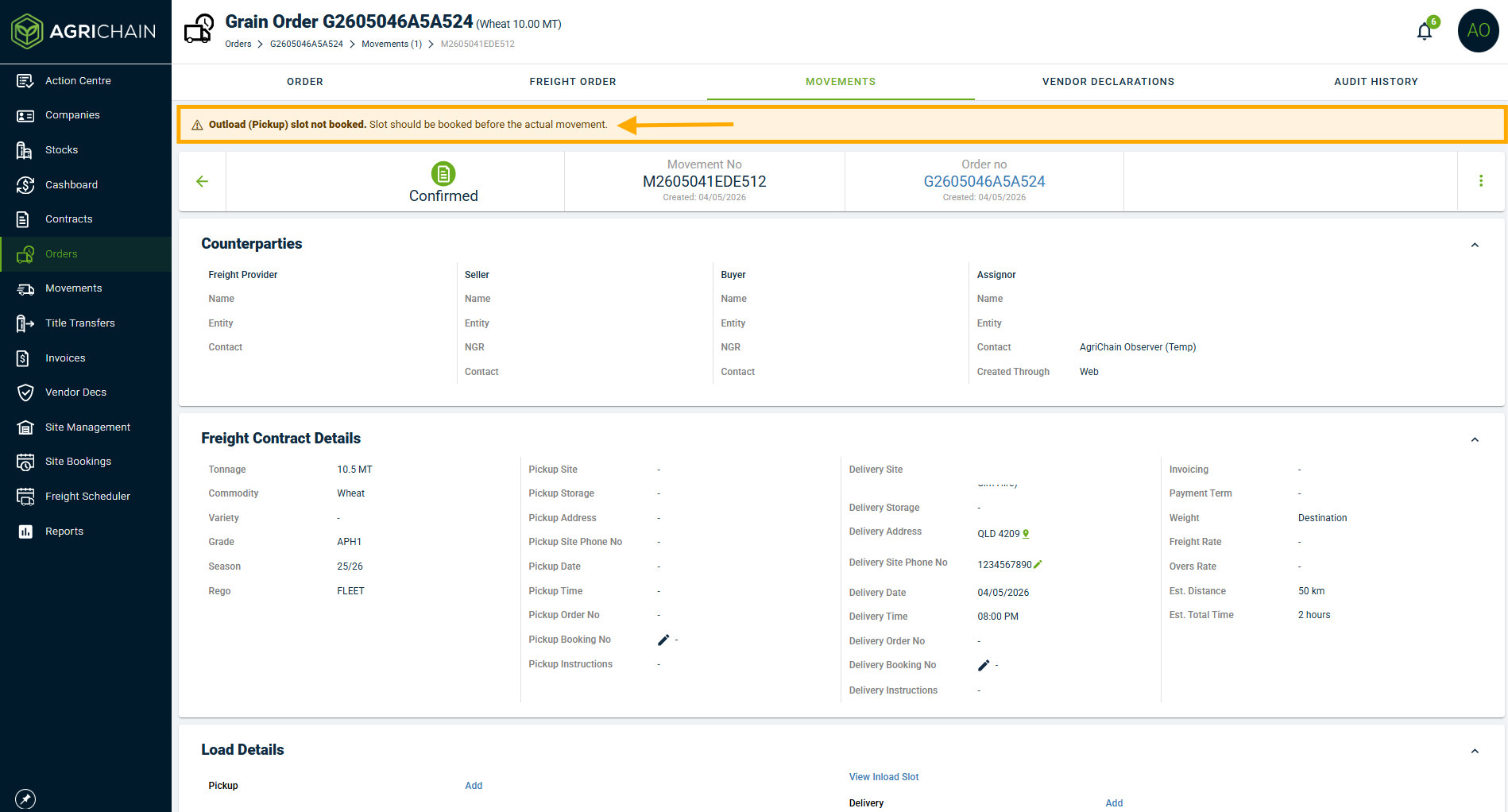
- Opening a Partially Booked Slot on the Slot Booking/Management module will display a warning as a reminder that either the Inload or Outload has not been booked yet. The warning reads: "Inload/Outload slot not booked. Slot should be booked before the actual movement."
- If you send an email notification for the Partially Booked Freight Movement, it will display "None" in the fields for Time and Date under either the "Planned Pickup" or "Planned Delivery" section, depending on which part you have not booked yet.
Slot Update Email Notifications
If slot update alerts are enabled at your site, booking a partial slot will trigger an email notification, so relevant parties are aware that only one side has been booked.
When the remaining slot is subsequently booked, the email notification will revert to the standard slot update template - not the partial slot one.
Things to Keep in Mind
Partial Slot Booking is only available when site booking is enabled for both the pickup and delivery sites on the order.
Site Booking is a configuration that must be applied by AgriChain upon request by your company. If you have any questions about this, reach out to our Support team by visiting https://agrichain.freshdesk.com/support/home and raise a ticket.
The "Book Later" option is a deferral, not a cancellation - the outstanding slot should be booked before the actual movement takes place.
Partially booked slots are visually highlighted in amber across both the Site Booking calendar to ensure pending actions are not overlooked.
When searching for a partially booked slot by order number, these slots will always appear at the top of the dropdown in their own group, separate from other open slots.
Was this article helpful?
That’s Great!
Thank you for your feedback
Sorry! We couldn't be helpful
Thank you for your feedback
Feedback sent
We appreciate your effort and will try to fix the article