Introduction
The AgriChain platform seamlessly integrates with MYOB, allowing you to generate invoices directly in AgriChain based on real-time movement (load) data, which then flows into MYOB.
Steps to create MYOB Developer's Account:

1. Click the “Apply Here” button at the bottom of the MYOB Developer Partner page: MYOB Developer Partner Application

2. Once the application is submitted, it will be manually reviewed. Within approximately 24–48 hours, you should receive a payment link to pay the MYOB Developer account fee. This is a recurring monthly fee.

3. Once the payment has been made, your MYOB Developer account will be enabled. You can access the developer account here: MYOB Developer App List

4. After the account is enabled, go to Developer Section → Create App and create the application. You will need to enter details such as the App Name and Redirect URI. The Redirect URI required for the app is already available on the AgriChain integration page.
MYOB Section on AgriChain platform
To set this up:
Link and authorise the AgriChain-MYOB integration.
Map your MYOB accounts in AgriChain, ensuring your Customer Display Name in MYOBand Business Name on AgriChain both are the same.
Key flow details to remember:
Invoice Amendments: If you create an invoice in AgriChain and need to make changes, always update the invoice within AgriChain. These changes will automatically sync to MYOB.
No Sync from MYOB to AgriChain for Invoices: Any amendments to Invoices made directly in MYOB will not sync back to AgriChain. To ensure accuracy across both systems, all invoice updates must be done in AgriChain.
Payment Handling: MYOB is the system used for payment processing. AgriChain does not process payments directly. Instead, it receives the payment status (e.g., Paid or Reconciled) from MYOB once a payment is recorded there.
This help article will guide you through setting up or re-linking your AgriChain-MYOB integration.
To Set Up or Re-Link your MYOB Integration:
Go into your MYOB Developer Account (not AgriChain; as mentioned in the notes above) and create an app with the redirect URI and obtain your MYOB Client ID and Secret (copy both of these).
Once you have obtained your MYOB Client ID and Secret, log into your AgriChain Account.
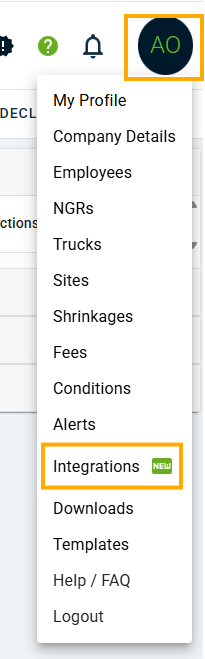
From your AgriChain Profile Initials in the top right-hand corner of the page, go to the 'Integrations' page
.On the 'Integrations' page, go to the 'MYOB’' tab and enter your copied MYOB Client ID and Secret in Item Number 3.
Once done, click on the 'UPDATE SECRETS' button.
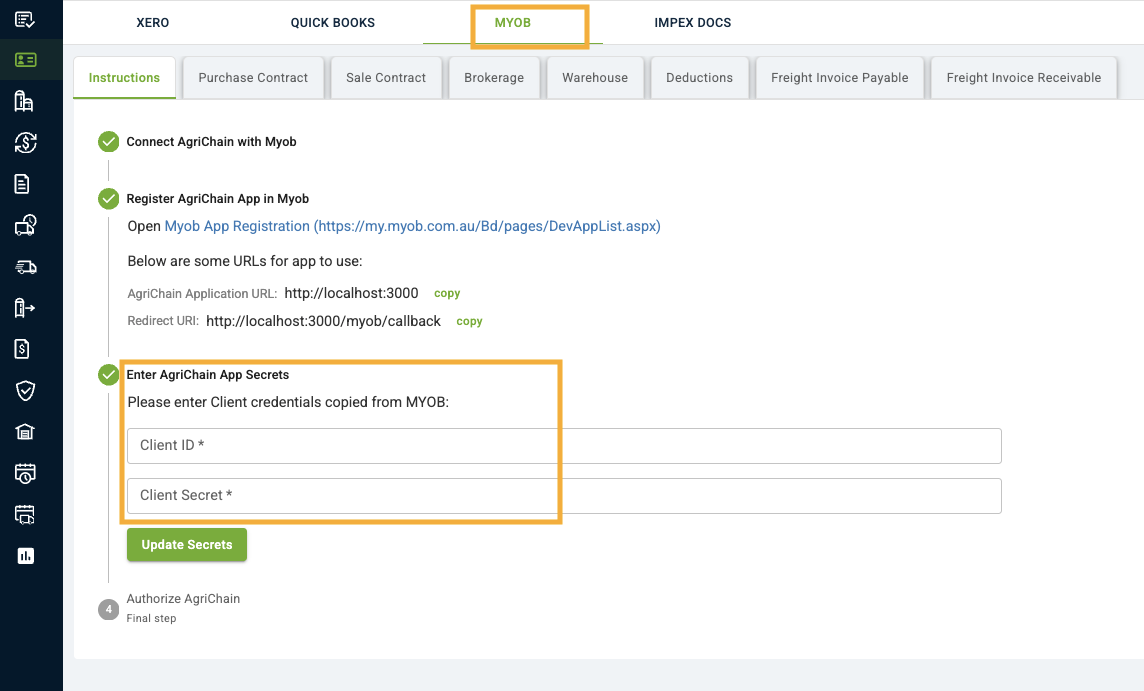
From there, Item Number 4 - 'Authorise AgriChain' will be activated and click on the 'CONNECT MYOB' button to proceed.
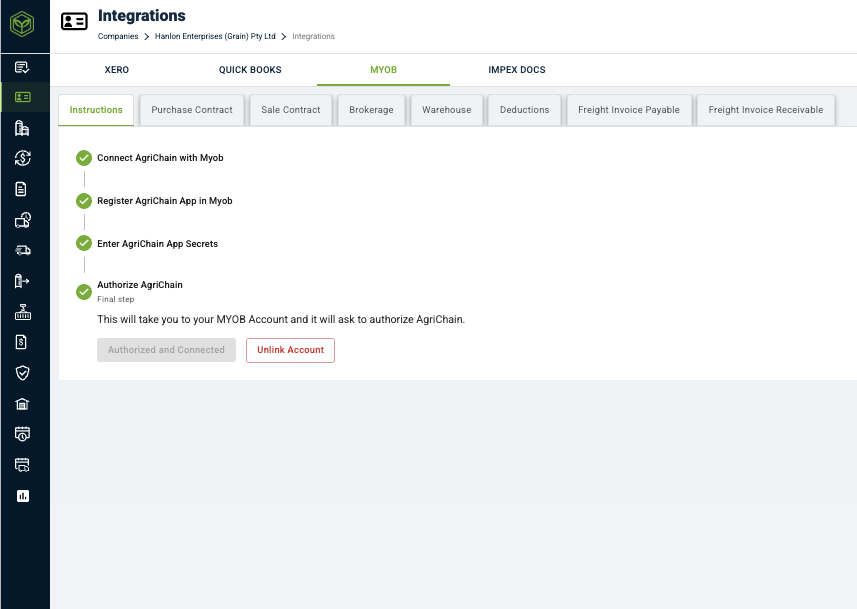
You will then be brought directly to your MYOB Account, sign in and authorize AgriChain.
Finally, return to your AgriChain Account and start invoicing.
Noting that you will need to map your MYOB accounts in AgriChain first, ensuring your Customer Display Name in MYOB and Business Name on AgriChain are the same.
The Business Name on AgriChain and Customer Display Name on MYOB must match exactly and not have any spaces in between them.
FAQs
I'm receiving 'Re-connect' notifications that my MYOB integration has been disconnected. How can I re-link it?
To re-link your MYOB integration:
Go to the 'Integrations' page from your Profile menu (click on your initials in the top right corner).
In the 'MYOB' tab, click the 'RECONNECT MYOB' button (Item Number 4).
You'll be re-directed to MYOB, where you can sign in and authorise AgriChain.
Was this article helpful?
That’s Great!
Thank you for your feedback
Sorry! We couldn't be helpful
Thank you for your feedback
Feedback sent
We appreciate your effort and will try to fix the article