Introduction
If you work across more than one company in AgriChain, you can be logged into multiple company accounts at once and switch between them without logging out. This guide outlines how to add a second company account to your login and how to switch between your accounts.
To add another company account, you must already have an employee account set up under that company. If you don't, ask the Company Admin (or one of the Company Admins) to add you as an employee under their company. Once that's done, you can follow the steps below.
For instructions on adding an employee to a company, refer to the Related Articles section.
How to add another company account
- Log in to AgriChain using one of your existing profiles.
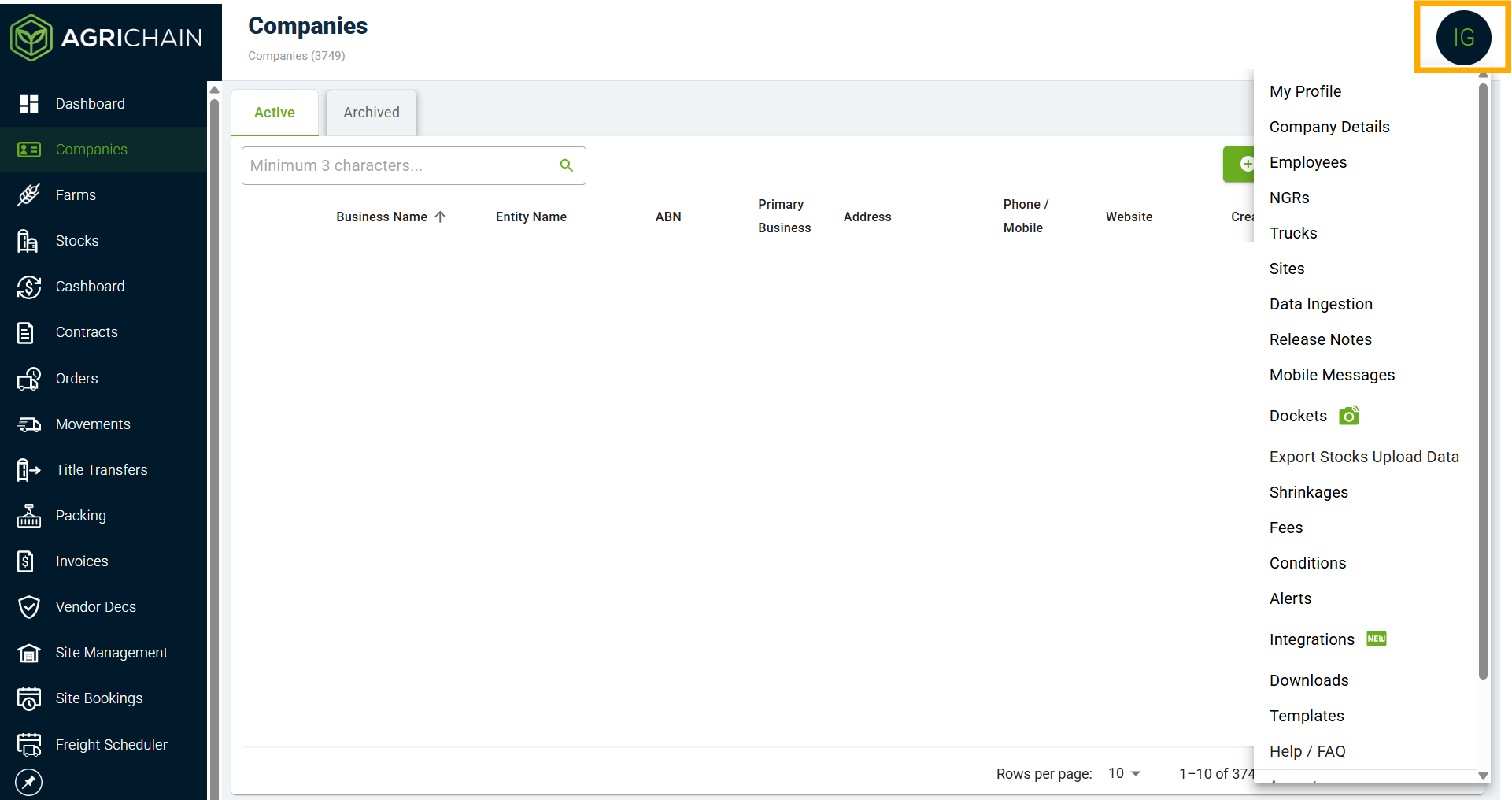
- Click on your Profile Initials in the top right corner of the screen to reveal a dropdown menu.
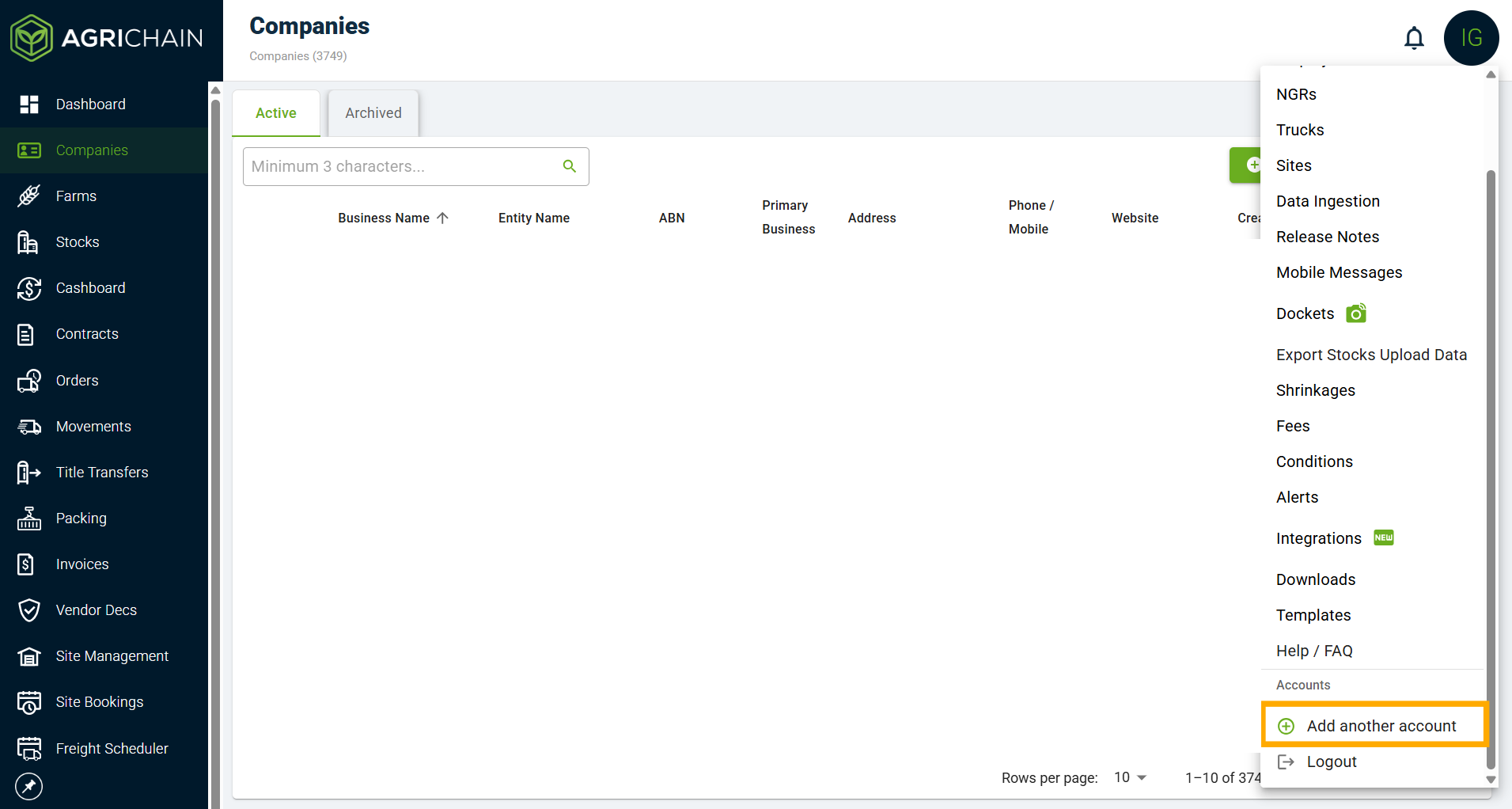
- Scroll to the bottom of the dropdown menu and, under Accounts, click "Add another account".
- The Add Account login window will pop up. Enter your unique username for your log in at the other company account and click "Next".
Please note: your username will be different for each log in, if your log in is not working please check with the Company Admin what your username is and bear in mind the username is case and space-sensitive.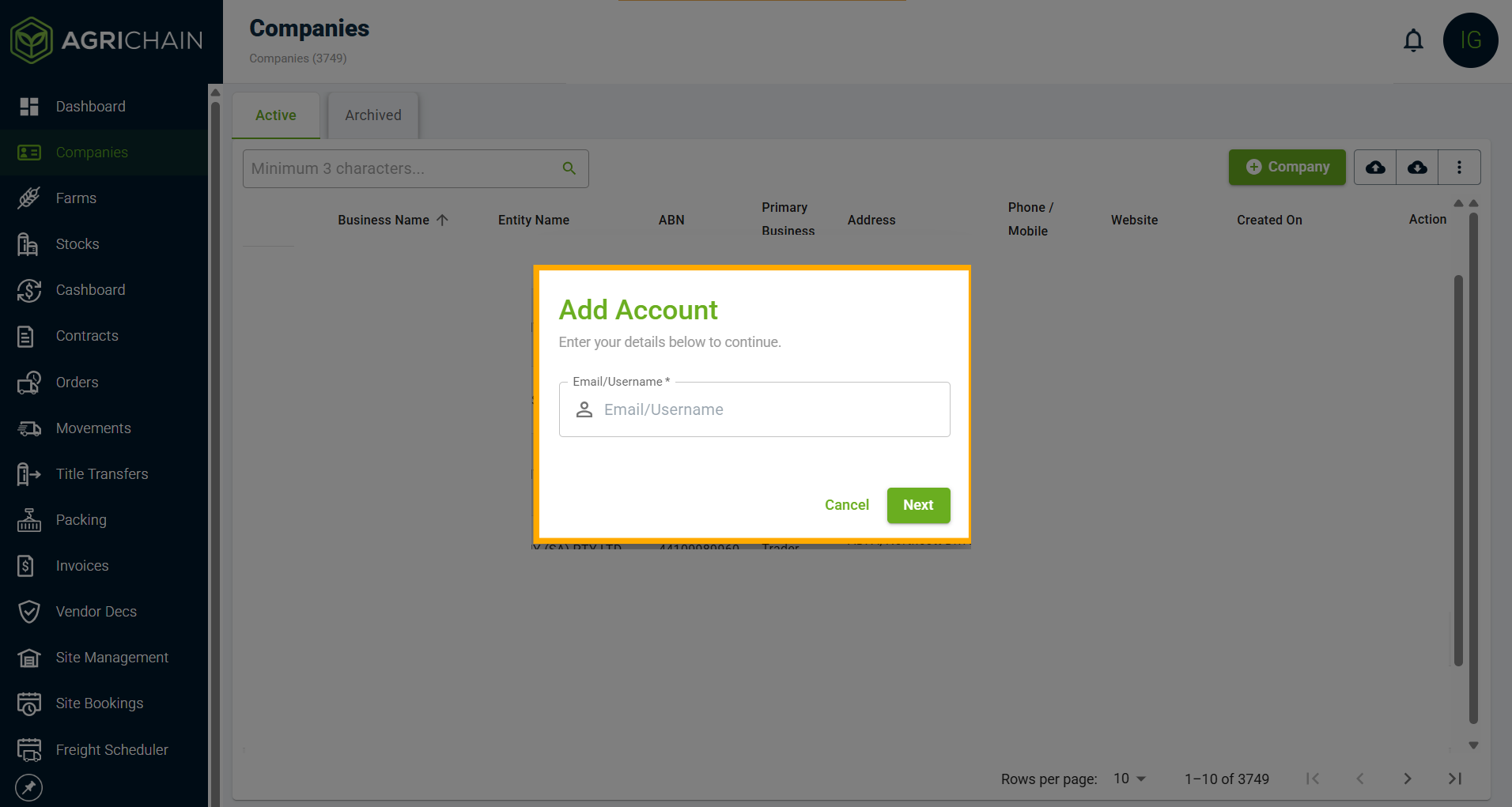
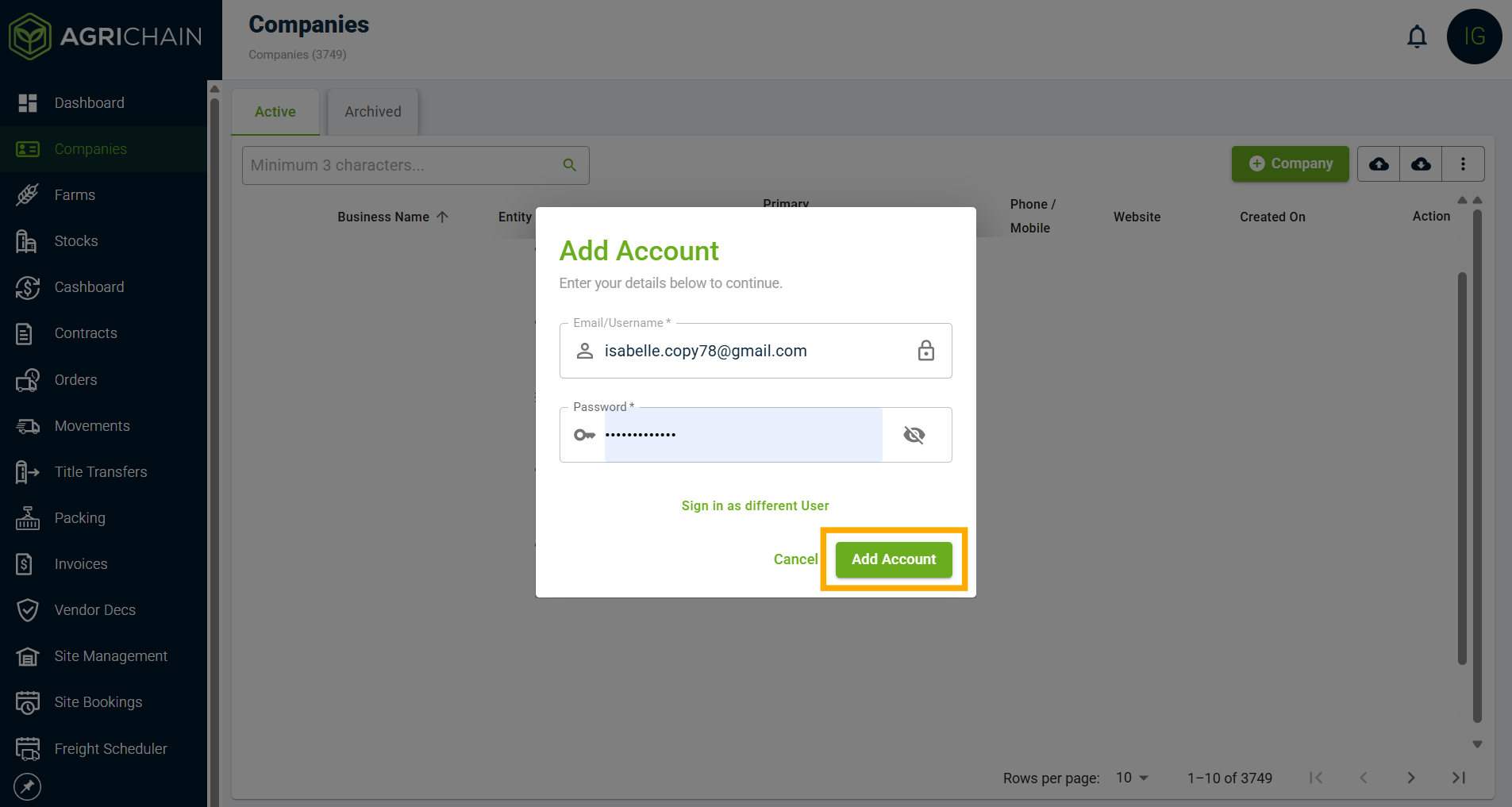
- Enter your password and click "Add Account".
How to switch between accounts
- Click on your Profile Initials in the top right corner of the screen. Under Accounts, select the profile you want to switch to.
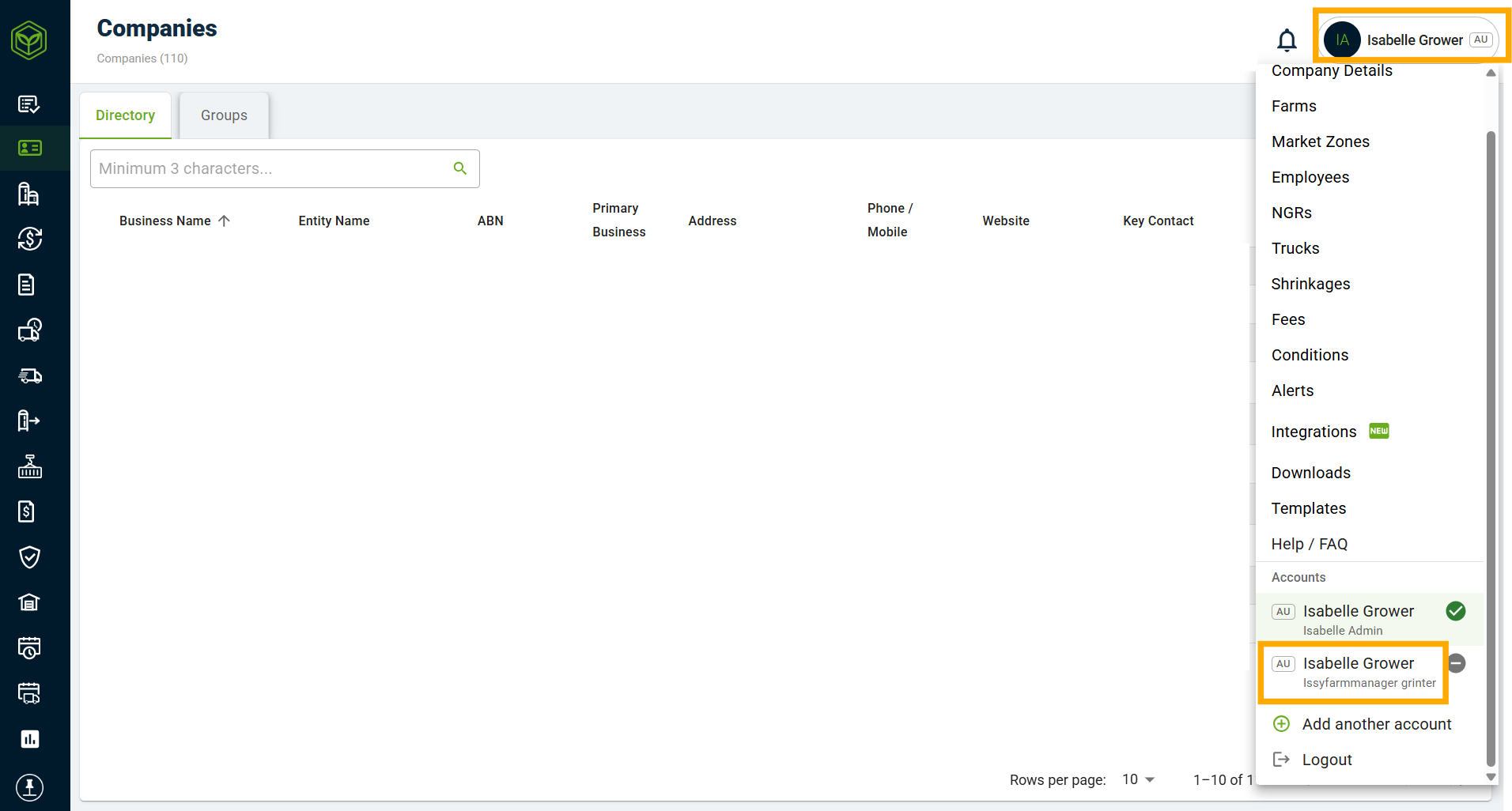
How to check which account you're logged into
- If you're ever unsure which account you're currently using, you can check in either of these ways:
- Click on your Profile Initials and select "Company Details" to see which company you're logged into.
- Click on your Profile Initials and look under Accounts. The account you're logged into is highlighted green with a green tick.
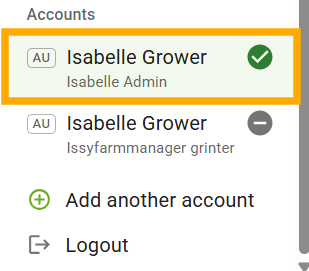
Notes: Employee Account Required - You can only add a company account if you have been set up as an employee under that company. If the login fails, check with that company's admin that your employee account has been created. Separate Permissions - Each account keeps its own role and permissions, so the menus and features available may differ depending on which account you're logged into.
FAQs
I don't have an employee account under the other company. What should I do?
Contact the company admin (or one of the company admins) and ask them to add you as an employee under their company. Refer to the Related Articles section for how to add an employee to a company.
Why does the menu look different after I switch accounts?
Each company account has its own role and permissions, so the options available to you will depend on the account you're currently logged into.
Do I need to log out to switch accounts?
No. Once you've added an account, you can switch between them at any time from the Accounts section of your profile dropdown.
Related Articles
- Adding/editing an employee
- Navigating company roles and permissions
- How to retrieve username
Was this article helpful?
That’s Great!
Thank you for your feedback
Sorry! We couldn't be helpful
Thank you for your feedback
Feedback sent
We appreciate your effort and will try to fix the article