Introduction
Subscribers of AgriChain can add Outload from storage, container or field against a Freight Order or a Movement using our Mobile App. This process is available to BHCs, Growers, and Traders.
The process of processing loads for inload and outload are similar operations. The only difference is the order of events when processing loads.
For example, for "New Outload", you will tare the truck first, as opposed to "New Inload" where you gross in the truck first.
To add an Inload/Outload against a Freight Order, please follow the steps below:
- On the main page, select 'Inload + Outload'

- Click 'NEW OUTLOAD' or "NEW INLOAD"
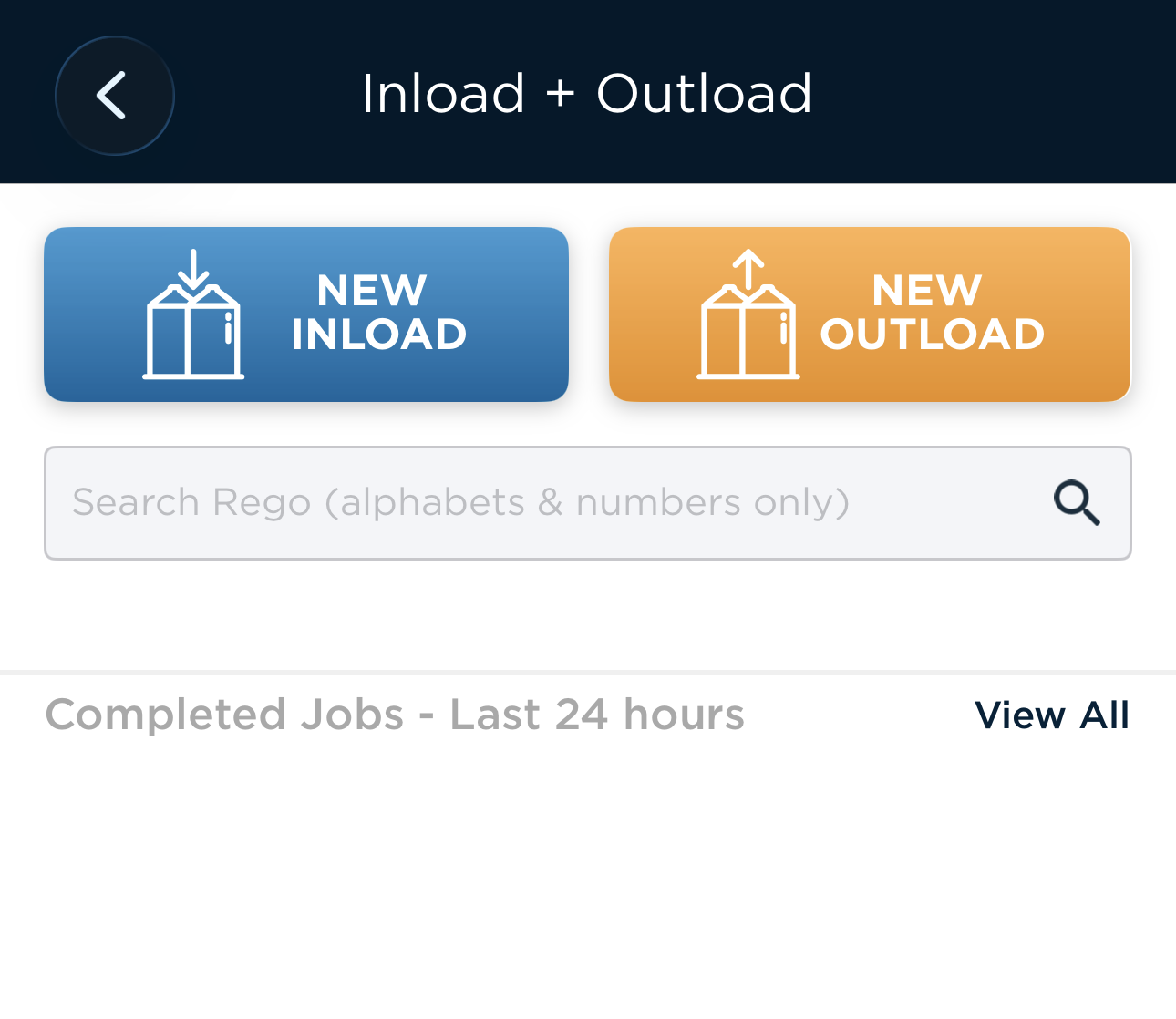
- Once select the type of load you are processing, you will be prompted to enter some information.
- Click 'Order/Movement no.'

- If there is a movement planned, you can outload against it. Otherwise, click 'No Movement For This Outload' to proceed to outload against Order.
- Find the relevant Order and click on it to add outload.
- Enter the NGR details and truck rego that is transporting the load. Once that is done, click 'Add Outload'

- Enter the tare weight (or gross weight if inload) of the truck. If your weighbridge is connected to AgriChain app, you may click 'Capture Weight'.

- On the 'Inload + Outload' status screen, click '+Storage'.

- Select a storage to outload from and click 'Save' once completed.
- Click '+Specs' to include any relevant specifications details.
- Click '+Gross' to enter the gross weight of the truck after loading.

- Click 'Complete', confirm all details and sign off on 'Chain of Responsibility'.
Was this article helpful?
That’s Great!
Thank you for your feedback
Sorry! We couldn't be helpful
Thank you for your feedback
Feedback sent
We appreciate your effort and will try to fix the article