Introduction
The AgriChain Weighbridge Dongle integrates with your existing weighbridge to seamlessly capture weight data and sync it with the AgriChain Mobile App. This helps streamline operations and improve the accuracy of data capture and record-keeping.
AgriChain will send you a package with all the required hardware to set up the weighbridge integration. The package includes:
1x AgriChain Dongle
1x USB Power Cord
Weighbridge Configuration Requirements:
Before connecting the dongle, your weighbridge indicator must be configured to one of the following supported modes:
Mettler Legacy String
Settings: 8N1, 9600 baud rate, continuous output
Rinstrum - Ranger A (Recommended)
Settings: 8N1, 9600 baud rate, continuous output
The weighbridge will need to output the weight in Metric Tonnes (MT).
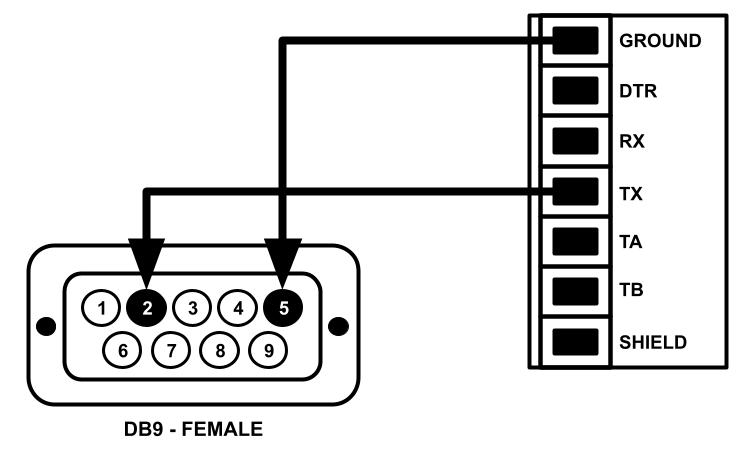
A RS232 (Serial) data cord to DB9 - Female output should be wired into your weighbridge.
- Please coordinate with your licensed/accredited weighbridge technician to ensure proper calibration and set up.
During set up and calibration, please ensure that:
- The DB9 cable does not supply power.
- The DB9 cable should have the TX Pinout wired to Pin 2.
- The DB9 cable should have the GROUND Pinout wired to Pin 5.
Steps to Configure and Connect
Configure the Weighbridge Software
Set the indicator to either Mettler or Rinstrum configuration.Notify AgriChain Support
Once configured, reach out toAgriChain Support via the 'question mark' Help Widget located at the top right corner of the screen so that we can assist you in turning ON the integration. To submit a ticket, locate the 'question mark' Help Widget and click on 'Contact Us',followed by the details below:The configuration used (Mettler or Rinstrum)
Site location(s) where the weighbridge is installed
Prepare Your Mobile Device
Delete and reinstall the AgriChain mobile app.
Ensure the mobile device is running iOS 16 / iPadOS 16 or later.
Recommended device: iPad or iPhone with a 12MP rear-facing camera.
Connect the Dongle to AgriChain
Launch the AgriChain Mobile App.
Tap the 'Hamburger' menu icon (top left) and select Settings.
Go to Weighbridge Status
This will bring up the Device Management Screen. Please look for the dongle to connect. The dongle should be named either BlueSnap or SerialO.
Follow the on-screen prompts to connect the dongle via Bluetooth.
Once connected, the device will move to the 'Connected Devices' row.
When powered on, the dongle will show a green light; it will turn solid blue once connected.
Troubleshooting Issues
If the dongle is flashing orange and not connecting to the weighbridge, try the following steps:
Basic Troubleshooting
Turn off Bluetooth and back on.
Restart your iPad and reconnect.
Use yACK FAST for Diagnostics
Install the yACK FAST app from:
This app reads serial data output from the dongle to confirm whether data is being sent correctly.
If no data appears, the weighbridge configuration may need to be reviewed by your technician.
Bluetooth is unauthorised for application:
You will need to allow Bluetooth Access for the AgriChain App. To resolve this, please follow the steps below:
- Navigate to your device's Settings page
- Tap into 'Apps' or search for AgriChain.
- Once you are in AgriChain, please turn on 'Bluetooth'
Advanced Troubleshooting (If Issue Persists)
We also recommend trying the following:
- Ensure Everything is Up to Date
Update to the latest iOS/iPadOS version
Ensure the AgriChain app is the latest version available in the App Store
Power cycling the dongle
- Disconnect the dongle power cable
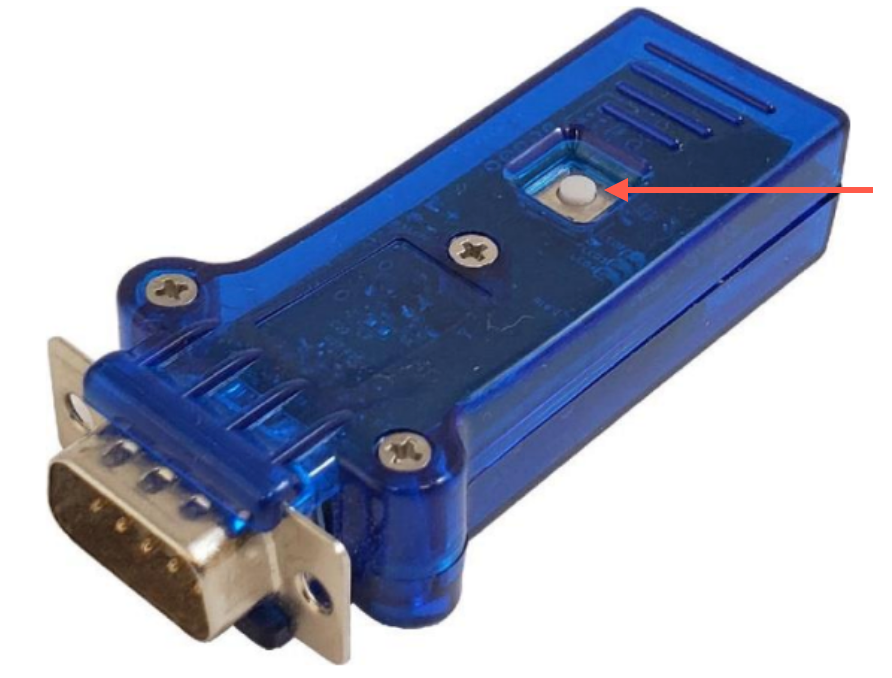
- Press the button shown below until the dongle powers off (LED stops blinking)
- Wait for 15-20 seconds
- Power it on again by pressing the button (until the LED comes back on)
- Reconnect the dongle power cable
- Reconnect with the iPad
- Reset Network Settings (if Step 1 doesn't work)
Settings > General > Transfer or Reset iPhone > Reset > Reset Network Settings
Was this article helpful?
That’s Great!
Thank you for your feedback
Sorry! We couldn't be helpful
Thank you for your feedback
Feedback sent
We appreciate your effort and will try to fix the article