Introduction
If your receipt printer has stopped printing through the AgriChain app, the issue is most commonly related to a Bluetooth connectivity problem between your iPad and printer, rather than a fault with the printer itself.
This article walks you through a series of troubleshooting steps, starting with the simplest fixes first. Work through each step in order and test printing in AgriChain after each one before moving on to the next.
1. Check the iPad's Bluetooth Settings and Restart Printer
- Open the Bluetooth Settings on the iPad and turn it off.
- During this time, please restart your iPad and wait 30 seconds.
- Remove the power source from the printer and wait 30 seconds,
- Turn the iPad and printer back on, then reconnect to the printer.
2. Resetting the iPad's Bluetooth setting as per below
- Open the Settings app.
- Tap General.
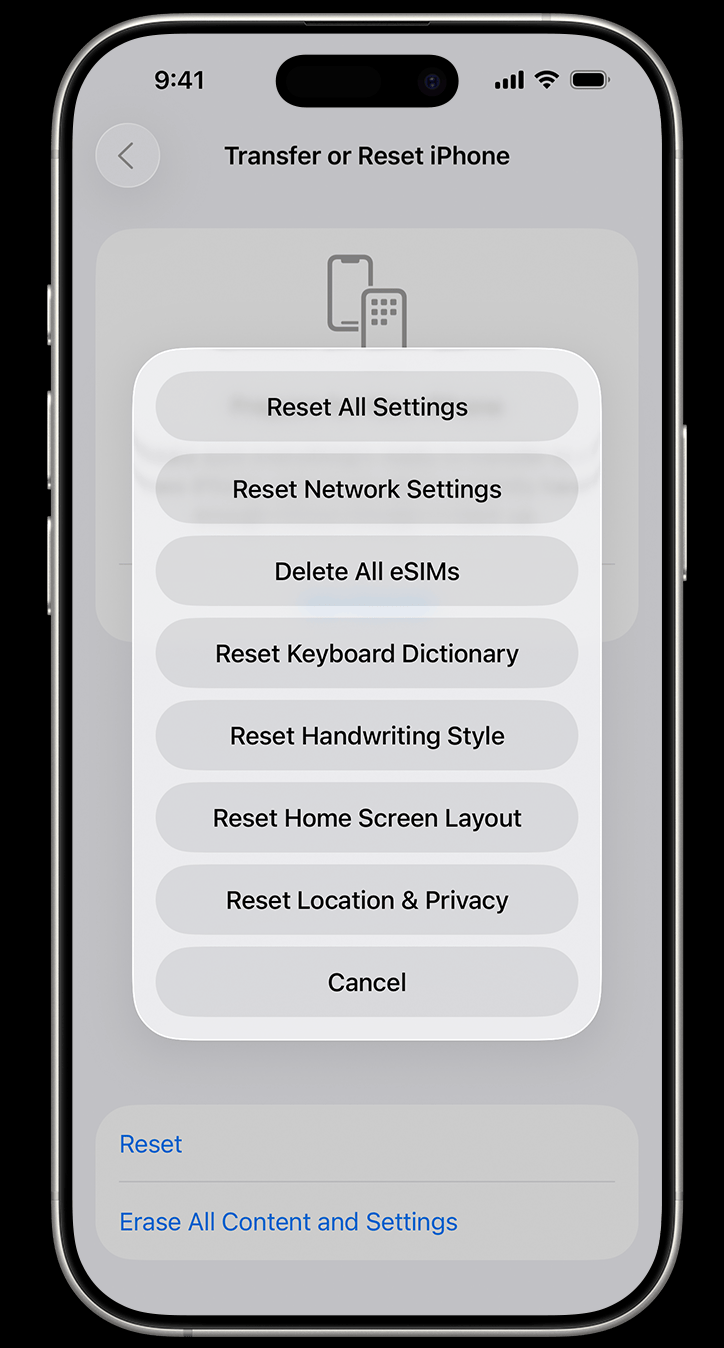
- Scroll down and tap Transfer or Reset [device], then tap Reset.
- Tap Reset Network Settings. This will reset Wi-Fi networks and passwords, mobile data settings, and VPN and APN settings.
- Then try to connect to the printer again and see if it works.
3. Check the printer's Bluetooth Settings.
- To check if the printer has Auto Reconnect iOS turned ON, you will need to print a Status Sheet.
- See pg. 88 of the attached troubleshoot document "Using the Feed Button" section to print a Status Sheet, or you may use the "Status Sheet Button". The location of the Status Sheet button is shown in the attachment in this article.Example of a status sheet (click to enlarge):
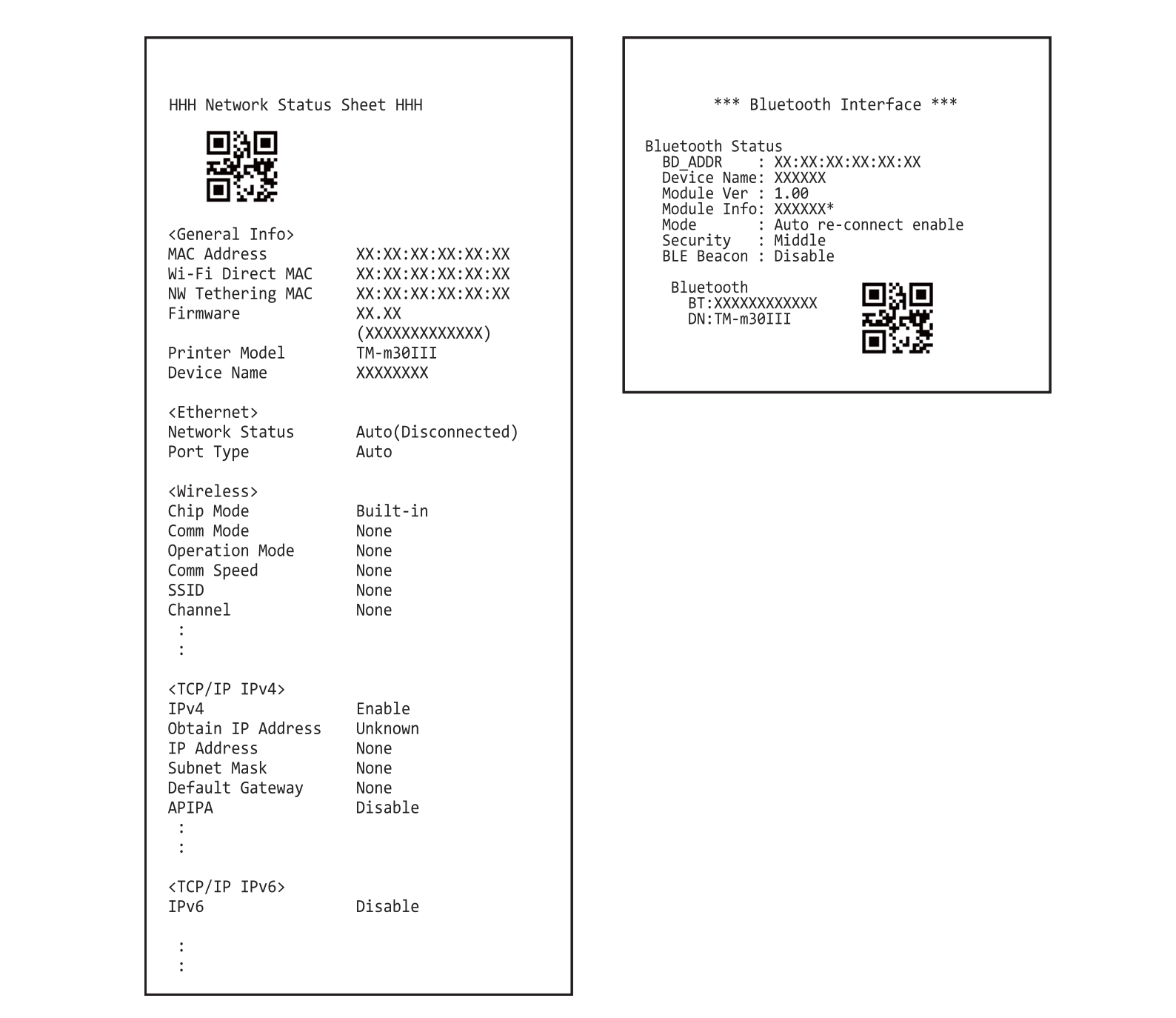
- If the Status Sheet indicates that Auto Reconnect iOS is disabled, you will need to enable it by following the instructions in the attached document:
- Run a Self-Test
- see pg. 79 of the troubleshoot document..
- Press the Feed button five times briefly and then hold it down to select Interface Setup
- see pg. 83 of the troubleshoot document.
- Enable Auto Reconnect iOS
- see pg. 83 of the troubleshoot document..
- Then, please exit from the set up and it should reboot itself.
4. Restore the printer to factory default settings:
- Turn off the printer and close the roll paper cover.
- If the bottom cover is attached, remove the cover
- Hold down the status sheet button (number 9) while turning on the printer. A message is printed indicating that a reset is in progress, and the printer restarts.
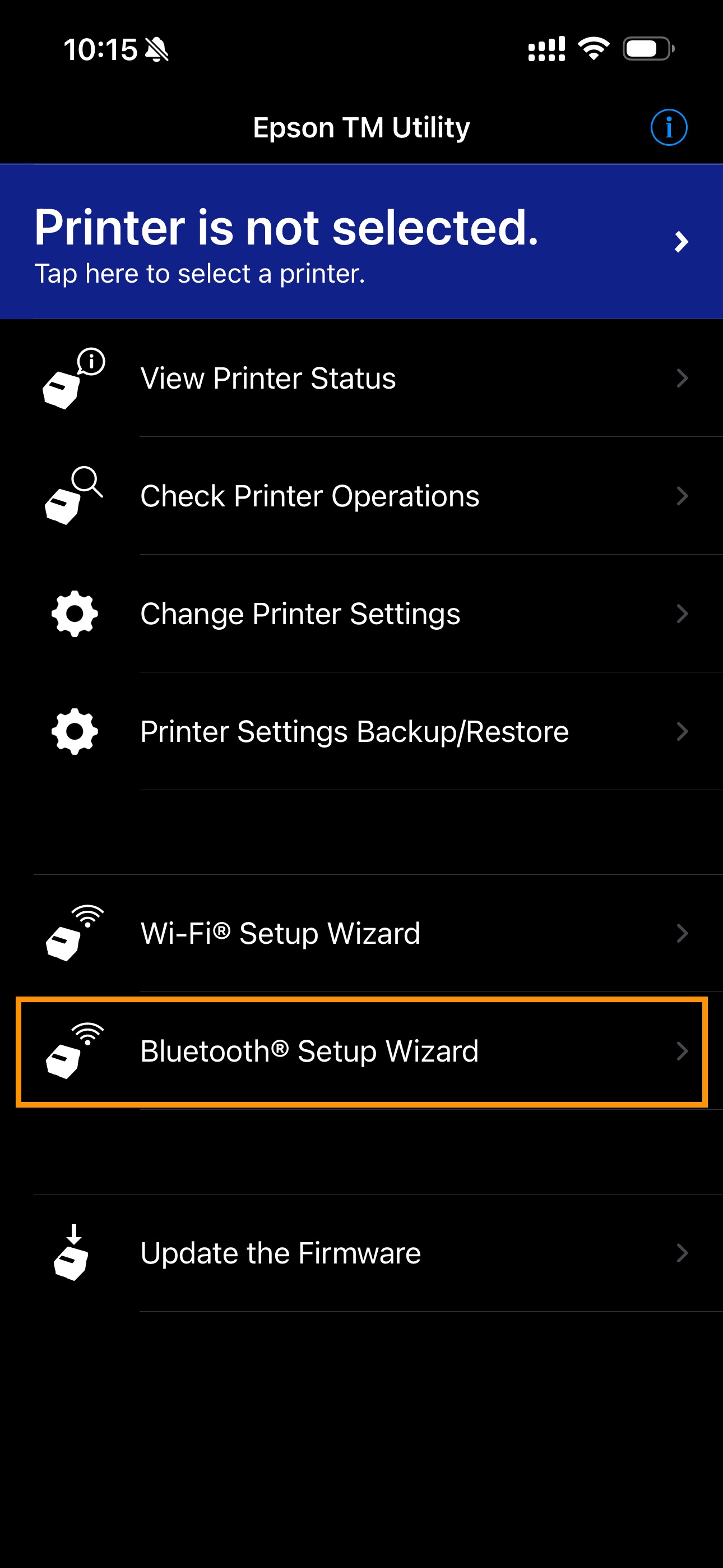
- Download EPSON TM Utility app on your iPad from the Apple App Store.
- Use the EPSON app to connect to the iPad using 'Bluetooth Setup Wizard'
Was this article helpful?
That’s Great!
Thank you for your feedback
Sorry! We couldn't be helpful
Thank you for your feedback
Feedback sent
We appreciate your effort and will try to fix the article