Introduction
Order Linking ensures that Movements generated under one Order can flow through correctly for invoicing and contract management purposes.
When linking Purchase and Sales Contracts, it’s important to understand how Delivery/Pickup Order references determine the relationship between Orders and their Movements. Incorrect linkage direction can cause Movements to appear under the wrong Contract or fail to generate correctly for invoicing.
This is only required when an Order is created under the Sales Contract rather than the Purchase Contract, or the reference of an Order created under the Sales Contract has been entered into the Purchase Contract and the linkage has been reversed.
This article explains:
- How Order linkage works.
- The difference between Parent and Child Orders.
- How to correctly link Freight or COG Orders between Purchase and Sales Contracts.
- Common mistakes to avoid when entering Delivery/Pickup Order numbers.
How does order linkage work with the Purchase and Sales Contract?
When a Delivery/Pickup Order number is entered into an Order, all Movements under that Order become linked to the entered Delivery/Pickup Order number.
This means:
- The Order containing the entered reference becomes the Child Order.
- The referenced Order becomes the Parent Order.
Movements from the Child Order flow through to the Parent Order for invoicing and contract reconciliation. However, this relationship only works in one direction - Movements from the Parent Order do not flow back to the Child Order.
Note: There can only be one Parent Order and one Child Order. The Child Order sends its Movements to the Parent Order. A common mistake is entering the Delivery/Pickup Order Number into the wrong Order, which reverses the linkage.How do I link a COG or Freight Order sitting under the Sales Contract to my Purchase Contract?
If you have already linked the Sales and Purchase Contracts successfully, but Movements have been added under a COG or Freight Order and they're not appearing on the Purchase Contract Invoice, follow these steps:
- Identify and record what the Order reference number under the Purchase Contract and the Sale Contract is, as you'll need these references.
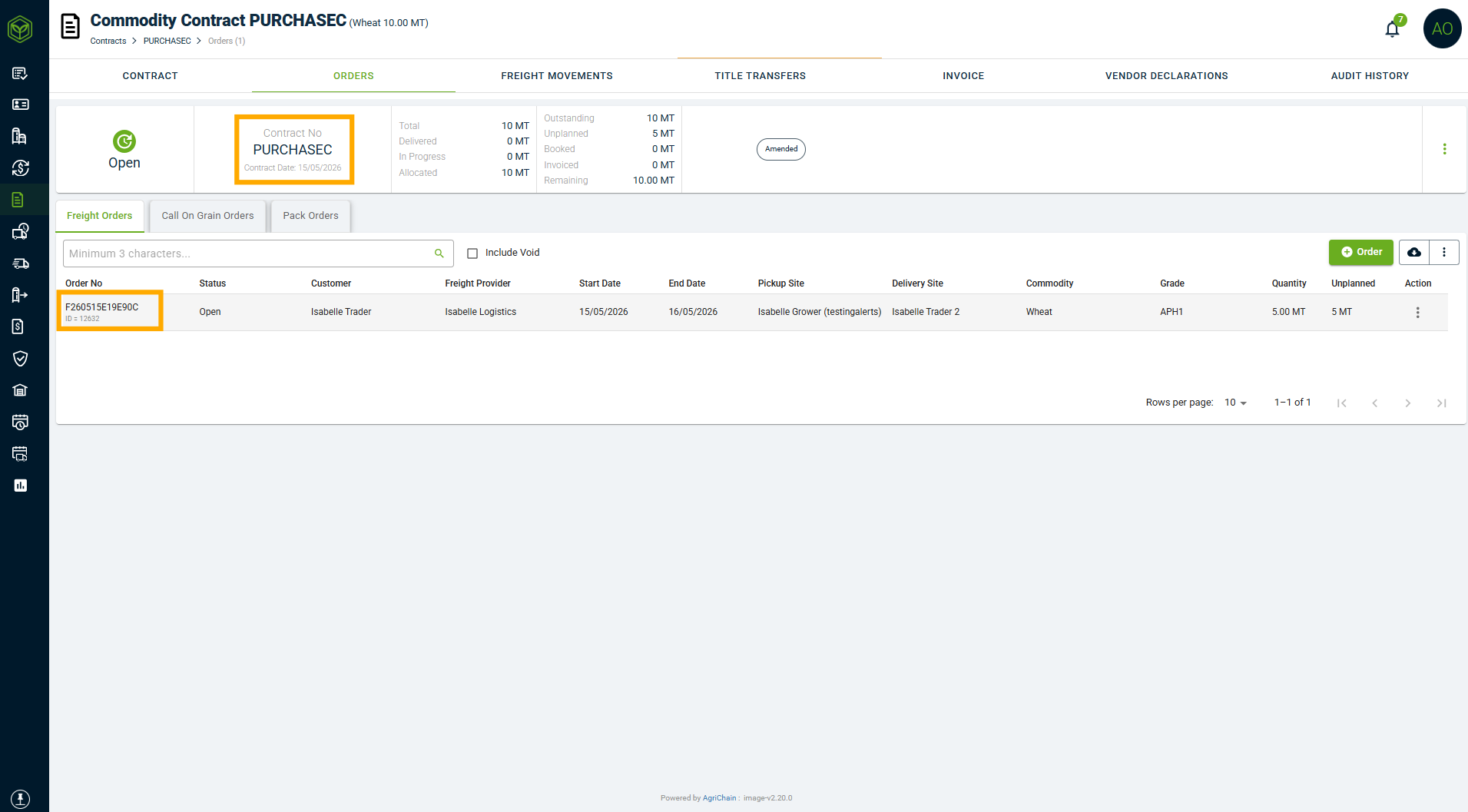
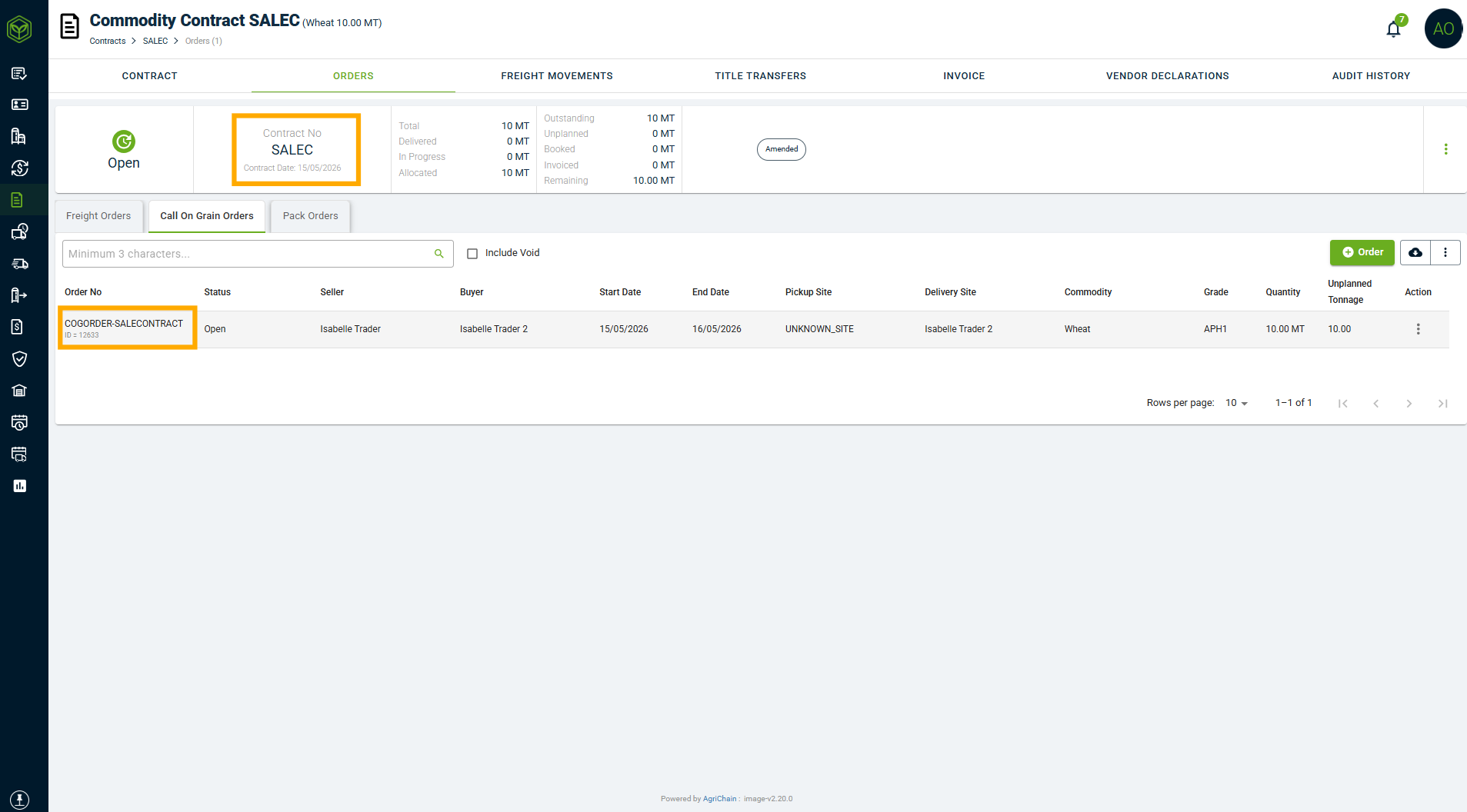
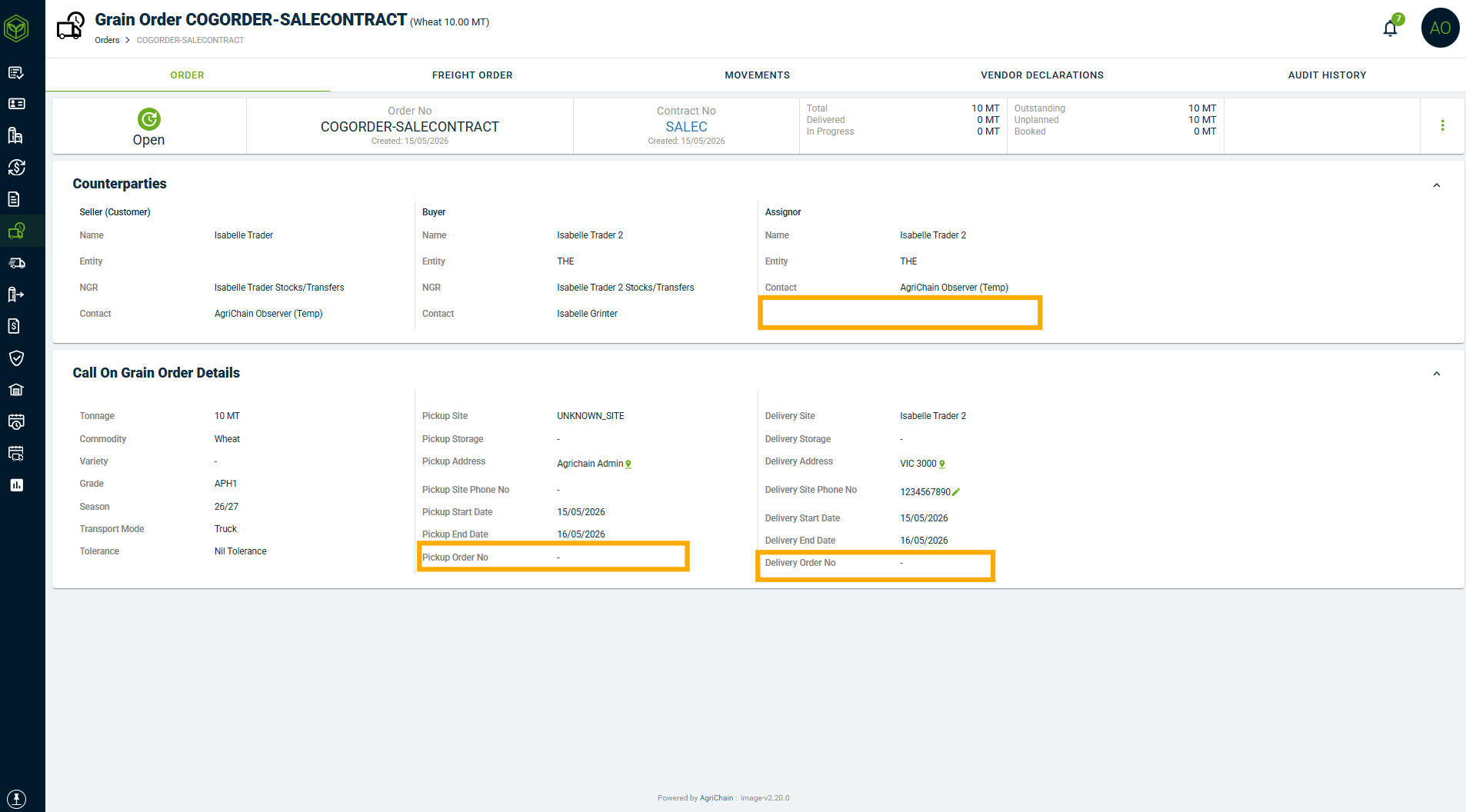
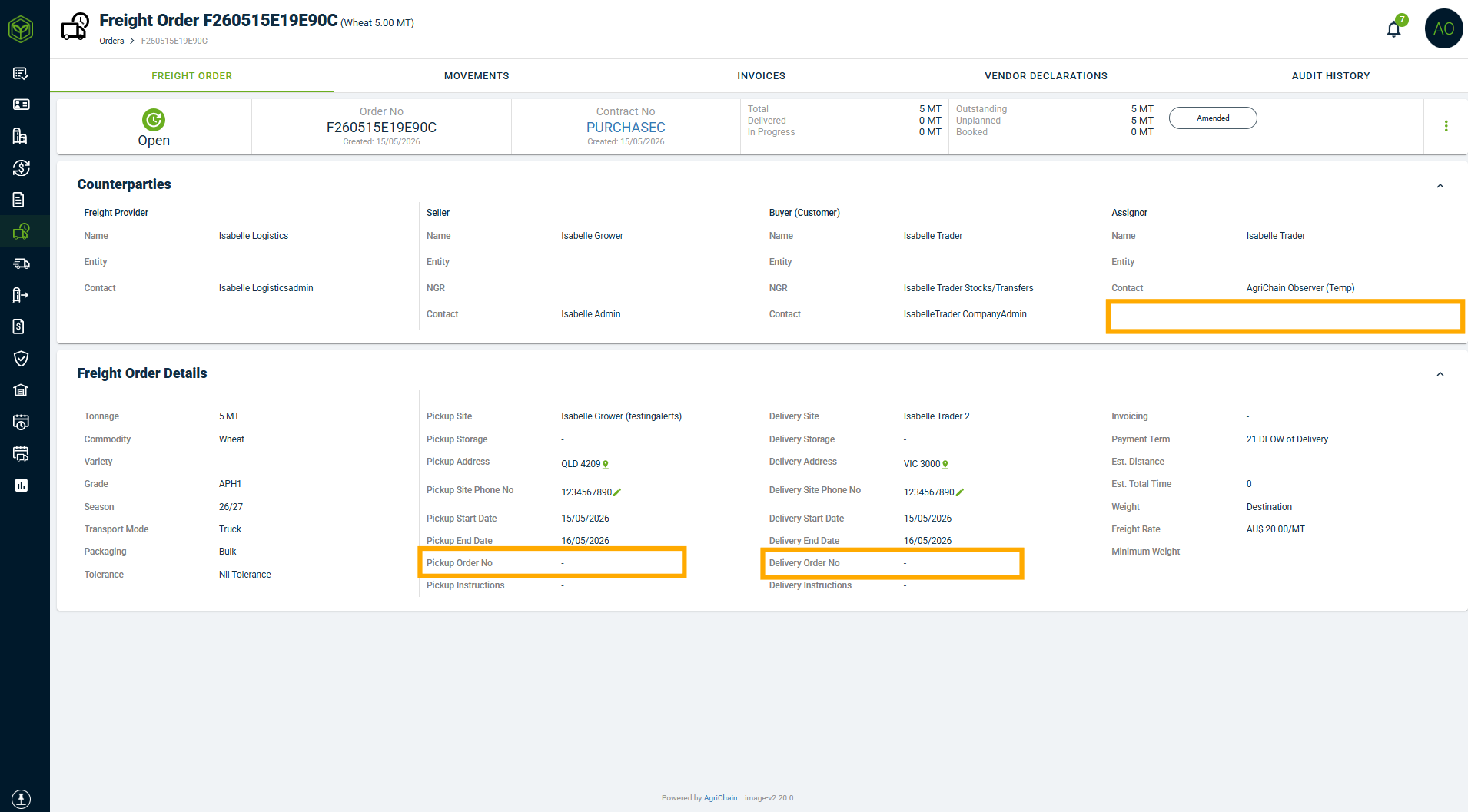
- Check if either Order has the other's Order reference number mentioned in any section of the details page that appears when you first open that Order. The orange boxes indicate where it can possibly show, if it were in either Order.
- Enter the Sales Contract Order Reference Number into the Order linked to the Purchase Contract.
a) Open Purchase Contract Order.
b) Click 3-dot action menu.
c) Select "Amend".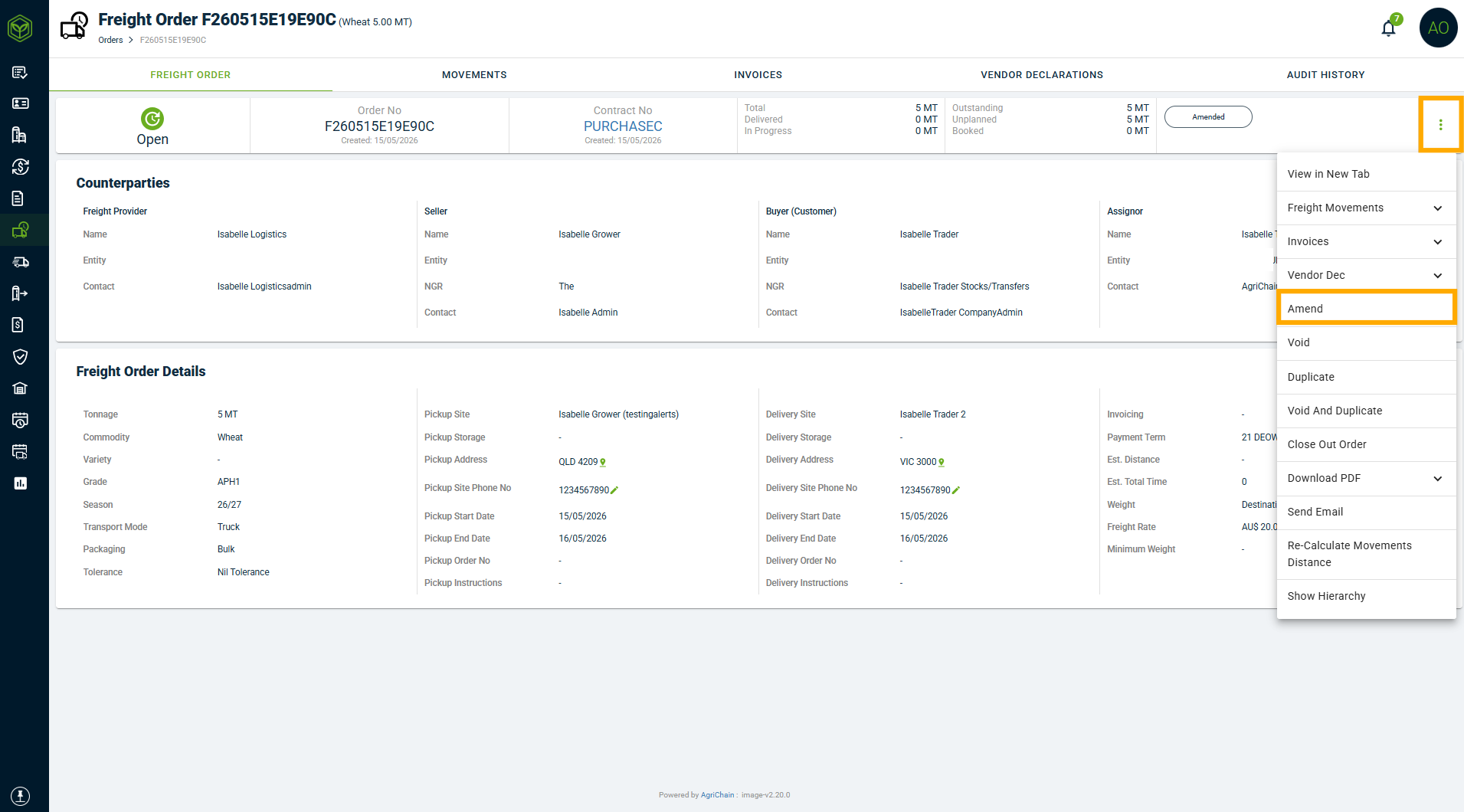 d) Scroll down and put Sales Contract Order Reference into either "Delivery" or "Pickup Site" - if you put it into a wrong one you will get a warning. If you put it into the right one you will see a little green tick and text telling you it matches.
- Warning Message: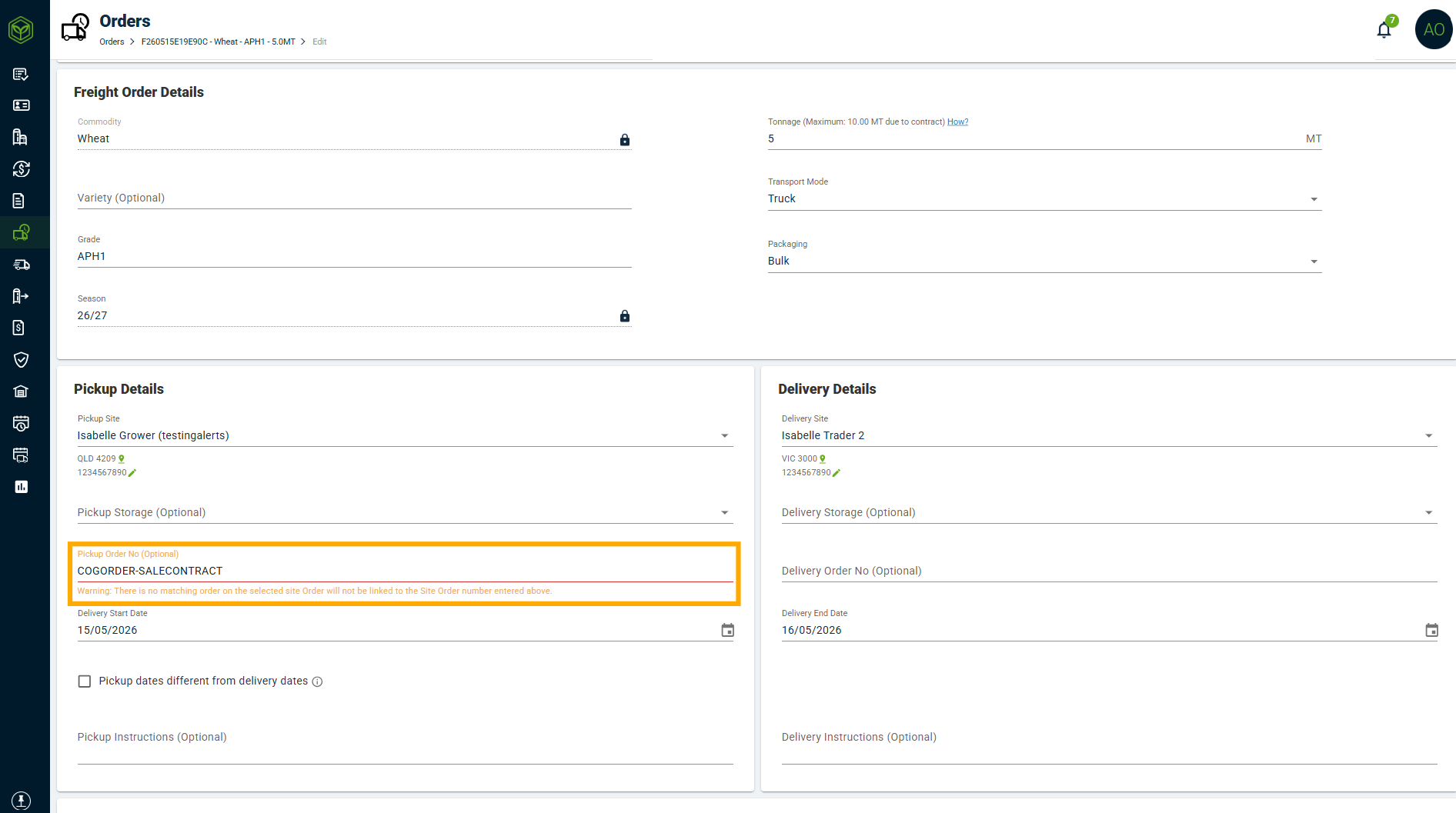 - Green "It Matches" Message: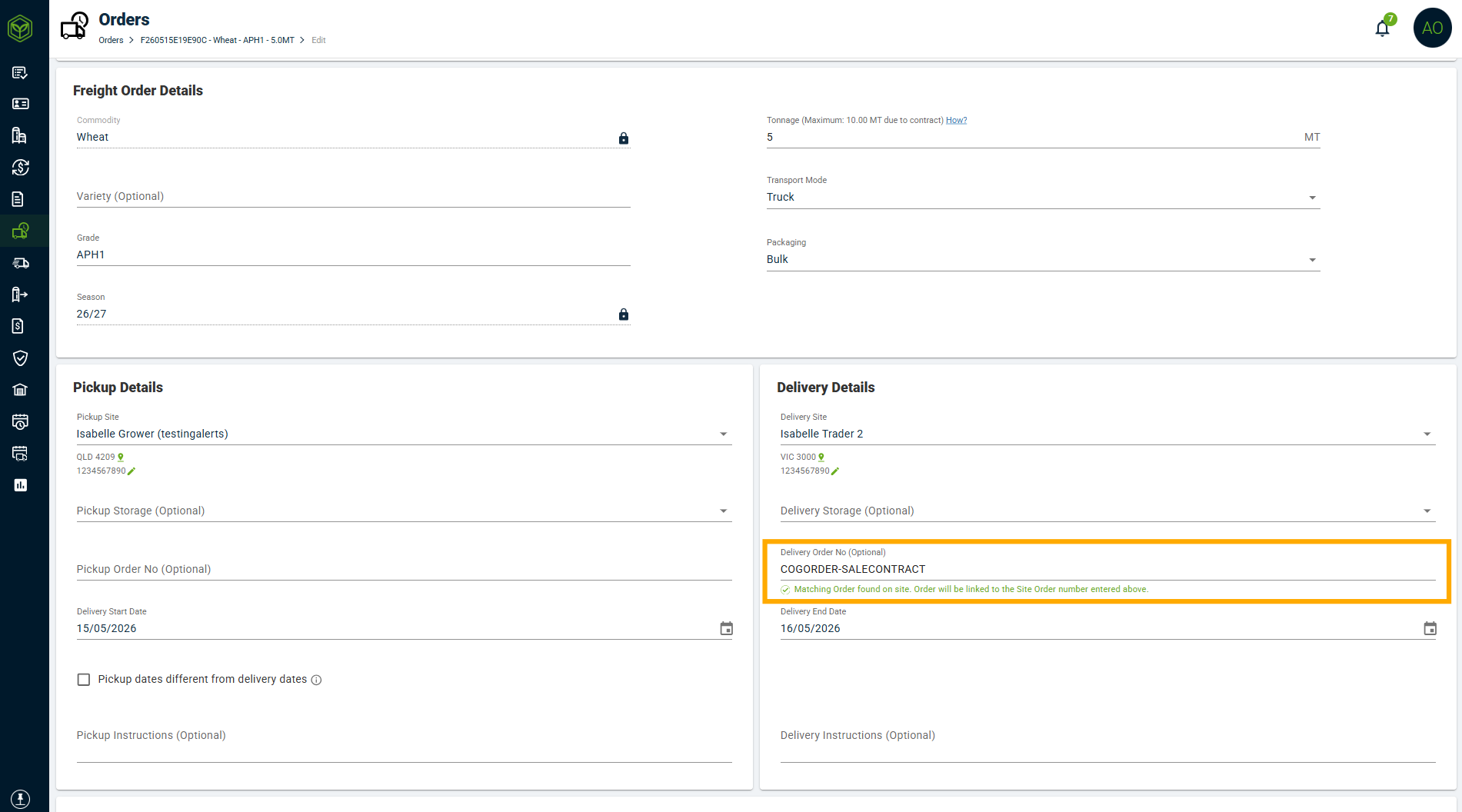
- Save the Order once you get the Green message, then click "Submit".
- To confirm the linkage:
- Open the Purchase Contract
- Navigate to Orders (Freight or COG depending on the Order type)
- Select Search for Sales Contract Order
If the Sales Contract Order appears in the search results, the Orders have been successfully linked.
Common Troubleshooting Tips
If Movements are not appearing correctly:
- Verify which Order should be the Parent
- Confirm the Delivery/Pickup Order number was entered into the correct Order
- Check whether the linkage direction has accidentally been reversed
Corrections by our team may sometimes be required to fix tonnage or movement allocation after an incorrect linkage has been created.
If you are no longer able to 'Amend' either order, please reach out to our Support team by visiting https://agrichain.freshdesk.com/support/home and raise a ticket so we can assist.Related Articles
Was this article helpful?
That’s Great!
Thank you for your feedback
Sorry! We couldn't be helpful
Thank you for your feedback
Feedback sent
We appreciate your effort and will try to fix the article