Introduction
Grainstor can be used to submit PRA container records to the terminal. Before doing so, please ensure that you have met the Prerequisites for submitting PRA & PEMS on Grainstor (click here).
How to Submit a Pre-Receival Advice (PRA) on Grainstor
1. Retrieve Pack Orders
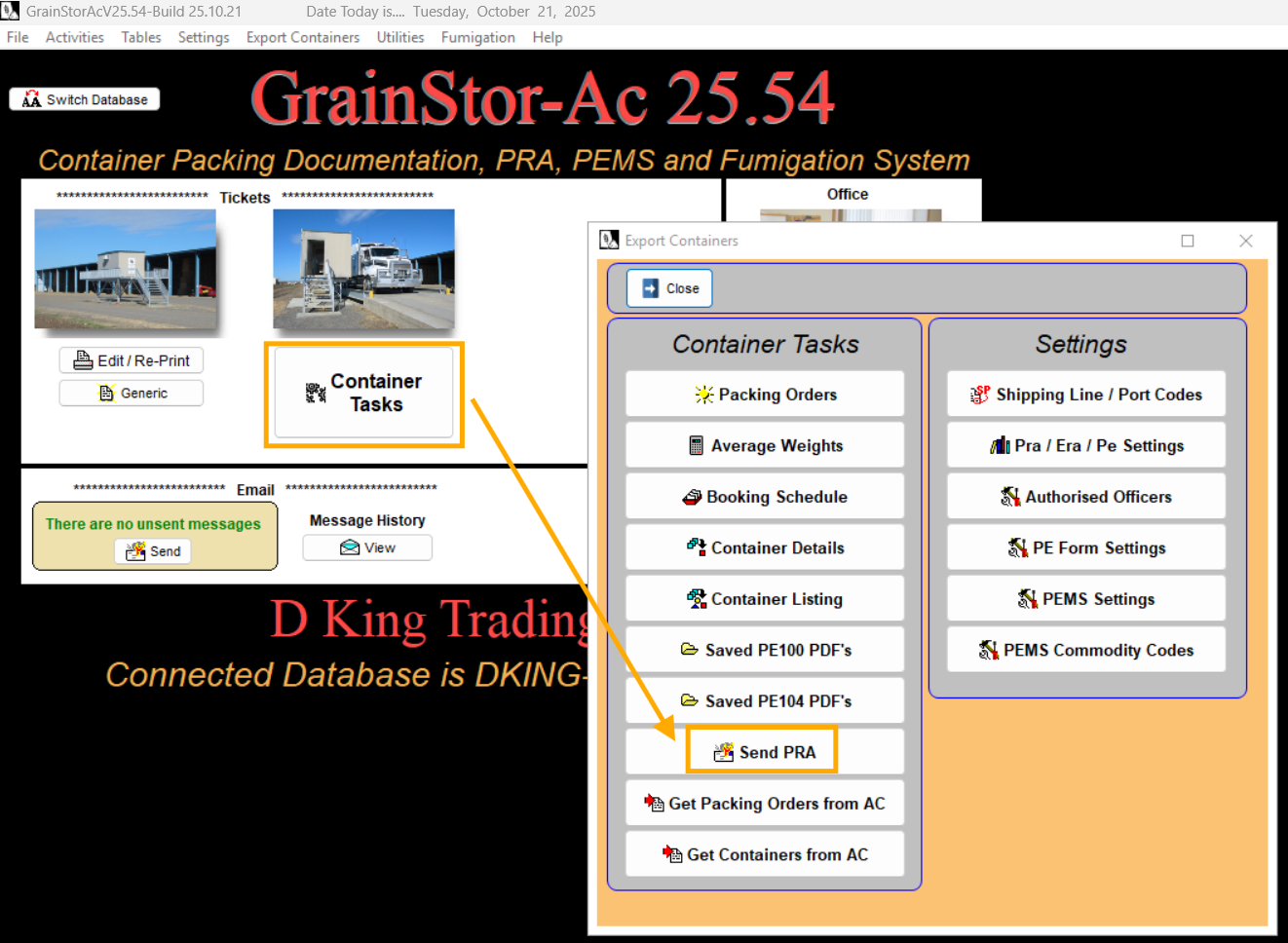
First, retrieve the Pack Orders from AgriChain into Grainstor by selecting ‘Container Tasks’ → ‘Get Packing Orders from AC’.
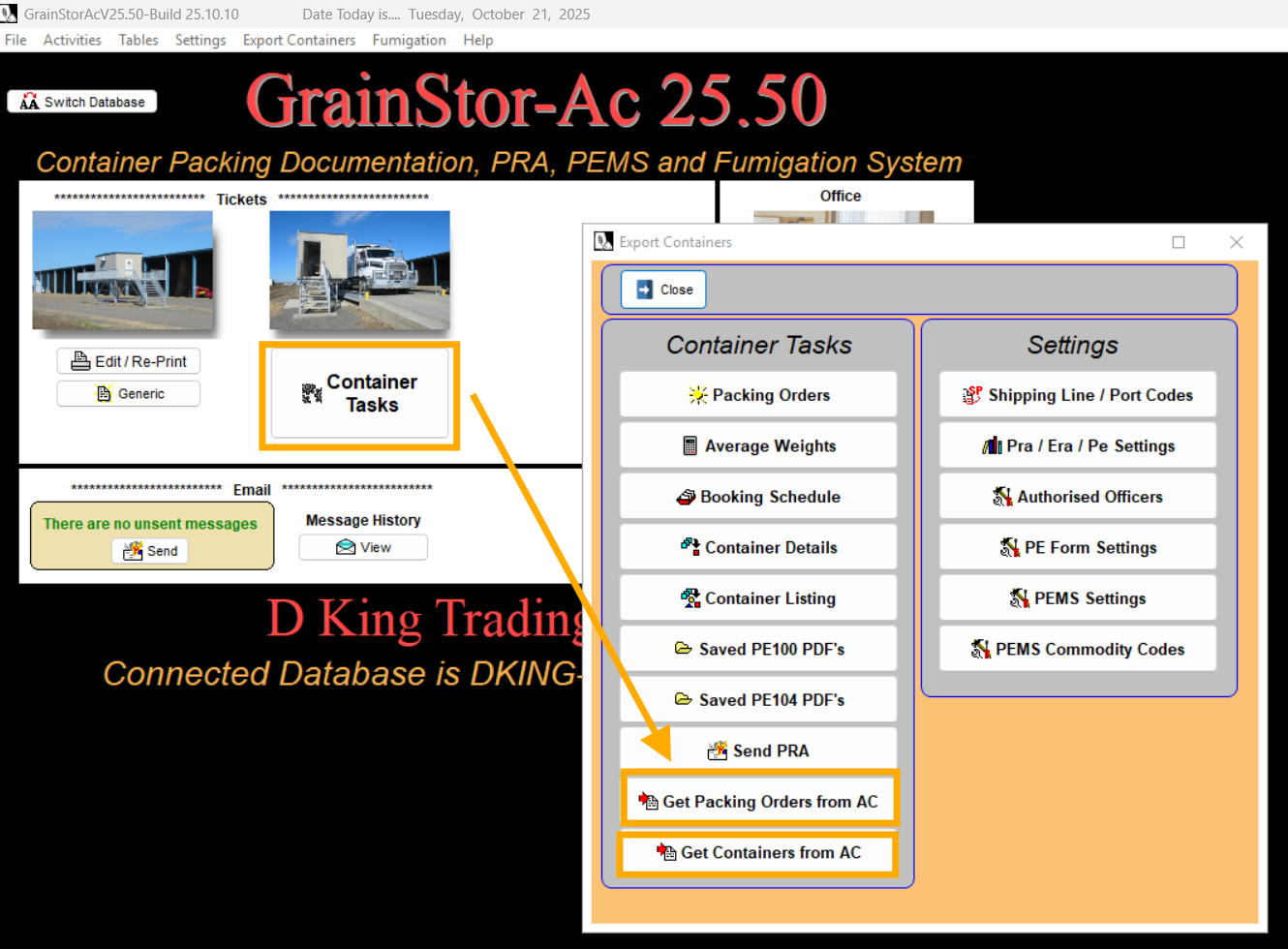
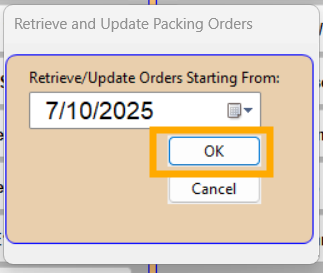
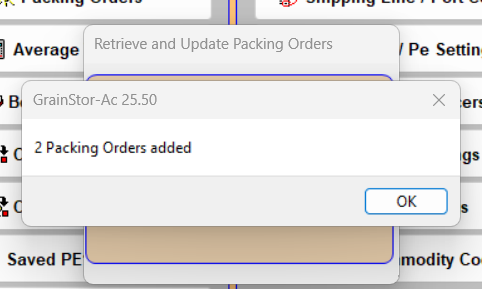
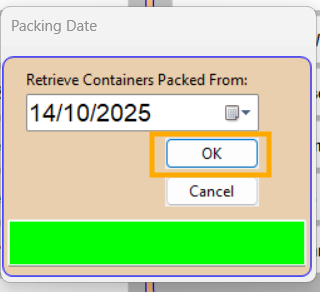
Retrieval dates will always be backdated 1-2 weeks from today. Select ‘OK’ to begin retrieving Pack Orders from AgriChain.
2. Retrieve Packed Containers against its pack order
Next, retrieve the Packed Containers against the pack orders from AgriChain into Grainstor by selecting ‘Container Tasks’ → ‘Get Containers from AC’.
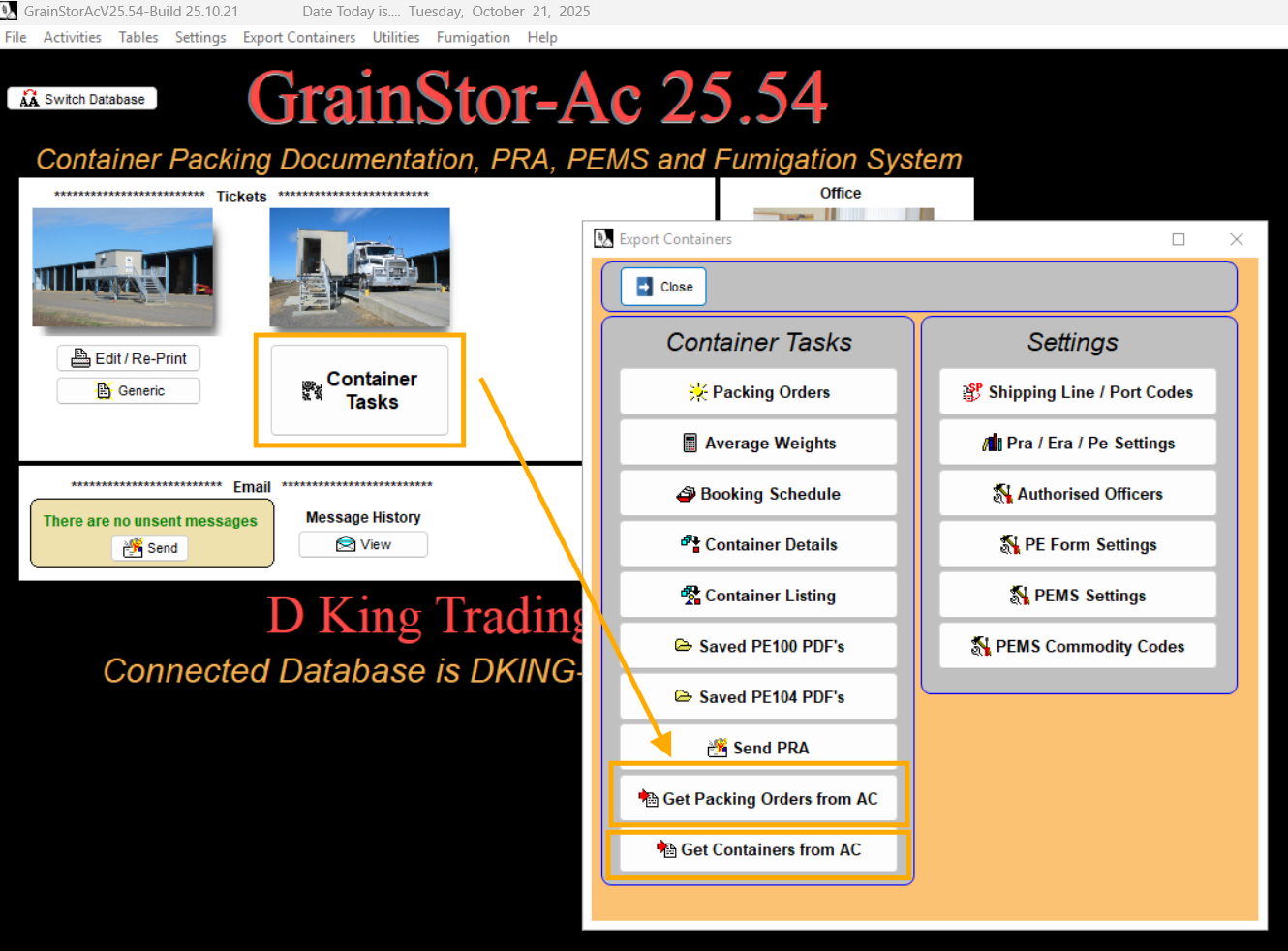
Retrieval dates will always be backdated 1-2 weeks from today. Select ‘OK’ to begin retrieving Packed Containers from AgriChain.
Please note that Grainstor will not retrieve:
Empty Containers; containers must already be packed on AgriChain.
Packed Containers without a Release Number
You will need to go into the AgriChain and enter the Release No. against the Packed Container Movement.
Alternatively, ensure that the Release No. against each container is entered when uploading the Empty Containers Template into AgriChain.
3. Send PRA Records to Terminal
Once the pack orders and packed containers against it have been retrieved from AgriChain, it’s time to send PRAs to the terminal.
First, select ‘Container Tasks’ → ‘Send PRA’.
Next, select the ‘Order #’ (Pack Order No.), ‘Wt Declarant Name’ (Authorised Officer) and ‘Trans Indicator’ (Transportation) for the containers that will have their PRA records sent to the terminal.
Select the ‘Message function’ as either ‘ORIGINAL / REPLACEMENT / CANCELLATION’, depending on the stage of the PRA record.
The ‘Export Indicator’ should default to ‘EXPORT’ and the ‘Container Status’ should default to ‘FULL’ as it’s a packed container.
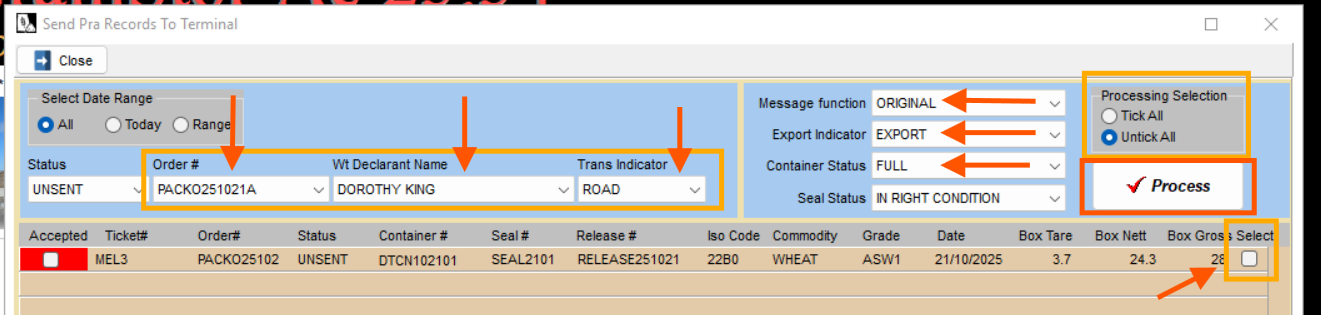
You have the option to use the ‘Tick All’ function to select all containers or manually select (tick) each container.
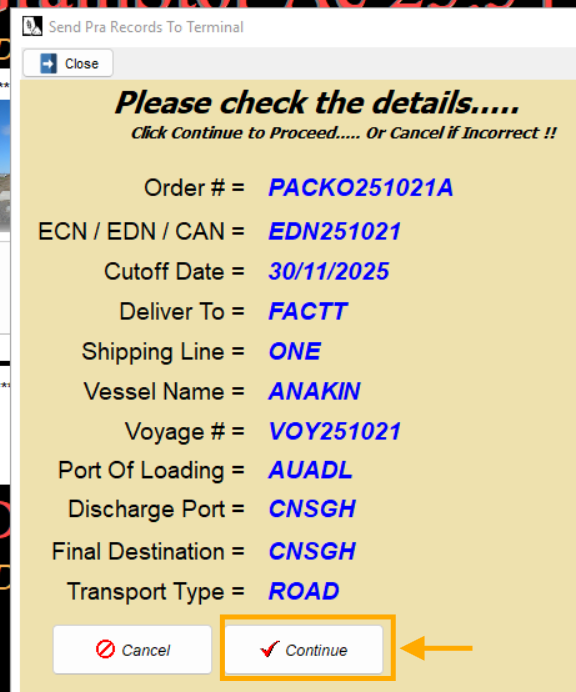
Once ready, select ‘Process’ → review the details → select ‘Continue’ to proceed.
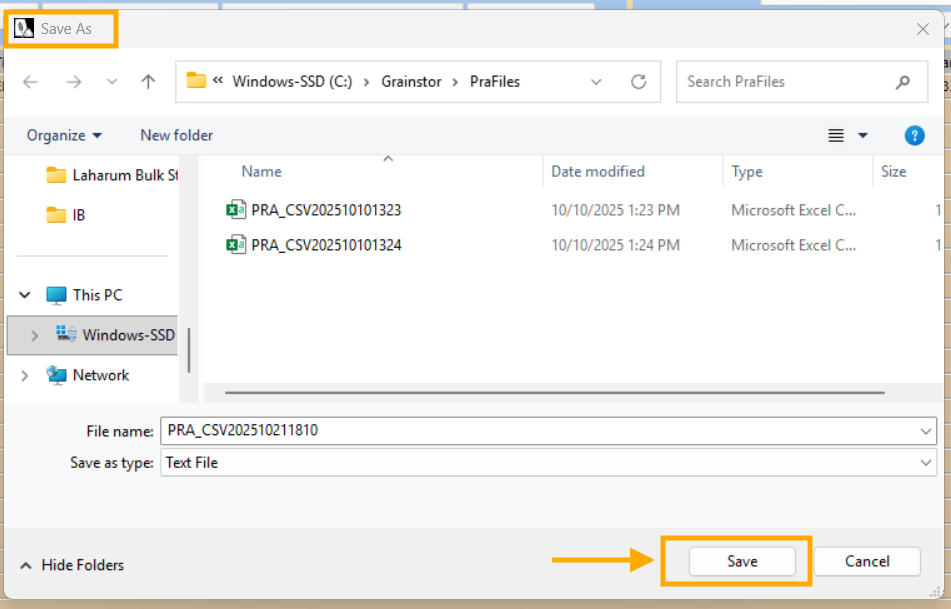
A pop-up will appear asking you to save the PRA file. Proceed by selecting ‘Save’.
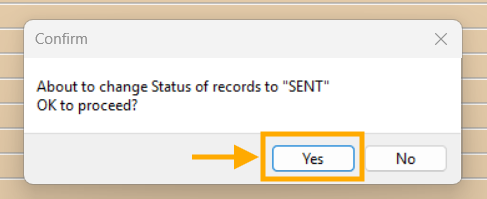
A confirmation will pop-up and proceed by selecting ‘Yes’.
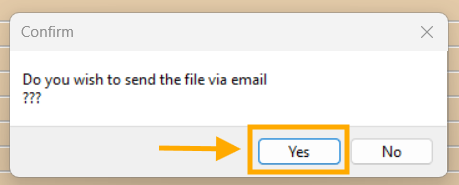
A final confirmation will pop-up again and proceed by selecting ‘Yes’ to send the container’s PRA record to the terminal.
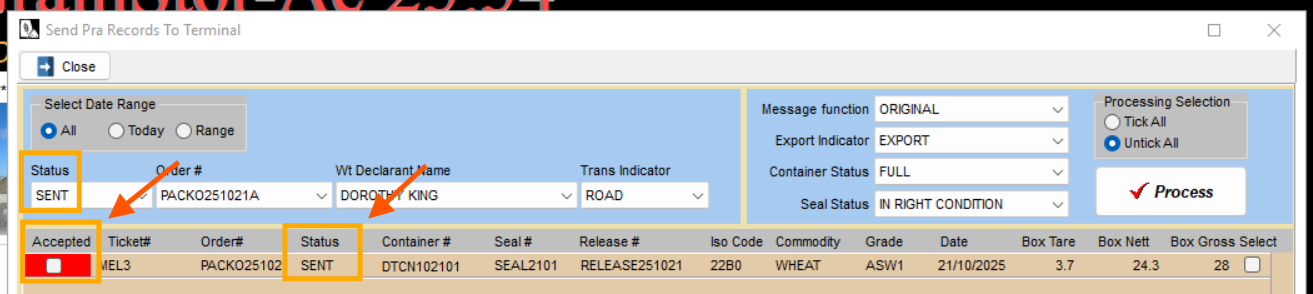
Once sent, the status of the container will change to ‘SENT’ and if accepted, the indicator will turn green.
Was this article helpful?
That’s Great!
Thank you for your feedback
Sorry! We couldn't be helpful
Thank you for your feedback
Feedback sent
We appreciate your effort and will try to fix the article