Introduction
Grainstor can also be used to submit container records to PEMS. Before doing so, please ensure that you have met the Prerequisites for submitting PRA & PEMS on Grainstor (click here).
How to Submit Container Records to the Plant Exports Management System (PEMS)
1. Identify Containers
First, select ‘Container Tasks’ → ‘Container Listing’.
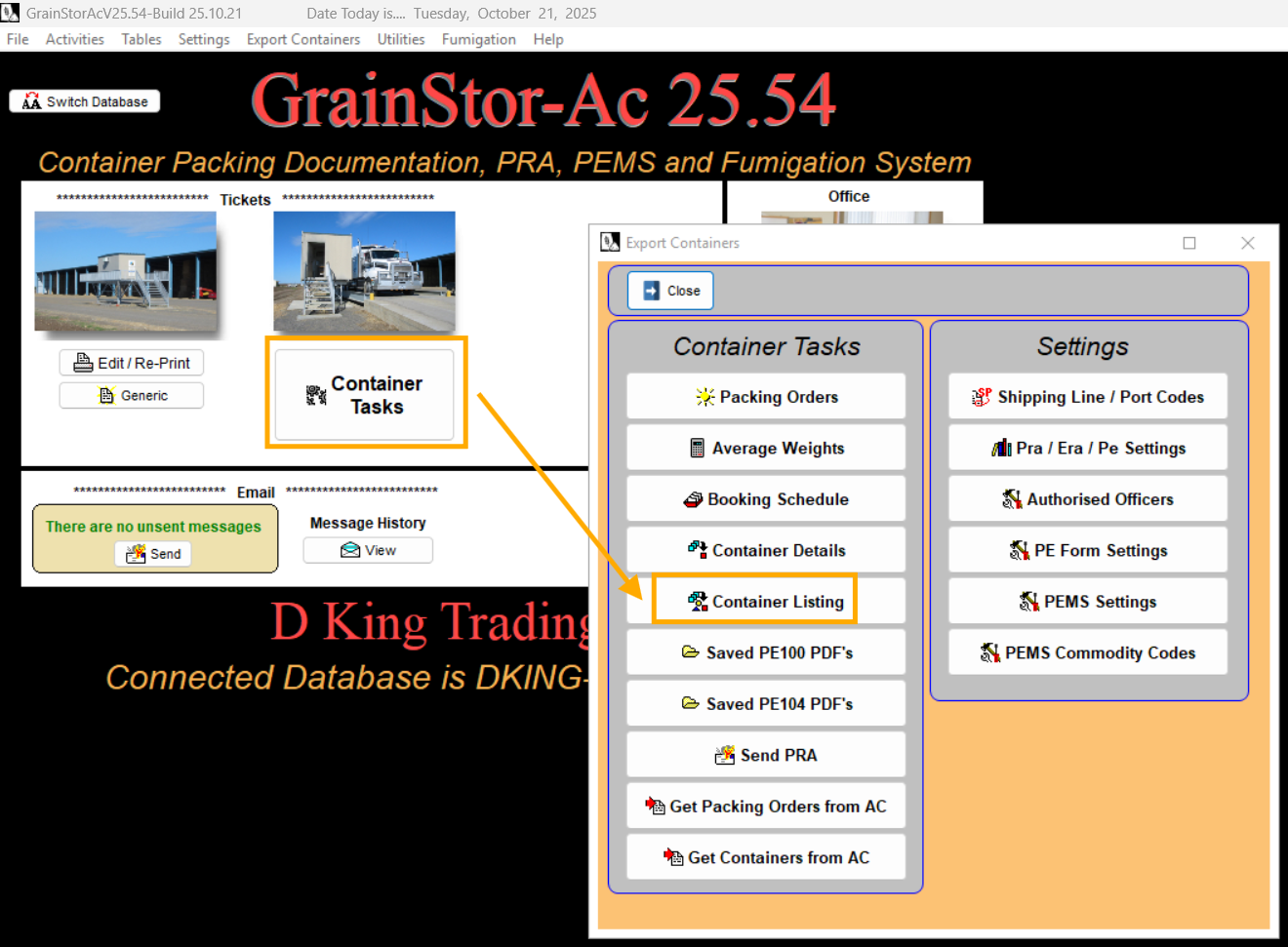
From here, under ‘Select Order #’, select the pack order → then select ‘Transmit to PEMS’.
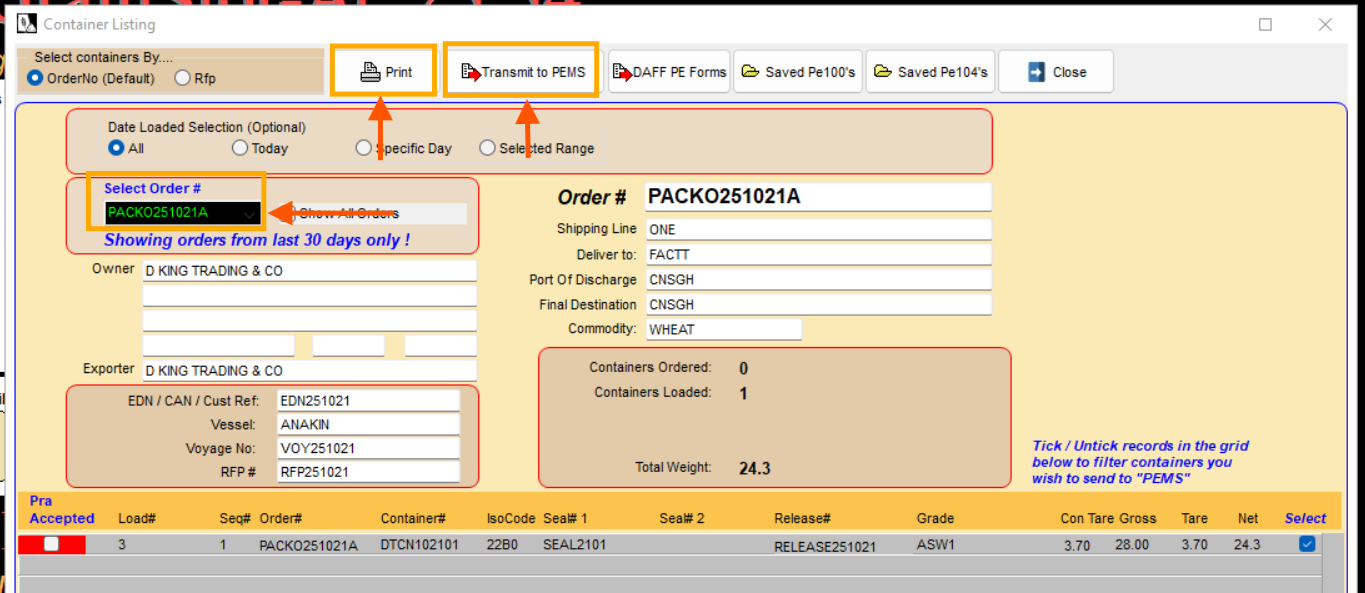
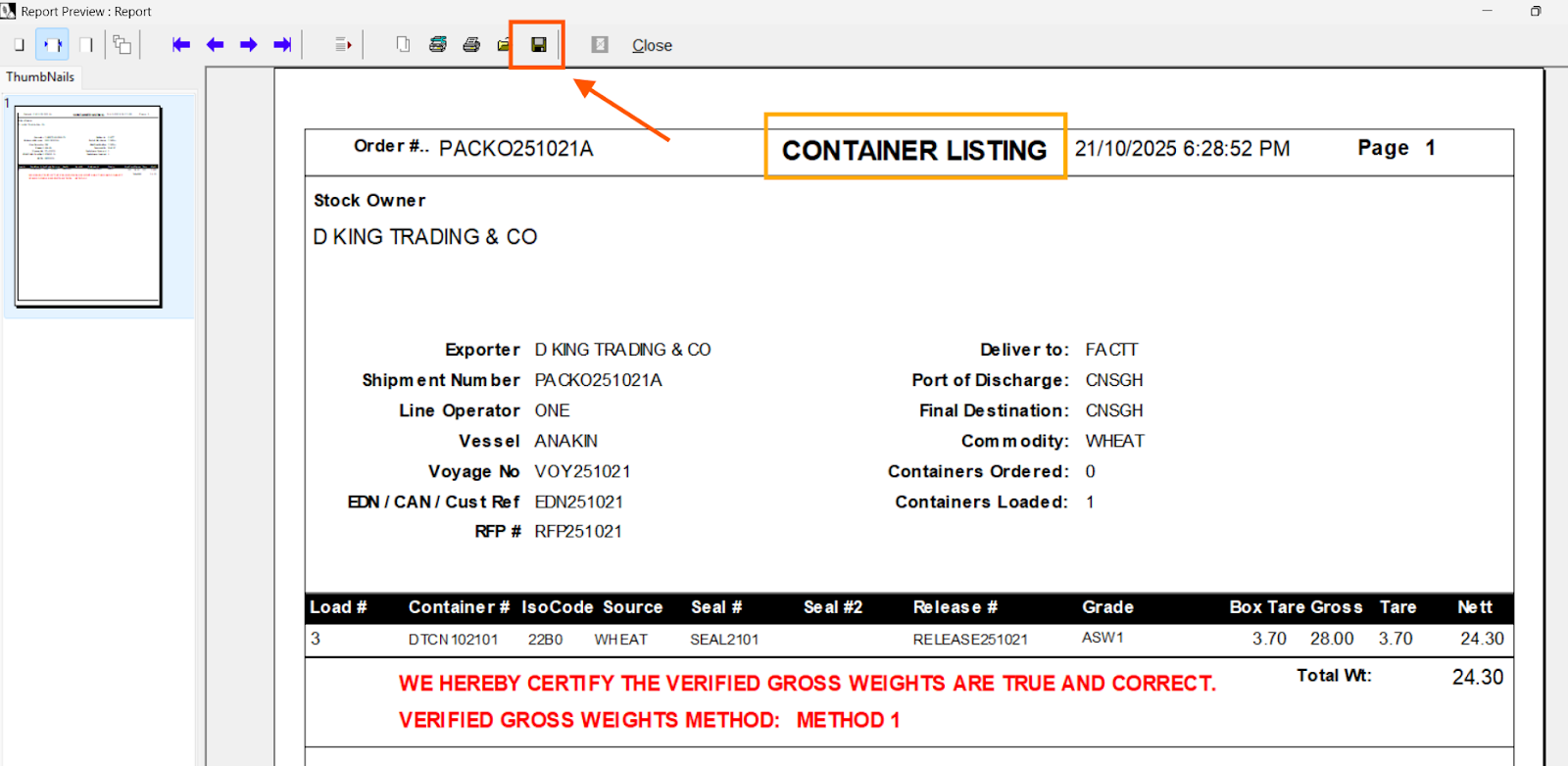
You will also have the option to save as a PDF or print the ‘Container Listing’ file but selecting ‘Print’.
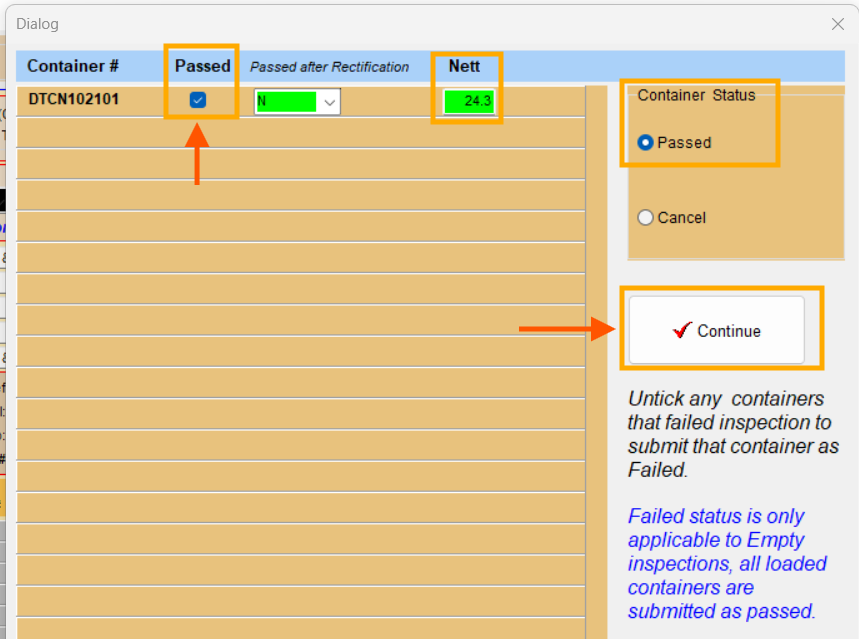
After selecting ‘Transmit to PEMS’, a pop-up will appear with containers against the selected pack order. Select (tick) the containers that you would like to submit to PEMS with ‘Container Status’ as ‘Passed’ → then Select ‘Continue’
Another pop-up will appear for you to transmit the container inspection records to PEMS. Here, select the name of the ‘Authorised Officer’ → Nominate the inspection ‘Start Time’ and ‘Finish Time’ → Add any ‘Time Comments’, if applicable.
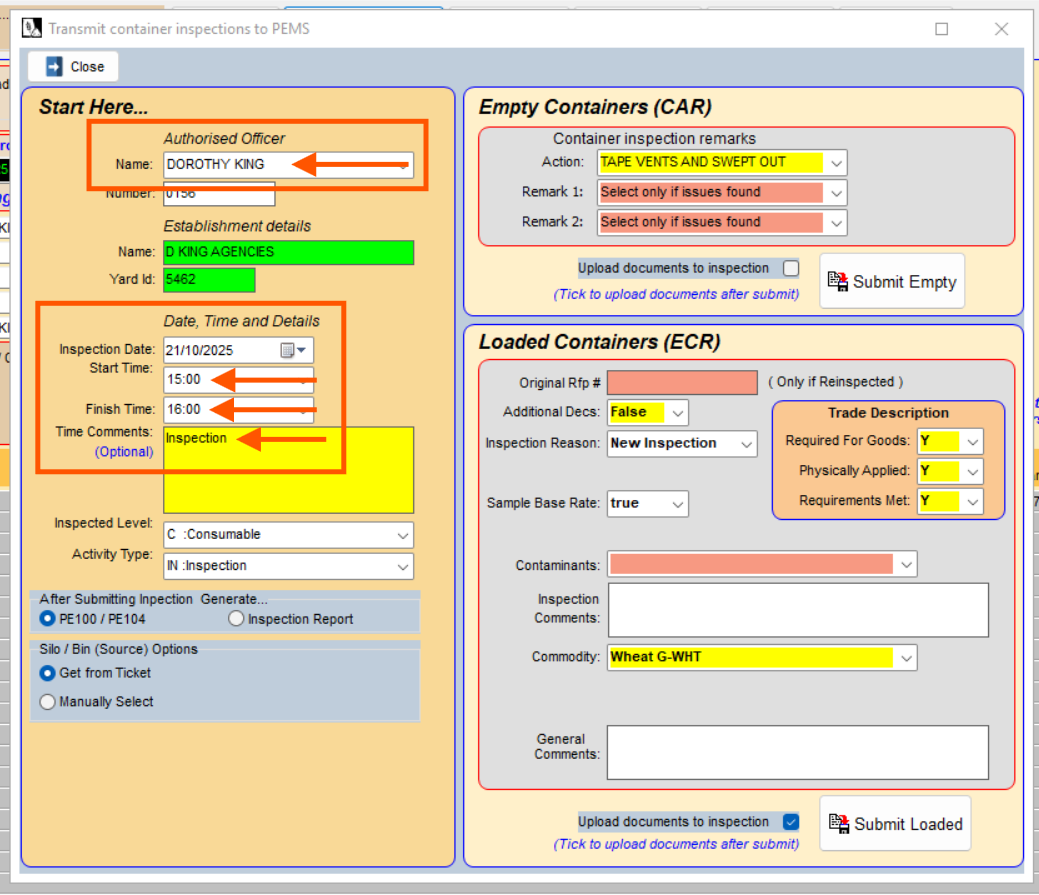
2. Submit Empty Container Inspection Record
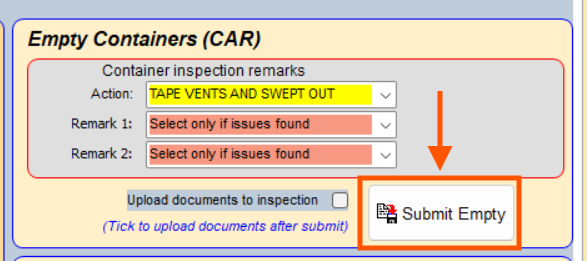
Proceed to submit the ‘Empty Containers’ inspection records to PEMS first by selecting ‘Submit Empty’.
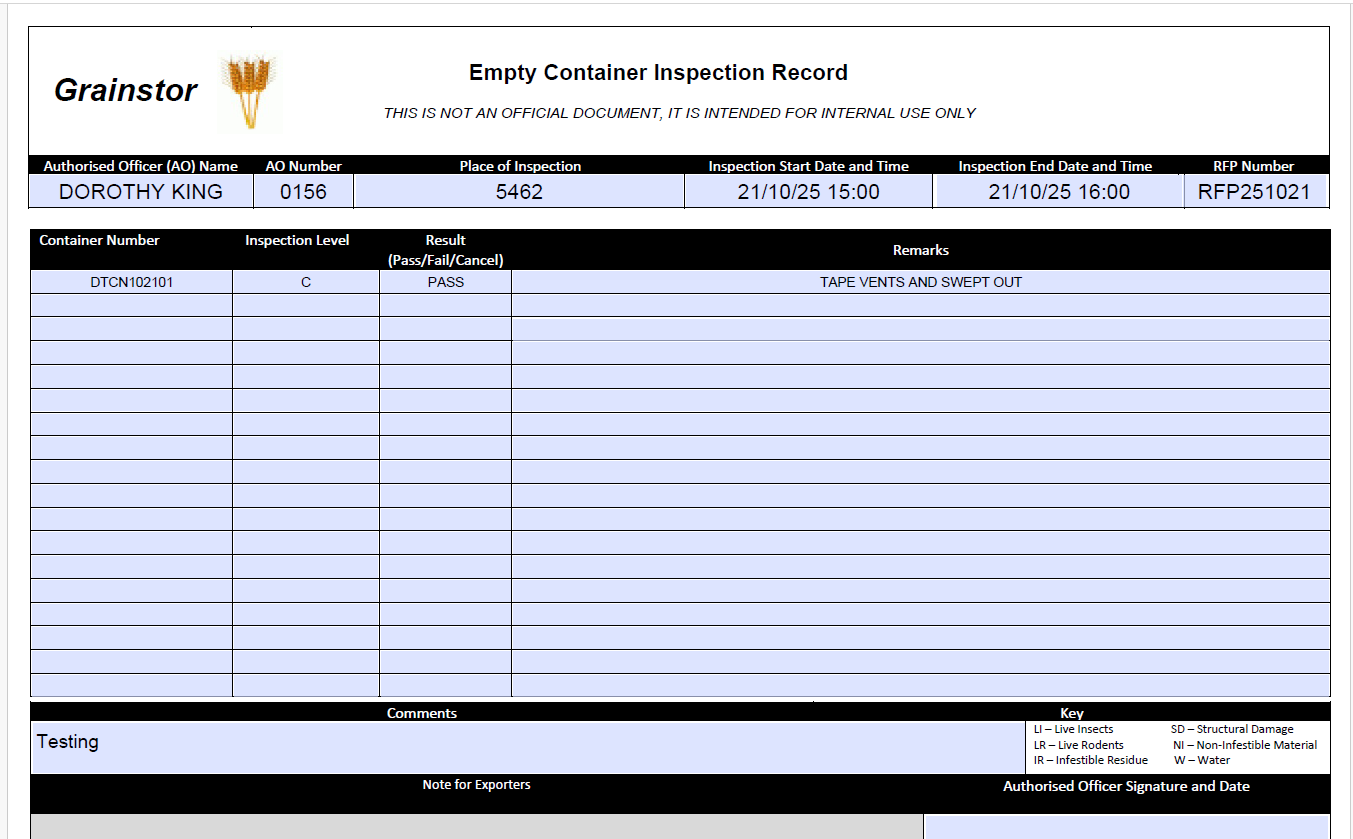
If successful, an ‘Empty Container Inspection Record’ file can be generated.
3. Submit Loaded Container Inspection Record
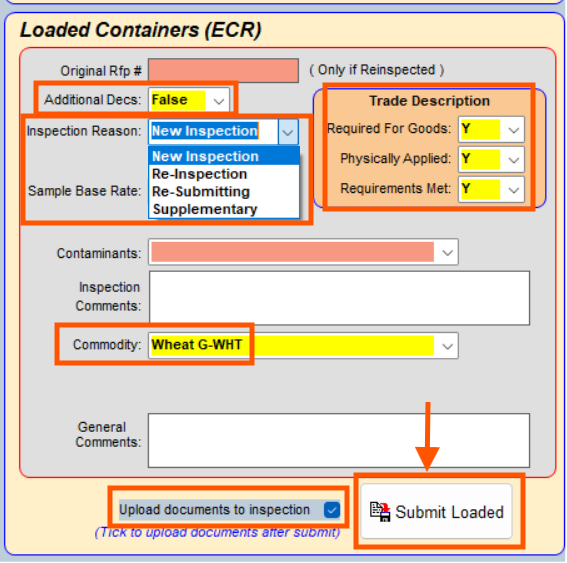
Next, select:
Whether there are any other ‘Additional Decs’ (declarations)
The ‘Inspection Reason’ which can be a new inspection, re-inspection, re-submission or supplementary submission.
The ‘Trade Descriptions’ in terms of whether it is required for goods, physically applied and if requirements are met, where ‘Y’ indicates Yes and ‘N’ indicates No.
Add in any ‘Inspection Comments’
The ‘Commodity’
Whether documents need to be uploaded for inspection
Once ready, select ‘Submit Loaded’ to submit a loaded container record to PEMS.
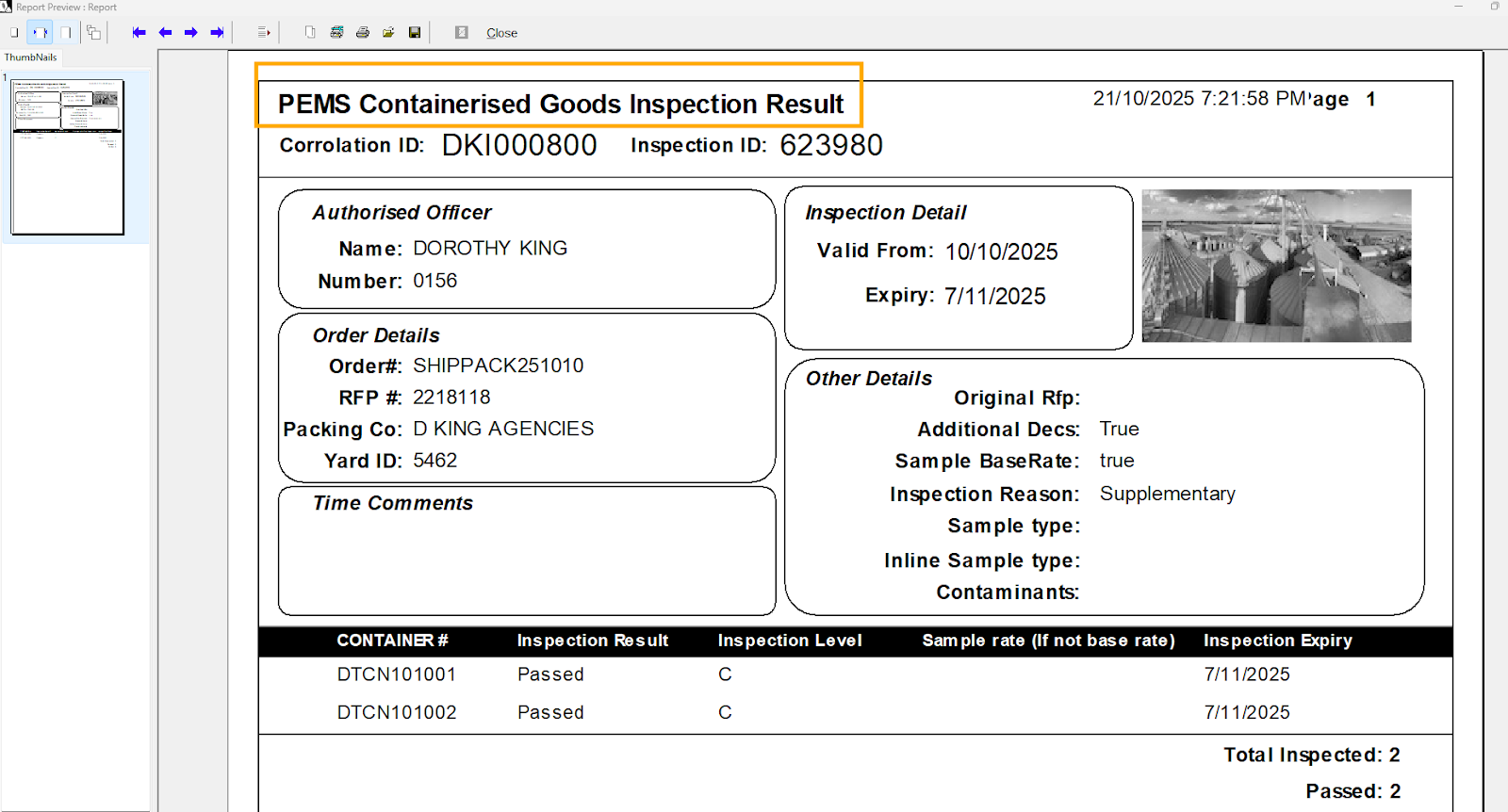
If successful, a ‘PEMS Containerised Goods Inspection Result’ file can be generated.
Please note that an ‘Empty Container’ record must always be submitted first before a ‘Loaded Container’ record.
Was this article helpful?
That’s Great!
Thank you for your feedback
Sorry! We couldn't be helpful
Thank you for your feedback
Feedback sent
We appreciate your effort and will try to fix the article