Introduction
Slot booking in AgriChain allows users to efficiently schedule and manage logistics within the AgriChain platform. This guide will walk you through the steps required to book a slot seamlessly.
Note: If you have received a freight order, you should always use it to book into the siteStep-by-Step Instruction on How to Book a Slot:
- Log in to AgriChain using your credentials.
- Navigate to the Site Booking module from the left-hand side menu.
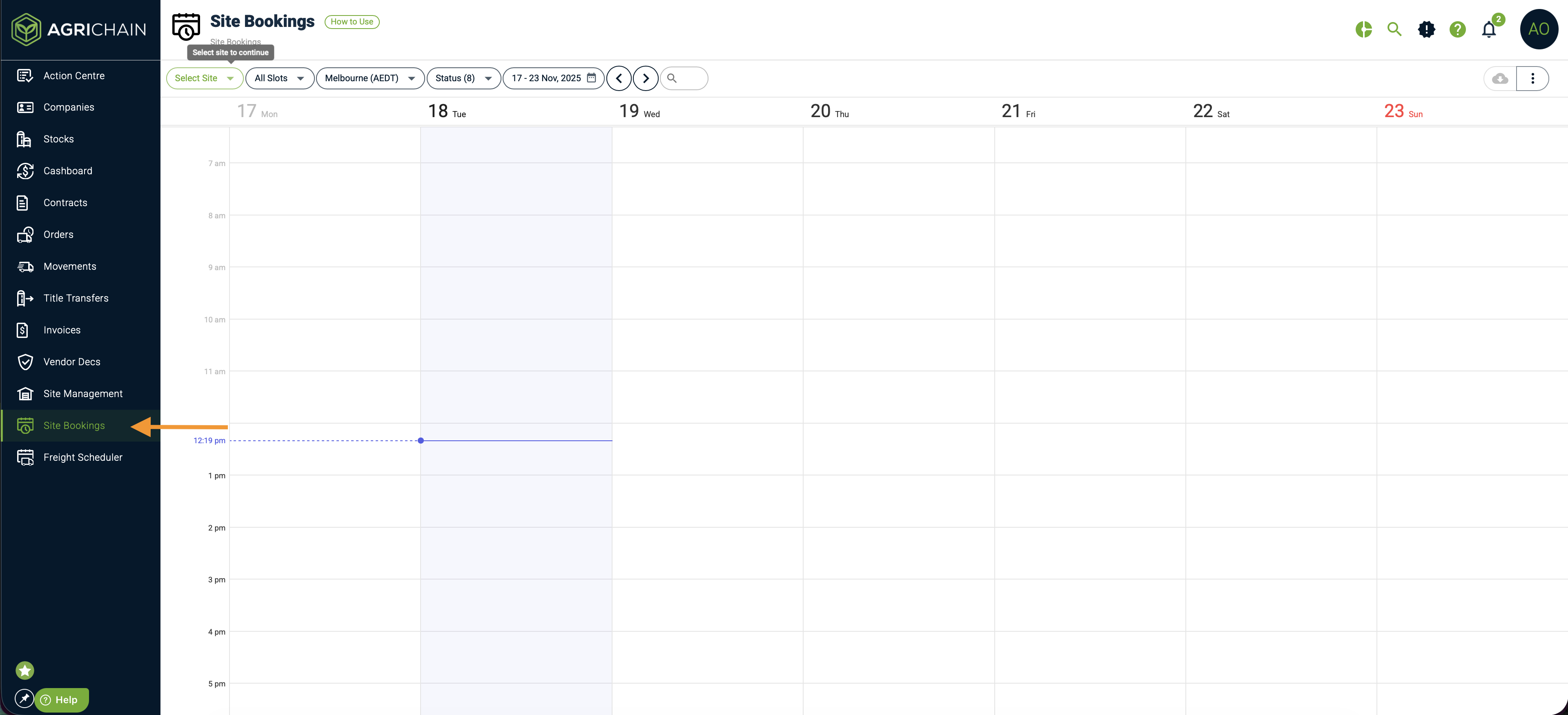
Enter the name of the site you want to book into by clicking on the green 'Select Site' button.
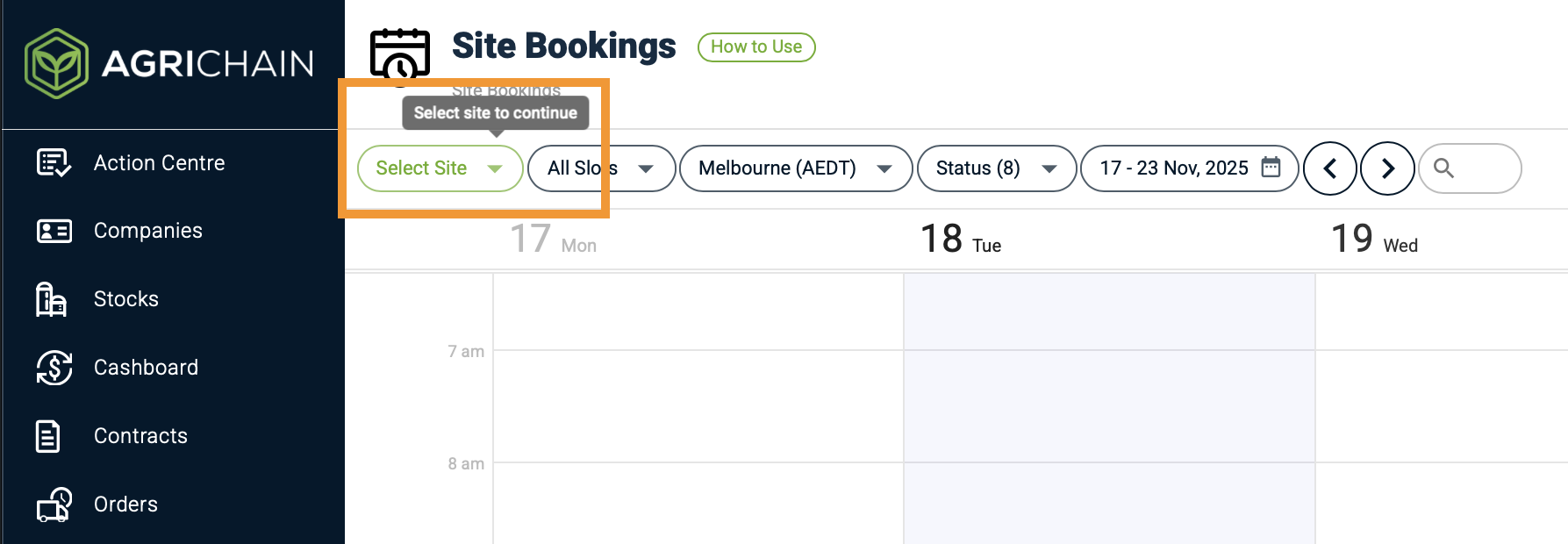
Once the site has been selected, you may book into any Blue slot. Click on the desired slot to proceed with the booking.
Enter Required Information
Order Number: Input the order number to auto-fill details such as Commodity and Grade. The site will be able to provide you with an order number to book into the site.
Tonnage: Enter the tonnages to be picked up or delivered.
Freight Provider: Nominate any truck listed under your freight provider.
All Rego: Nominate any available truck from the AgriChain platform. The system will automatically fetch the Sub Freight Provider details.
Sub Freight Provider: Specify the Sub Freight Provider and select the corresponding truck rego.
Once you have entered all required information, please click "Book" to confirm your booking.
Once the slot is booked, it will turn yellow, indicating confirmation.
When the order is processed, the slot will turn Green.
If you need to reschedule a slot, you just need to click into the original booking and change the time without having to cancel.
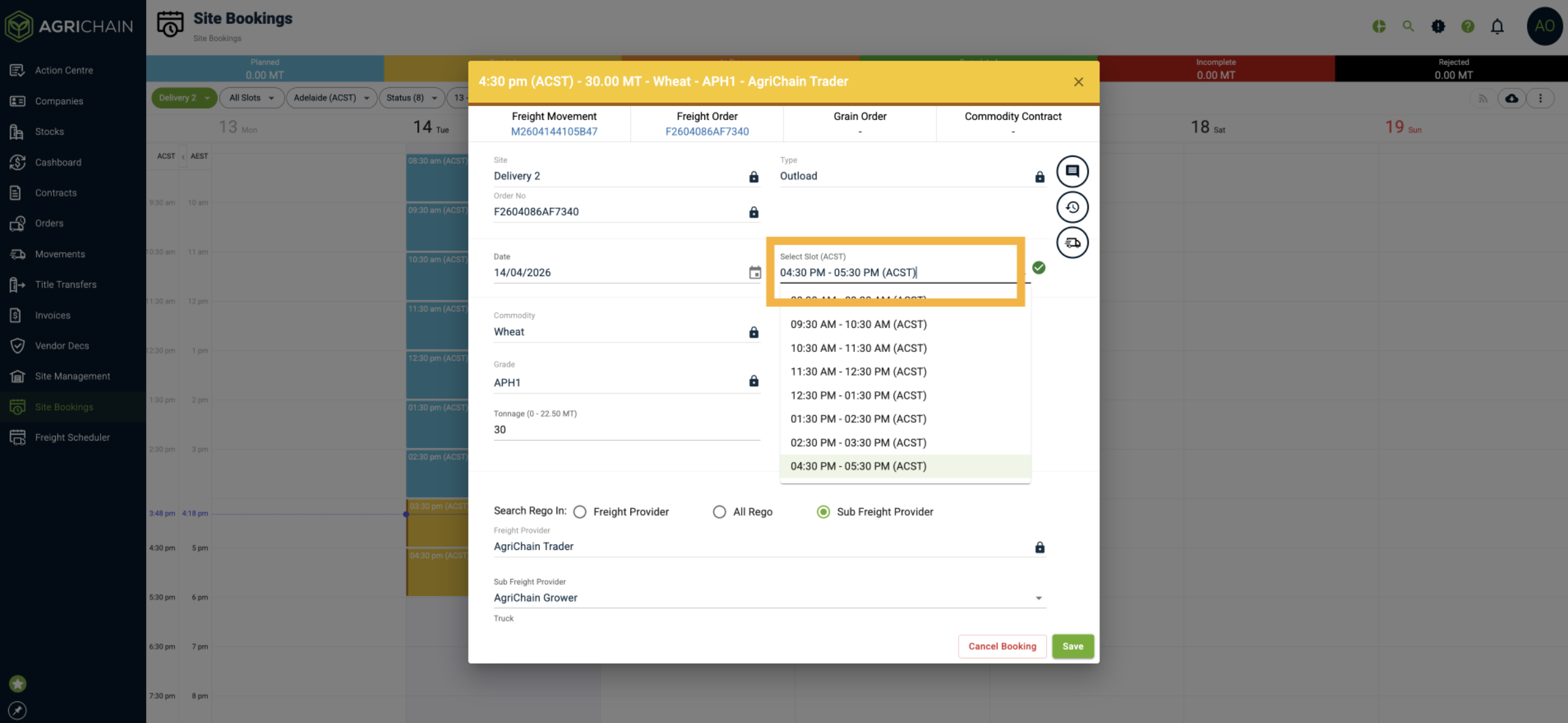
You may also refer to the video below to learn about rescheduling slot:
10. To modify or cancel a slot, please follow the on-screen instructions to modify or cancel an existing booking. To learn more, please refer to article [Refer Article]
Using the Partial Slot Booking Feature
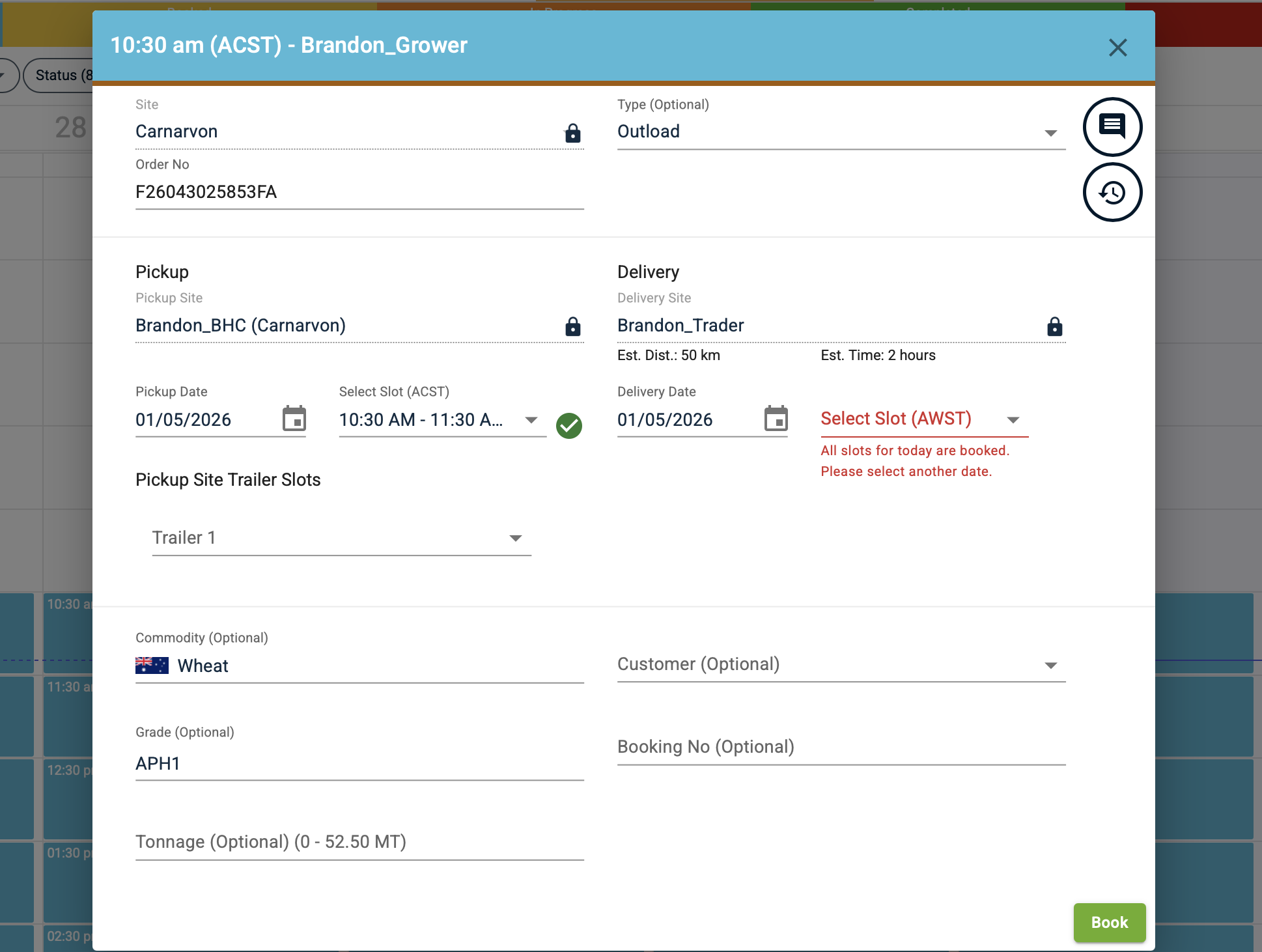
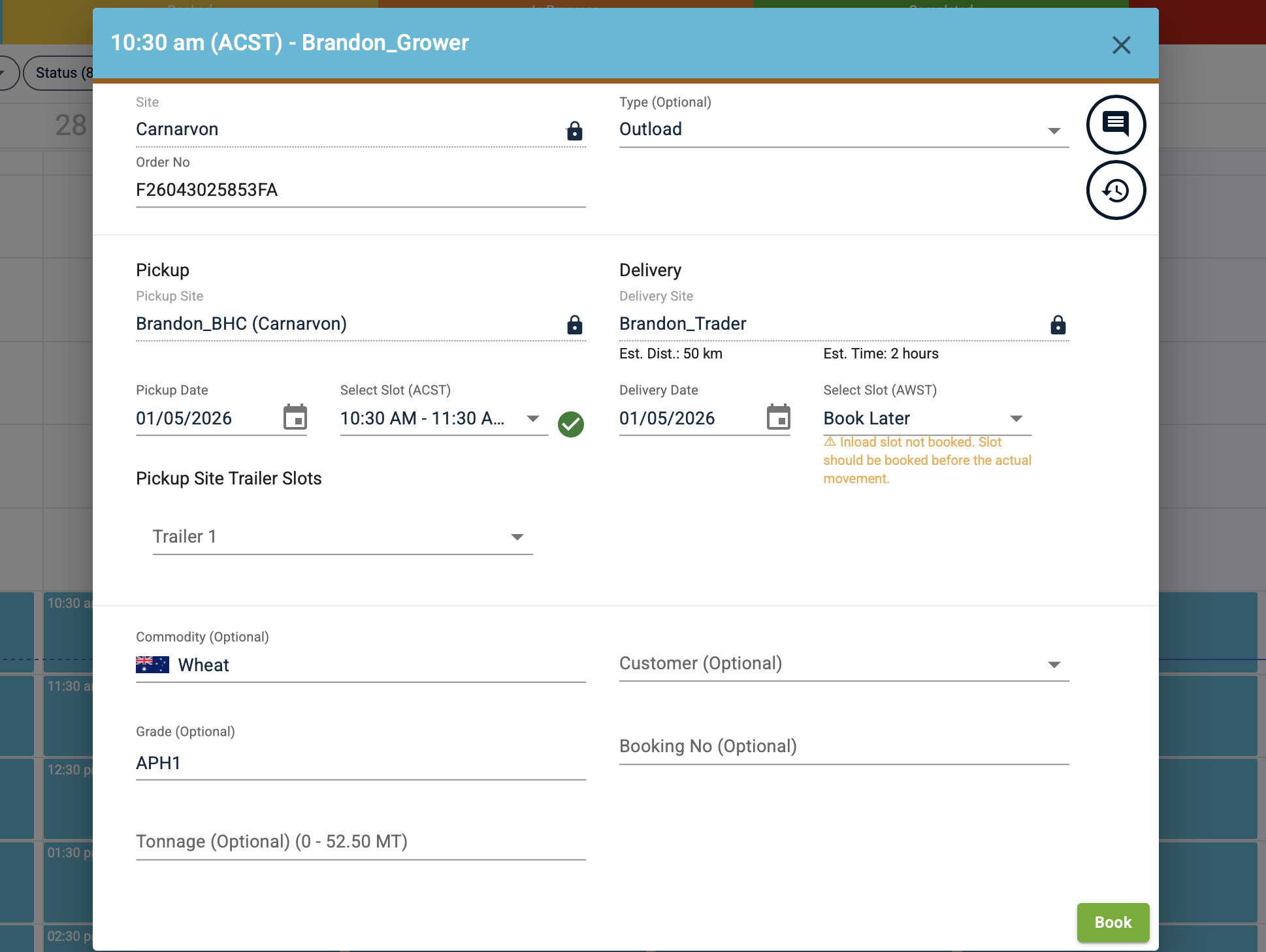
If one of the sites (pickup / delivery) does not have available / open slots, the partial slot booking feature can be used.
1. In the event that a pickup site has open slots but the delivery site does not, you will have an option to select "Book Later" for the delivery slot.
- This allows you to secure your pickup slot and work with the delivery site later to secure your delivery slot.
Was this article helpful?
That’s Great!
Thank you for your feedback
Sorry! We couldn't be helpful
Thank you for your feedback
Feedback sent
We appreciate your effort and will try to fix the article