Introduction
Movements (or loads) can be invoiced even if they are not against any order. This is to improve overall user efficiency in AgriChain.
There are two ways a user can configure a movement to be ready for invoicing:
When Creating a New Movement:
- Log in to AgriChain using your credentials.
- Navigate to the Movements module from the left-hand side menu.
- Click on '+ Movement' (Green button) on the top right corner of the screen.
- Fill in all necessary information
- Enter Freight Contract Details, which include Freight Rate, Invoicing Option, and Payment Terms.
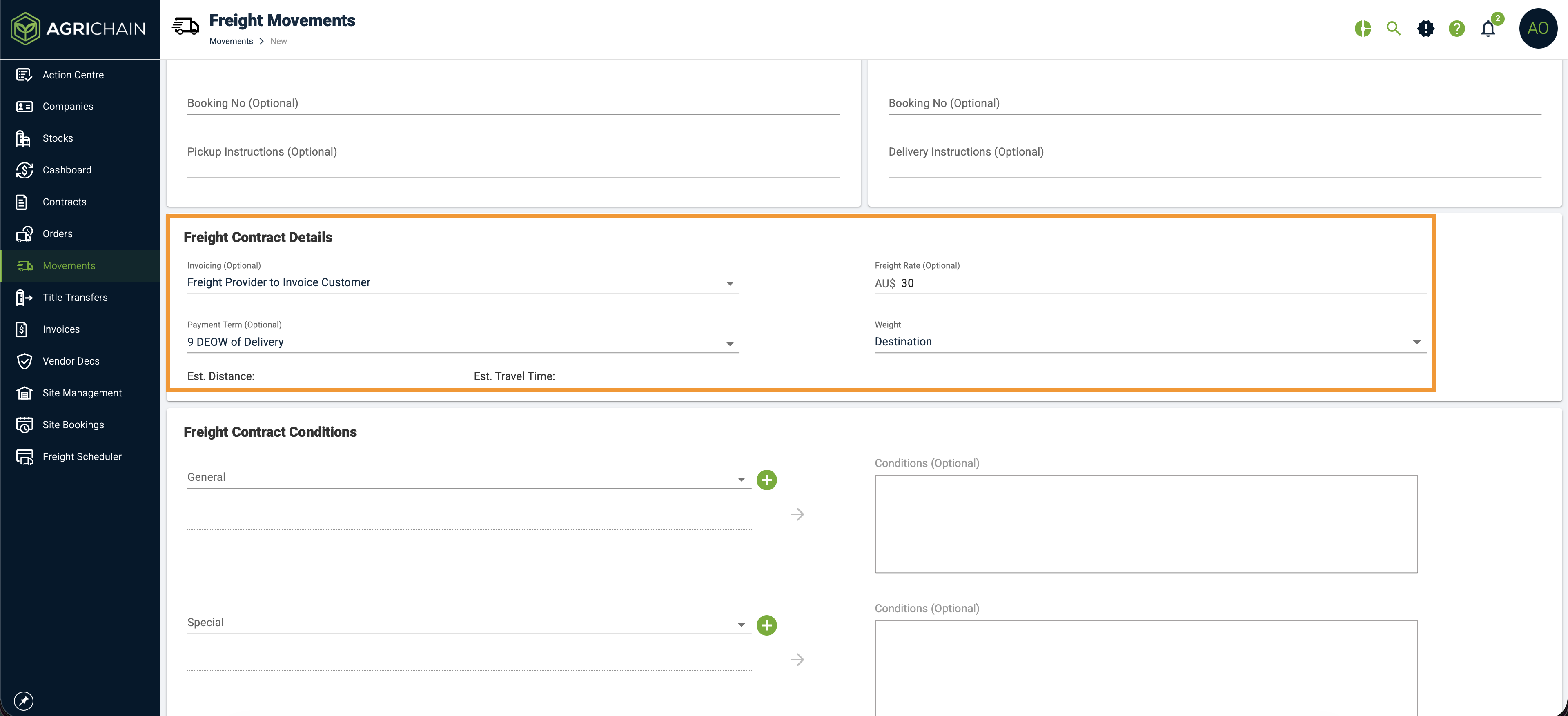
- Once completed, click on 'Continue and Review' (bottom-right corner).
- On the Movement Preview screen, cross-check all the details.
- Click on 'Submit' to proceed.
- A pop-up will appear (subject to 'Show Email Pop-up' setting being enabled for the company [Refer Article: How to Send Email?] ) with the option to email PDF copies of the movement PDF:
- Select the counterparty’s email address to send them a notification.
- (Optional) Tick the 'Acceptance Request' checkbox if you want approval from the counterparty.
- Click 'Send Now' to trigger the email or 'I’ll Do It Later' to skip
You may now head to the Invoice module to generate invoices [Refer Article].
Using the Bulk Update feature to apply a Freight Rate to existing movements.
Freight movement (a ticket) can be invoiced out for a freight job independently without the need for an order. This aims to help users efficiently manage their freight invoicing during peak periods such as harvest. Instead of adding the freight rate individually to each movement, you may use the 'Bulk Update' option and apply it appropriately [Refer Article].
- Log in to AgriChain using your credentials.
- Navigate to the Movement module from the left-hand side menu.
- In the Movement page, click on the main 3-dot 'Action' menu and select 'Bulk Update'
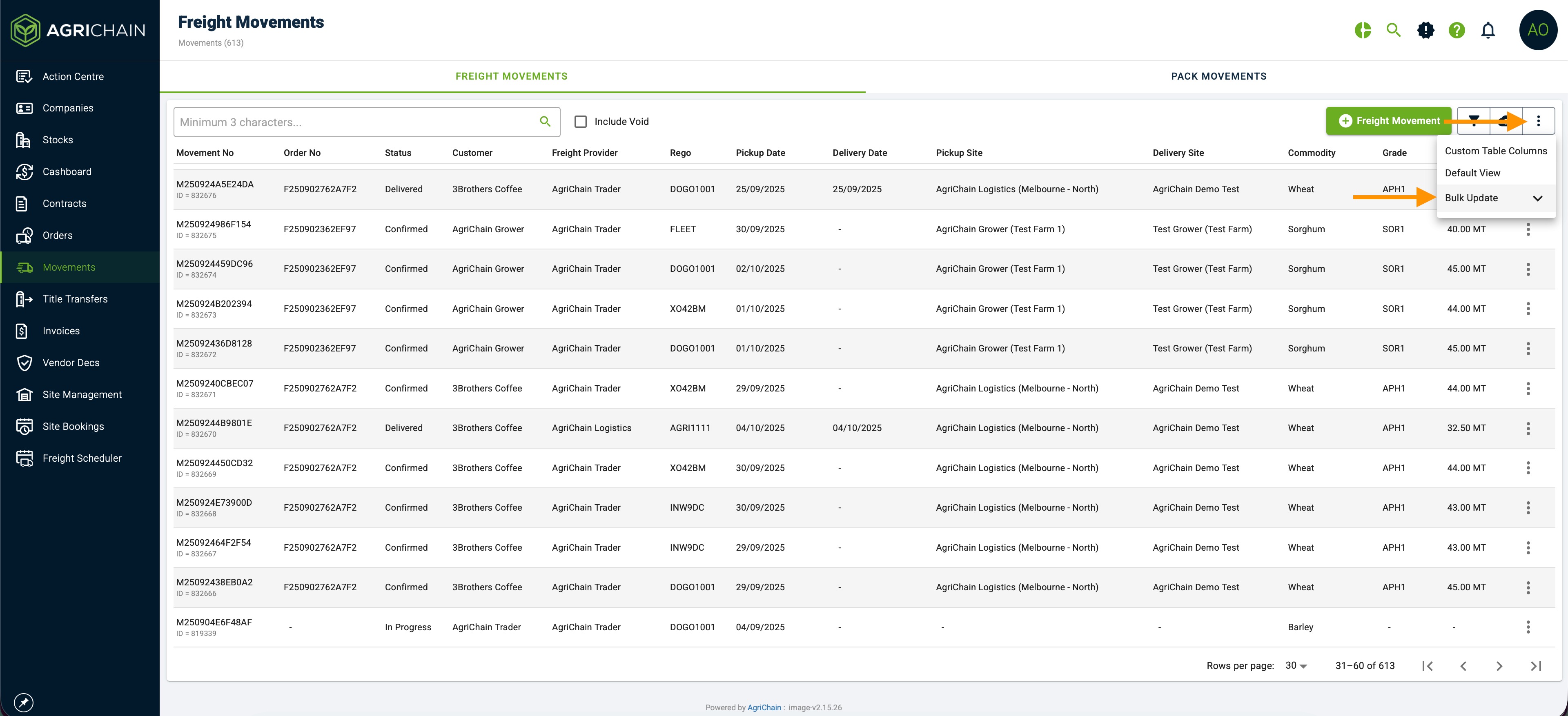
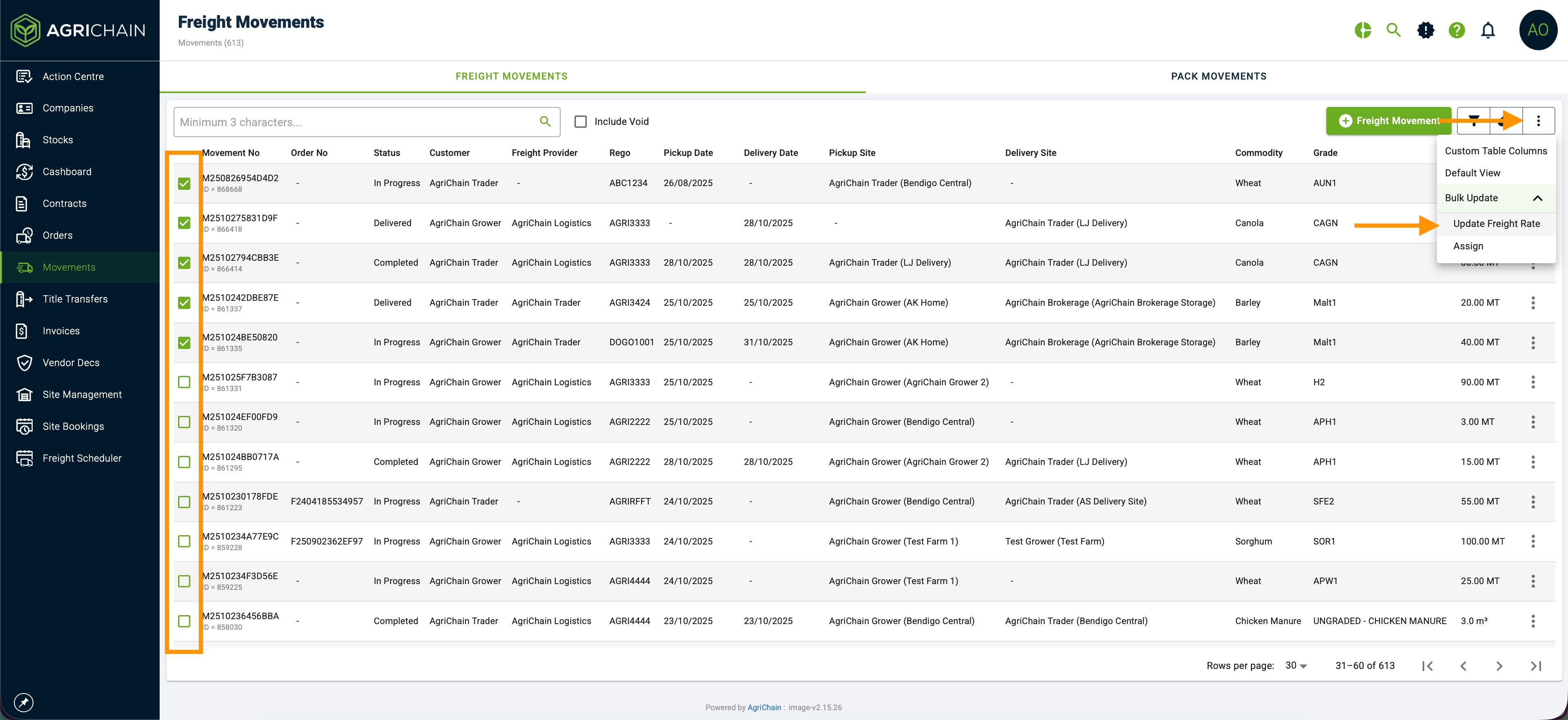
- Once you have clicked on 'Bulk Update', you will see checkboxes on the left-hand side of the table list. Please select all appropriate movements you want to update.
- To update the freight rate of your selected movements, please click on the main 3-dot 'Action' menu and select 'Update Freight Rate' and enter the freight rate.
You may now head to the Invoice module to generate invoices [Refer Article].
FAQs
Why couldn't I see some of the loads I've completed ready to be invoiced?
Please note that a movement needs to be marked as Completed before the system can consider it ready to be invoiced.
Was this article helpful?
That’s Great!
Thank you for your feedback
Sorry! We couldn't be helpful
Thank you for your feedback
Feedback sent
We appreciate your effort and will try to fix the article